
Online fax is the best way to send and receive faxes from a Mac computer
Thanks to online fax services, it’s easier than ever to send and receive faxes from any Mac computer – but some ways are better than others. We’ll show you exactly how to do it, and which fax services we love the most as Mac users.
Why Fax From A Mac?
“Can it send faxes?” might not be the first question you have when checking out that new iMac or Macbook Pro in the Apple Store, but it’s a more important question than you might think – faxing is still so common when it comes to important correspondence.
Most online fax services also offer better basic security features – like end to end encryption, which email giants such as Gmail and Outlook still don’t include as standard to all users. The better security and legal protection are things you can take full advantage of with an online fax service from your Mac.
Best-for-Mac Online Fax Services
There are several key ways you can use a Mac to send faxes online:
- By installing a fax app on your Mac
- By using a web browser to access an online fax service
- By using an email-to-fax service, using your regular email account
To help you decide which option is right for you, we tested dozens of services and narrowed them down to our top X ways to turn your Mac into a fax machine, with no additional equipment. Below, we’ll break down each option – explaining how it works, what it costs, where it shines, and where it might fall short. If you are looking for a specific “how to do it” guide, we’ve got covered here.
1. Fax App by Municorn
Fax App by Municorn is a faxing app for Mac computers and for iPhone. The highest rated faxing app on the app store, it downloads native faxing software straight to your Mac without the need to navigate a web interface, making the faxing process as easy as using any other Mac app – like Messages, or Mail.
It comes with a simple but powerful interface, a range of simple subscription options which all include truly unlimited faxing, and over 350,000 reviews on Apple’s store, with an average rating of 4.8 out of 5.
Why we love it
- Only service listed to include truly unlimited global faxing as standard – no extra charges, ever
- Best, easiest user experience from a Mac computer, and can also be used from iPhone, syncing perfectly for easy document scanning on your phone
- Top quality fax transmissions
What could be improved
- Because it’s a fax app, it doesn’t offer a fax-from-email service or web faxing – so if you also have a PC you want to fax from, or would rather use email, you’ll need to find a different method
Municorn’s Fax App is the smoothest, and most intuitive experience that exists when it comes to faxing from a Mac. Once you install it from the app store – where it enjoys being the highest rated, most popular faxing app available – you can create your fax number in a matter of seconds, choosing from any area code by name.
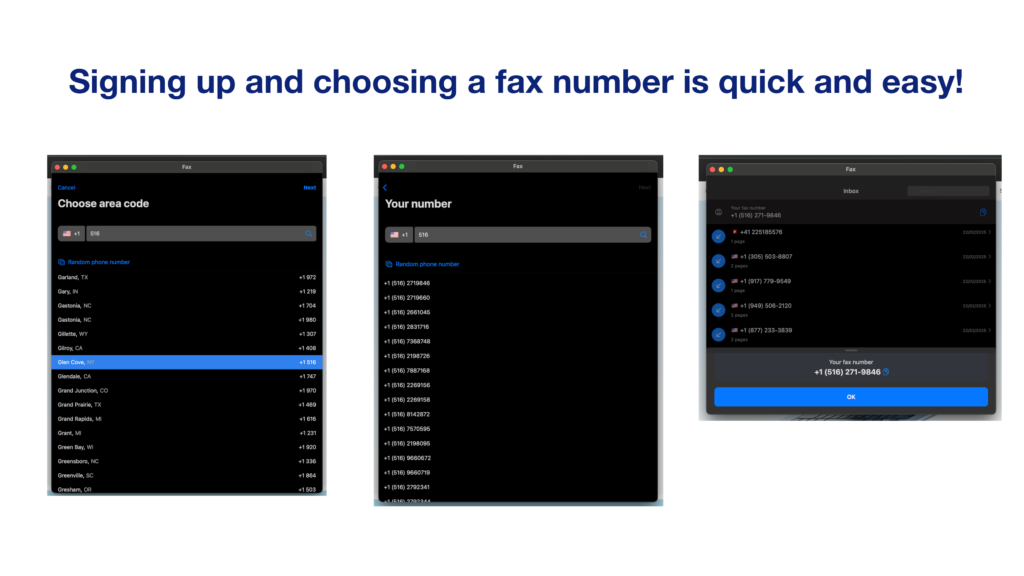
Since you can set everything up with your Apple ID, there’s no need to create a new account, confirm your email address, and then set up a new password to remember. Once you’ve chosen your fax number, you can send a fax easily by opening the app, selecting ‘new fax’ and following the instructions. There’s a helpful summary page which shows you all the details before you send – so you can review your fax pages, your recipient’s fax number, and your cover page all from one view, before hitting send.
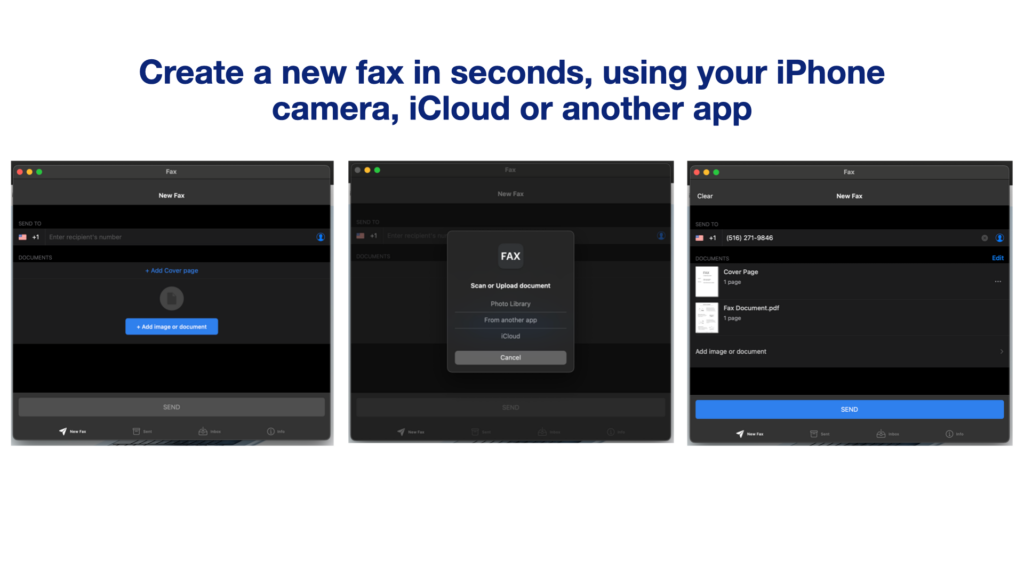
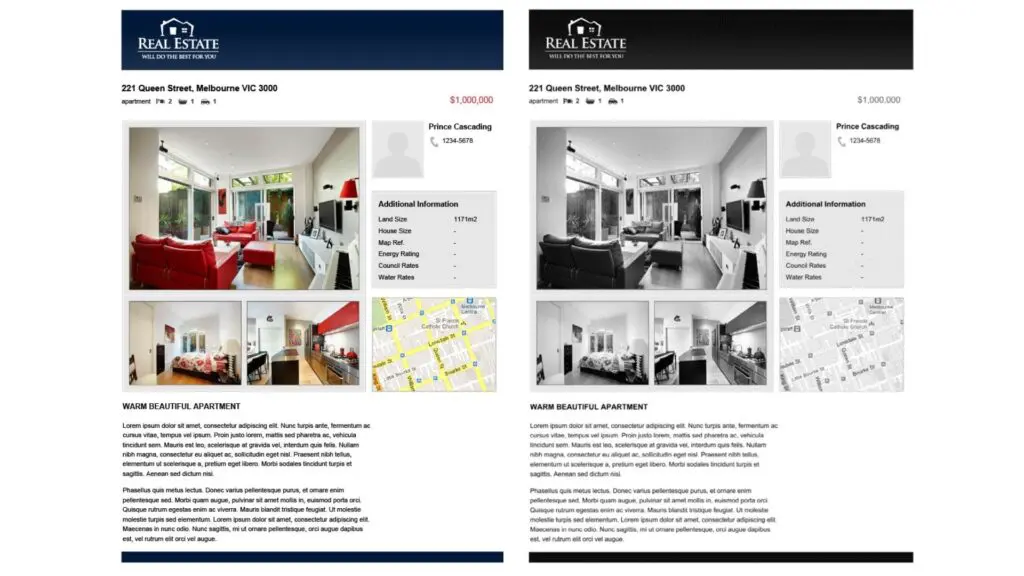
Navigating the Fax App feels instantly familiar, thanks to the Apple-friendly design, but it’s the quality of the service that also stands out. No other platform we tested could capture our brochure PDF file test in better detail, with text, images, and graphics transmitting in perfect HD quality – so if you need to send documents via fax with the best clarity, we’d recommend this service.
When it comes to value, this is also the only service that offers a truly unlimited fax plan as standard – that means international faxing included (most other services charge extra depending on where you are sending a fax), and no page limits. There are weekly, monthly, or annual plans to choose from.
The customer support is another win for Fax App – it’s the app store’s highest rated fax app for Mac for a reason – you can get in-app live chat support, and you benefit from full HIPAA compliance and end to end encryption – something your email service won’t give you.
It does, however, share all the good things about email. You can upload and attach as many files as you need to your fax, just like an email, and it will convert them into fax pages. The app keeps a log of all sent and received faxes – even backing them up for free, in case you lose your device.
Overall, if you’re looking for a way to get the most out of your hardware, and fax from Mac with minimum hassle, we’d recommend using the Fax App.
2. EveryFax
EveryFax is a web faxing and email-to-fax service, and is our favorite web faxing interface for a browser (for Mac and for mobile). If you prefer to use email or a web browser like Safari to fax from Mac, EveryFax offers one of the cleanest and simplest user experiences, with high quality faxing and more value than almost any other service.
Why we love it
- Simple and easy to use web faxing, with a sleek and well-designed user experience
- High quality support features, like live support chat, HIPAA privacy protections, and AI
- Outstanding value, covering 50+ countries with no extra charges (unlike most others on this list), and offering an unlimited faxes option at a lower cost than some other limited fax services
What could be improved
- No weekly subscription option (only monthly or annual), offering slightly less flexibility than services like Fax App
You can use EveryFax from any email app or web browser for Mac – both options are included as standard – so all you need is an internet connection to get full fax utility for your Mac.
The best thing about EveryFax is its simple and easy to navigate web faxing interface – it’s as intuitive as any app you might download, and compared to alternatives on this list such as Fax.Plus, EveryFax just feels more polished, cleaner and slicker.
For example, the little flag symbol next to the fax number to show the user what country that fax is from adds a small, but useful level of detail. The layout and colours are also slightly more ‘Windows XP’ on Fax.Plus, whereas EveryFax looks and feels more like Apple’s latest operating system.
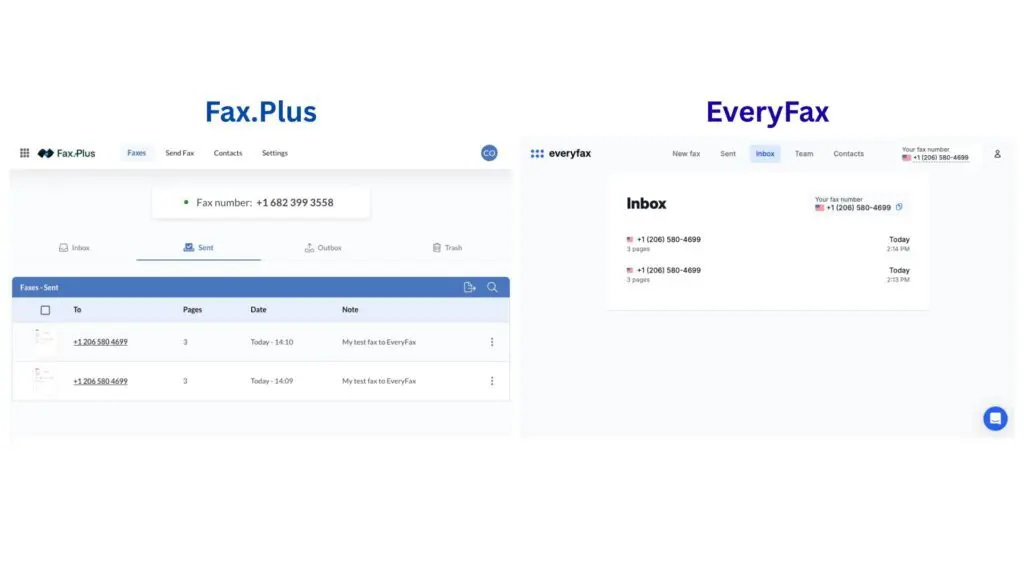
Also, notice the small speech bubble in the bottom right of the EveryFax menu – this is another extra feature, you can click that to open up a chat window, then either contact customer support or connect to an AI agent to help you – you can make a free account and try this yourself if you have any questions about faxing before you sign up for the service.
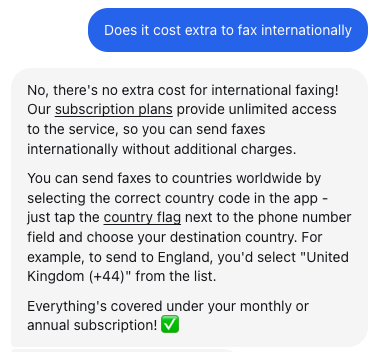
The other standout for EveryFax is value. EveryFax’s basic, lowest cost subscription does not charge you any extra for international faxes – most other faxing services charge a high premium for faxing abroad. EveryFax’s mid-range plan also includes unlimited faxing, and this is at a much lower price than other services on this list which limit users to as little as 500 pages. When it comes to your average price per page, EveryFax and the Fax App are the clear winners on this list.
EveryFax offers Team and Business plans too, in case users want faxing capabilities for their company. There is also an advanced Enterprise plan, which you can speak to the team about – this makes EveryFax a fantastic option for business users on Macs who need to stay productive even when they’re not in the office.
3. iFax
iFax is a super-smart faxing service, packed with features and providing an elite level of customer support. iFax is available for Mac users via an app, or email-to-fax (at extra cost), but to take full advantage of all that iFax provides, it’s best to use the web faxing platform.
iFax does however have a few quality concerns, as well as not quite representing as good value as other services on this list.
Why we love it
- Huge range of advanced technical features
- Outstanding customer support
- Mac users can use it over email, web or app
What could be improved
- Inconsistent quality of fax transmission
- Value – it’s expensive compared to other features
- Many basic features are locked behind higher-costing subscriptions – for example, email-to-fax is only available on the most expensive option
Having sent over 20 million faxes, iFax is a highly trusted online faxing service for Mac owners. Helpfully, iFax has a Mac app, but can also be used on a web browser or, at an extra cost, using email-to-fax. We’d recommend the web browser for the best experience, due to the number of features that can only be used via the web.
Speaking of features, iFax brings more than any other service on this list. From custom cover pages, scheduled faxes, AI support, smart templates, document annotation and signing, automation, or even a color-coded dashboard to help you manage your faxes – iFax has a fantastic range of features available which make faxing easier and more powerful.
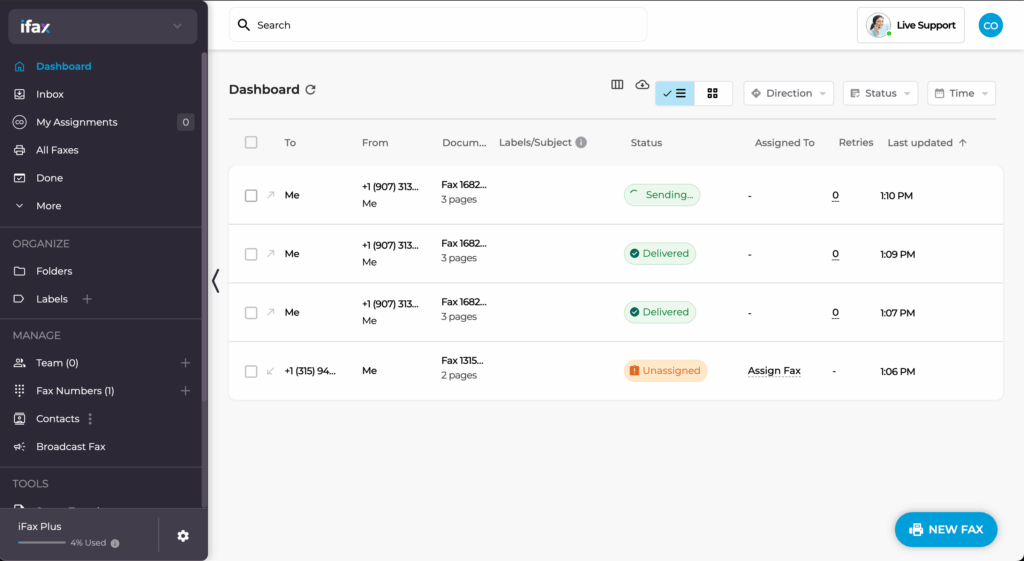
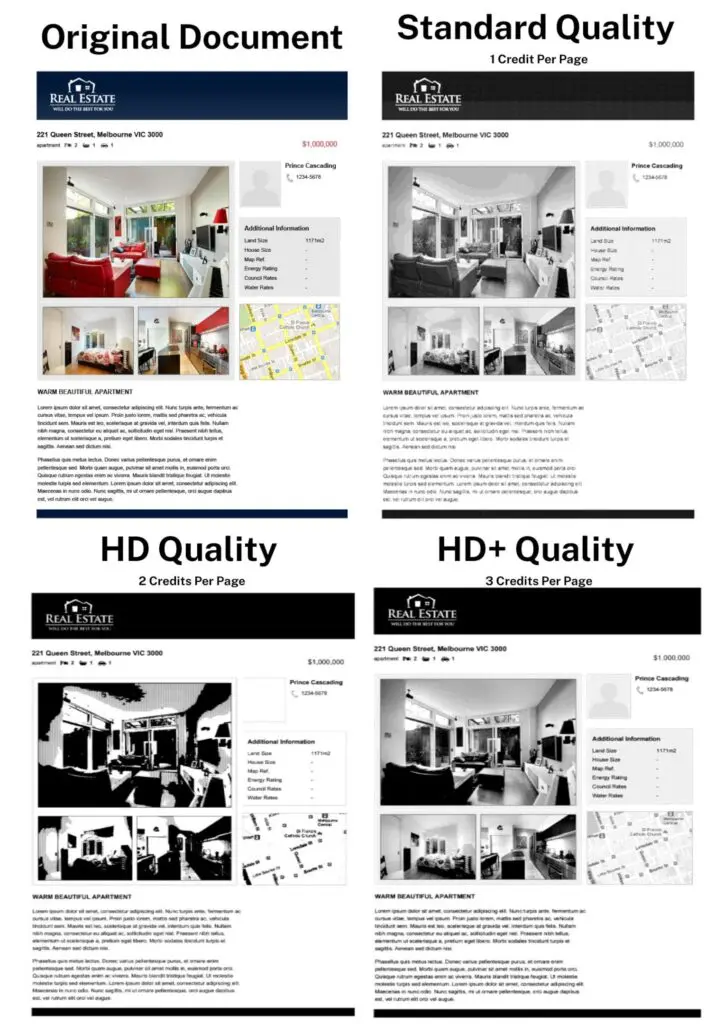
iFax does not include an unlimited faxing option, unlike the two services above, and it also has a quality system which allows users to spend more pages (you get a certain number of fax pages per month) to make a fax HD or HD+, meaning you can basically spend more to ensure a higher quality fax. However, we tested this and it didn’t work very well – HD (2 credits per page) was by far the worst option, and HD+ (3 credits per page) wasn’t as good as the standard quality of other services.
This leads to another concern over value – iFax is quite expensive. To be able to use email-to-fax, you have to get the highest cost individual subscription available – the ‘Pro’ package, which still limits your pages, for $39.99 per month. EveryFax and Fax App will give you fully unlimited worldwide faxing for a lower price than this, representing a better offer for Mac users.
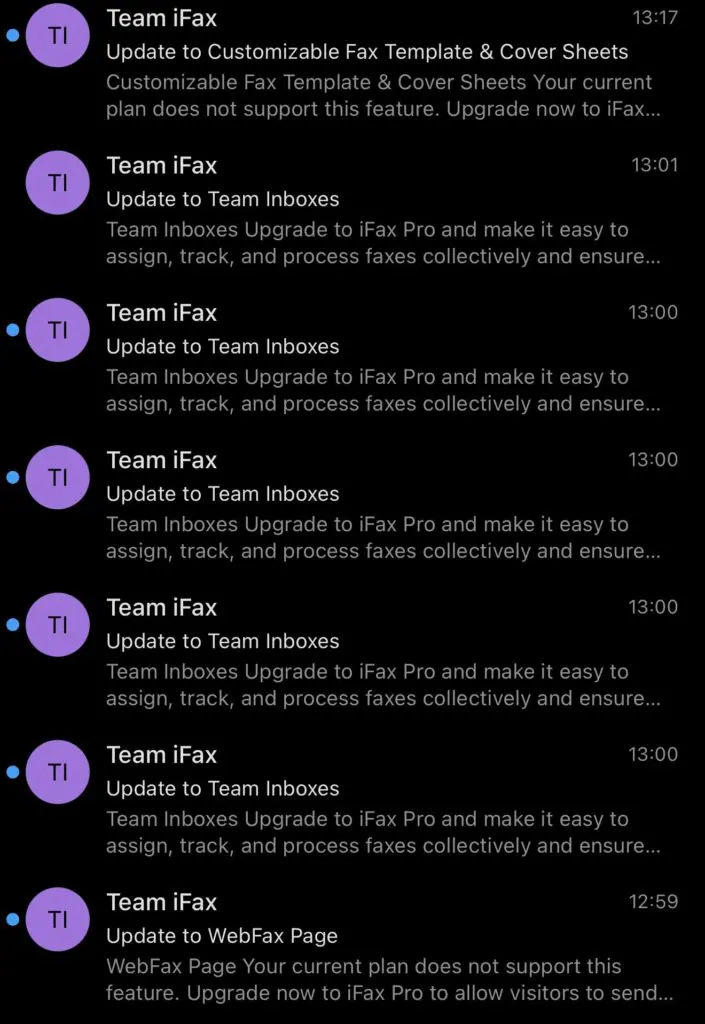
There is also a lot of upselling with iFax – the web menu shows you the full functionality of Pro, even if you’re not a Pro customer. Then, whenever you click on a ‘Pro only’ feature without realising, you get an email – every single time! This means multiple emails per minute if you’re navigating the menu – which was a negative that we experienced.
However, there’s no faulting the customer service – it is absolutely outstanding, and you get what you pay for with customer support. iFax will even offer new customers a free video call, to show them how to fully use iFax. What’s more, there is a phone line and live chat inside iFax, which regular users can access at any time. iFax is perhaps the best option on this list for customer support.
4. Fax.Plus
Fax.Plus is another service Mac users can use to send faxes via web or email-to-fax. It also comes with an app available for Mac, but it isn’t verified for MacOS, so you might experience performance issues.
Fax.Plus has a fantastic range of features and subscriptions for all types of users, with slightly better basic value than comparable services like iFax. However, some basic features are not included with the price, and so for a premium service that includes everything, you may find yourself paying more.
Why we love it
- Good range of features
- Quality of faxed documents is above average
- Good value at the lower-price end of subscription type
What could be improved
- Some basic features are locked behind extra paywalls
- Some features are pointless
Fax.Plus is a Mac-friendly web faxing and email-to-fax service – it also comes with an app that is downloadable for Mac, however it’s not verified for use on Mac, so we don’t recommend this option.
Fax.Plus has a strong range of features, second only to iFax on this list, with things like scheduled fax, cloud storage integration, specialised apps for signing and scanning documents, and an ‘optimise for image/text’ option when you send faxes (however, we tested this and found absolutely no difference in the fax).
Fax.Plus’ features offer better value than iFax in some ways – for example, email-to-fax is included in the very cheapest plan for Fax.Plus – unlike iFax. However, other features are locked behind higher paywalls – for example, even if you pay for the ‘Business’ package at almost $40 per month, it still doesn’t include the ability to sign documents, which you’ll still have to pay extra for with Sign.Plus. HIPAA compliance is also only offered on the $100 per month package, whereas other services include this on their most basic packages.
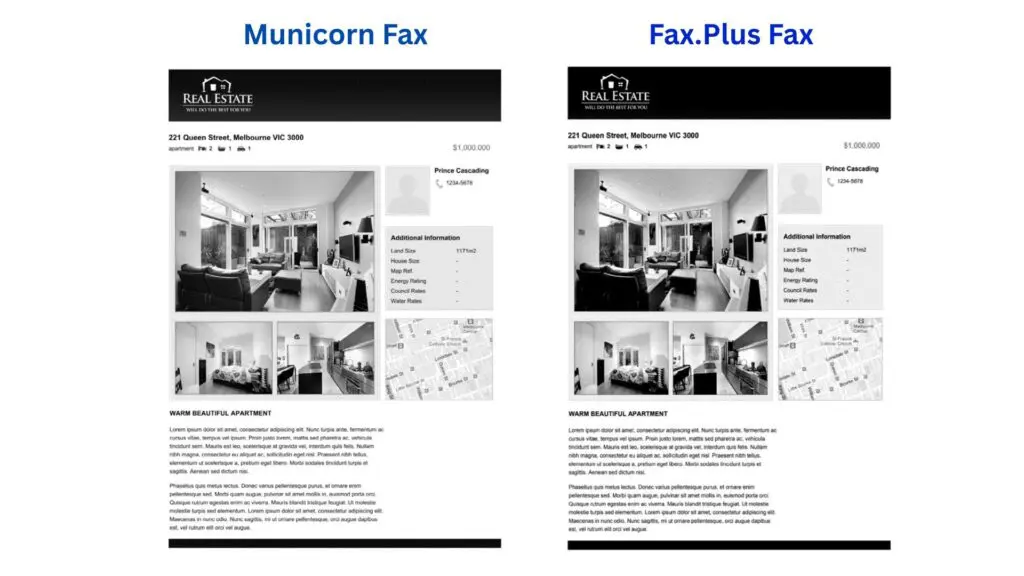
For fax quality, Fax.Plus is above average, although not quite on the level as other top apps. For example, when we compare it to Municorn’s Fax App, we can see slightly clearer image quality – the large picture has kept more light and detail, which you can see on the back of the couch and the map. However, Fax.Plus still does well against most other services.
Fax.Plus also offers a free trial, letting new users send up to 10 free faxes before purchasing a subscription. The value of Fax.Plus is generally the strongest at the lower price level – for people on a budget it’s a better choice than iFax, and it’s a great choice for Mac owners who might not want to send many faxes. However, iFax does have it beat when it comes to the more advanced features, and including more services in the price of a more expensive subscription.
5. Dropbox Fax
Dropbox Fax is perfect for Mac users already using Dropbox to store their files, offering a way to email-fax or web-fax those files from your Mac or iPhone. It’s a great budget-friendly option which comes with easy ways for editing/signing documents before faxing, all from the web portal. However, the fax quality is below average, and there are certain flaws we found such as customer support, and a lack of privacy protections such as HIPAA.
Why we love it
- Low-price for casual users who don’t fax very often
- Very easy to edit and sign documents before you send a fax
- Free trial
What could be improved
- Average fax quality
- Bad reputation for customer support
- No dedicated mobile app
Dropbox Fax (formerly HelloFax) is a built-in service for Dropbox, allowing users to send and receive faxes through their regular account at a small extra charge. For Mac users, this can be done over the web, or by using the email-to-fax option with the email address your account is registered to.
First off, the fax quality of Dropbox Fax is not as good as other services on this list – Dropbox is first and foremost a document storage service, so you wouldn’t expect the same level of quality as specialised fax services. When compared to a top service like the Fax App, you can see the difference in clarity and color shades, like on the logo below, the large photograph, or the map – the Fax App image has far more detail and quality captured.
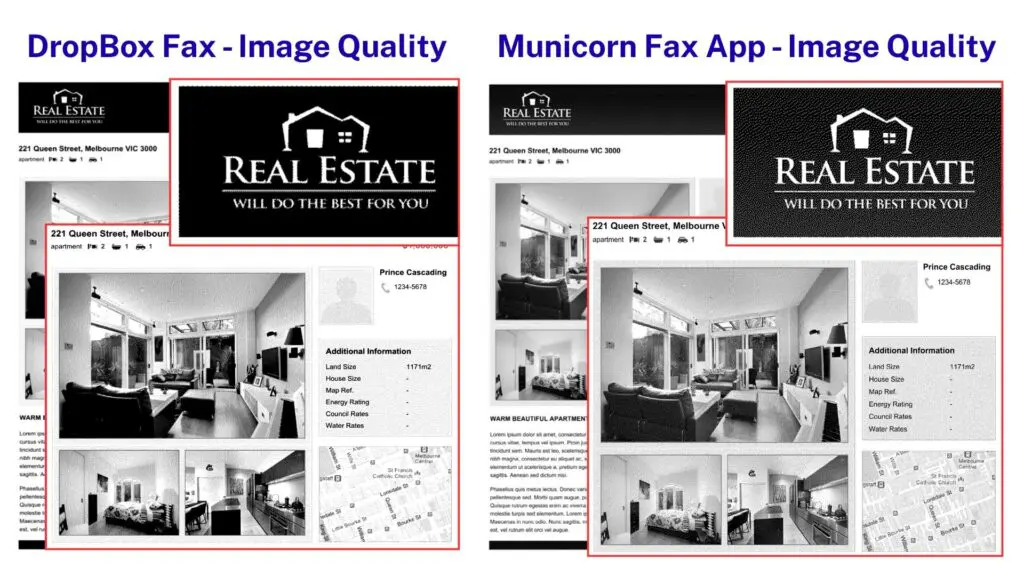
Dropbox Fax gets around this by offering to host a high-resolution color option for all faxes, whereby your fax will send your recipient details of how to access a super high-quality version of all scanned documents on the Dropbox website.
Staying on the few downsides of Dropbox Fax, there’s also a poor level of customer support – no live chat, barely any FAQs, and the only way you can contact support is through a form on their website – the TrustPilot reviews on Dropbox Fax are also very negative.
Dropbox Fax is, however, an incredibly easy service to use on web for Mac owners – particularly with the document editing and signing features, which are included on every level of subscription. The value overall is very strong compared to iFax or Fax.Plus, offering 300 pages per month at only $10 per month, with email-to-fax and document signing included. It’s one of the better deals on this list.
6. eFax
eFax makes faxing from Mac possible via web browser or email-to-fax, also offering mobile apps to iPhone and iPad users. Its sleek interface resembles Gmail and is easy to use, the fax quality is also pretty strong – eFax is behind a lot of other faxing services, such as MyFax. However, eFax doesn’t provide the best value on this list, and it’s quite bare in terms of features compared to others.
Why we love it
- Good fax quality
- Simple user interface for web faxing
- Has a ‘send large file’ option
What could be improved
- Value could be better
- Not many features
- Often logs you out on Mac
eFax is a longtime favorite online fax service for businesses and corporations, providing specialised support to the healthcare and finance industries in particular, but it also offers individual Mac users the ability to fax from the web, or emails (as well as mobile apps).
Creating an eFax account takes less than a minute from Mac (it cannot be done from the mobile app), and once you’ve signed up and chosen your fax number, you’ll be put through to an interface that looks very similar to any modern email service, like Gmail. It’s very easy and intuitive to use.
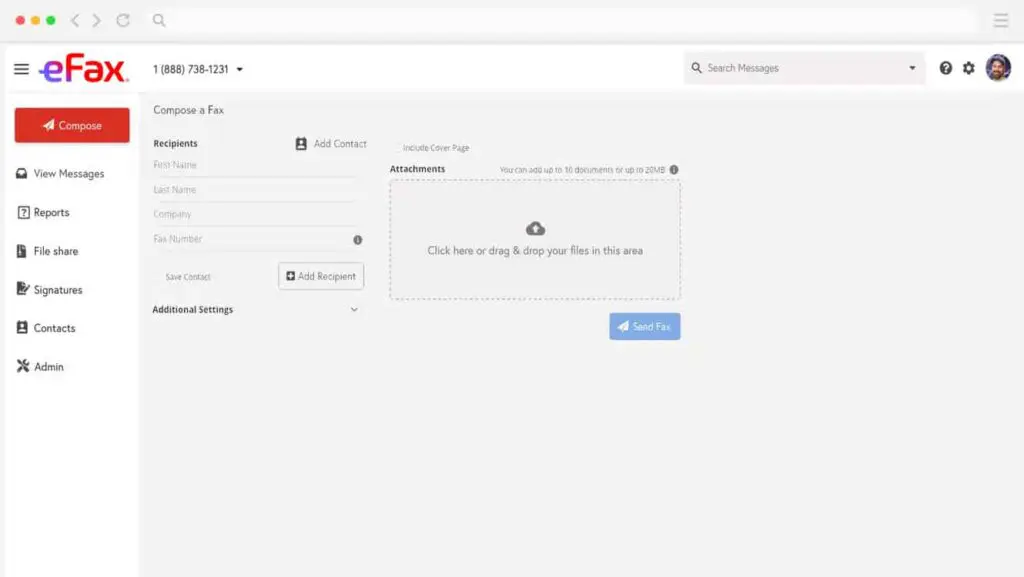
eFax also offers basic features like signatures, and contacts, and includes email-to-fax as standard, unlike services such as iFax – however, in terms of advanced functionality and customer support, iFax and Municorn’s Fax App offer much more.
eFax’s fax quality is amongst the best on this list – this is to be expected from the company behind eFax, which provides faxing services for Fortune 500 companies and also runs a number of specialist faxing apps.
The value for individual users, however, is limited – the ‘Pro’ option for eFax only includes 150 pages per month, and is more expensive than the 200 pages per month you can get using Fax.Plus, and the 300 pages you get with Dropbox Fax. Another small but noticeable issue we encountered with eFax is that it is constantly logging you out on the website – this makes using it quite difficult.
7. GotFreeFax
GotFreeFax is a completely free way to send faxes from Mac – allowing any user to send or receive a limited number of faxes each day via the GotFreeFax website. This service is the best you can get without ever spending anything – however there are downsides – the quality is poor, the number of pages are extremely limited, and it isn’t clear how secure it is for important documents.
Why we love it
- Completely free way to fax from Mac – sending and receiving
- Simple and easy website
- Offers unbranded cover pages
What could be improved
- Quality is much worse than paid faxing services
- Received faxes are public and not secure
- Supports limited number of file formats
GotFreeFax is a website Mac users can visit to send free faxes (or receive them), with no strings attached. Anybody can send two free faxes per day, with three pages per fax – but only to fax numbers in the US or Canada. The service is free and supported by ads. Faxes can also be received via this page – you will need to know the sender’s fax number in order to view that specific fax, but they are all listed publicly.
Navigating the website is fairly easy and straightforward from Mac – simply input the information about the sender and receiver, upload and attach the files you’re faxing, and then hit send.
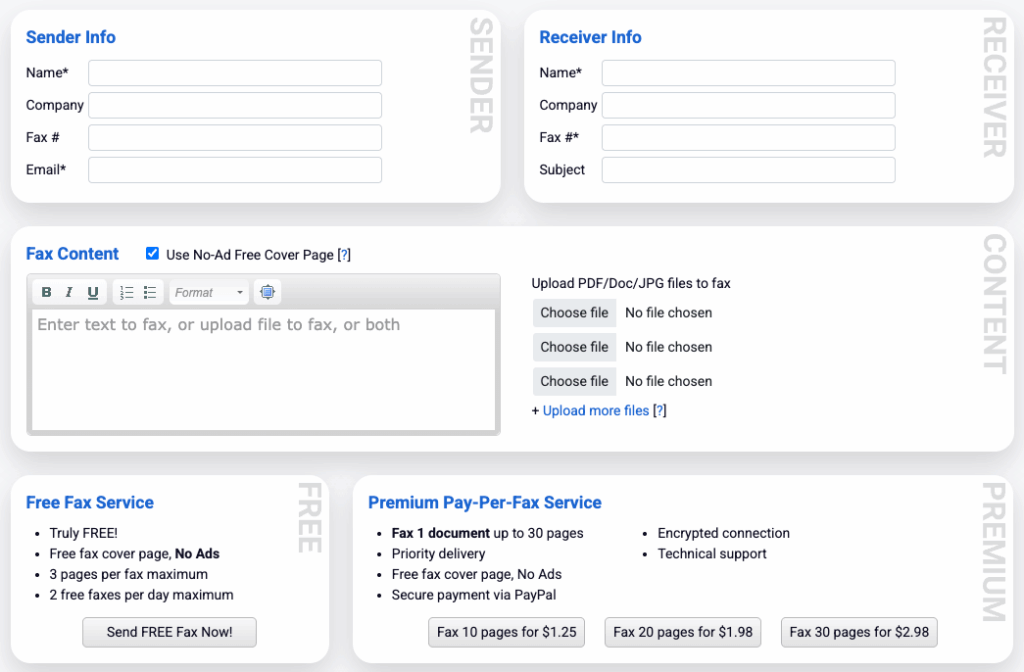
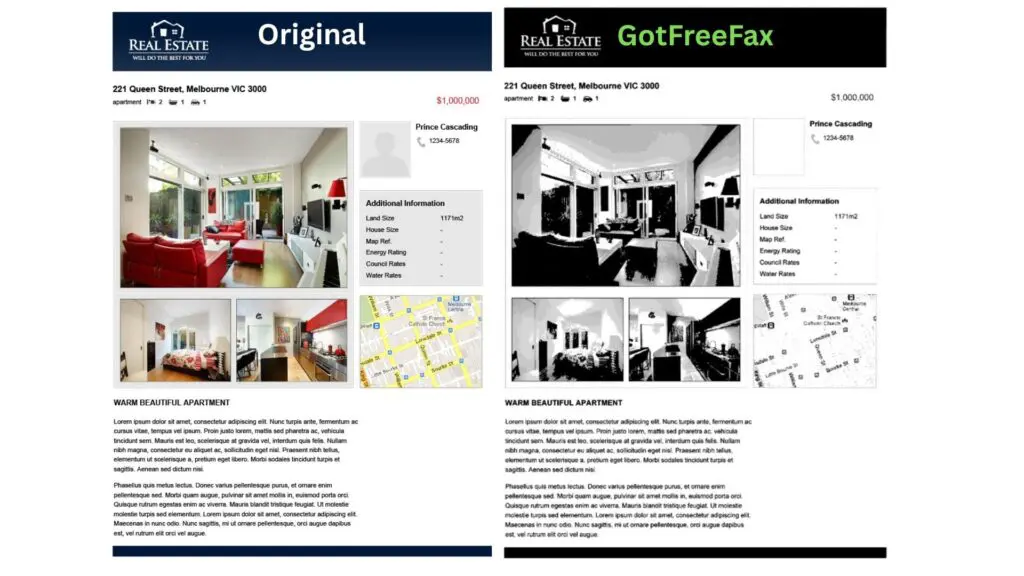
GotFreeFax is hard to criticise, because it is completely free, however there are obvious downsides to using a free service. First of all, the fax quality is much worse – which can be seen in our test fax below. Much of the detail and clarity in the image has been lost, the map is unreadable, and the person icon next to the phone number has completely disappeared. This is not a service to use if you want to send clear, detailed documents.
There are also obvious downsides in file limits – many faxes are much longer than 3 pages, but you will have to pay in order to send these with GotFreeFax. The paid service does not improve in quality, therefore if you are sending longer faxes, or faxing more regularly than twice in a day, it more than pays off to choose a different paid service instead.
The Best Ways To Fax From Mac
We’ve looked at 7 of the best ways to send a fax from Mac – including using apps, using a web browser, using emails, and even without spending a penny! We hope Mac users everywhere can find this guide helpful, and understand that faxing is very easy and accessible from any type of Mac computer.