Quick answer: For most Windows users, EveryFax is the best all-round pick — unlimited faxing, HIPAA-compliant, international included, and the cleanest browser interface. Fax.Plus and Dropbox Fax are solid cheaper options, iFax is best for businesses or if you want a dedicated Windows app, and GotFreeFax is the only truly free option (with big limits). If you already own a fax-capable printer or have a phone line, Windows Fax and Scan costs nothing.
If you’re on a Windows PC and ready to pick a fax service, this is the page for you. We’ve reviewed 8 services that work on Windows — six modern online fax providers (Fax.Plus, EveryFax, Dropbox Fax, iFax, GeniusFax, GotFreeFax), plus the two Windows-native options (faxing through a multifunction printer and Windows Fax and Scan). Each entry covers price, features, fax quality, and the specific Windows setup steps you’ll go through to get started.
If you’re earlier in the journey and want a platform-agnostic look at the methods themselves — email-to-fax, online services, mobile apps, Mac options — our how to fax from a computer guide covers that. This page is for readers who already know they want an online fax service on Windows and need to decide which one.
Why Fax From a Windows PC?
Faxing is still the gold standard for sending sensitive documents — encrypted by default on most modern services, legally accepted in healthcare, finance, and legal workflows where e-signatures aren’t, and required by HIPAA-regulated industries. The full case for faxing over email and digital signatures is covered on our how to fax from a computer guide. The short version: if you handle anything sensitive, faxing remains the most defensible channel, and any modern Windows PC can do it without ever touching a fax machine.
What This Review Covers
The 8 services below are ranked roughly by overall value for the typical Windows user, but the right pick depends on your specific situation — page volume, budget, whether you need HIPAA compliance, and whether you fax often enough to justify a subscription. Use the comparison table to narrow the field, then read the individual reviews for the services that match.
| Service | Starting price | Pages / mo | Windows app | Email-to-fax | HIPAA | Free trial |
|---|---|---|---|---|---|---|
| Fax.Plus | Low-cost Basic plan | 200 | Web + email | Included from Basic | $100/mo plan only | 10 free pages |
| EveryFax | Basic plan, low-cost | Unlimited (paid plan) | Web + email | Yes, included | Yes | Yes |
| Dropbox Fax | $10/mo | 300 | Web + email | Yes, included | Not specified | 5 free faxes |
| iFax | From standard plan | Varies by plan | Microsoft Store app + web | Only on $40/mo plan | Strong certifications | Not specified |
| GeniusFax | $1 / credit | Pay-as-you-go | Web only | No | Not specified | No |
| GotFreeFax | Free | 2 faxes/day, 3 pages each | Web only | No | Not secure | Free always |
| Multifunction printer | Hardware + phone line | Unlimited | Print-to-fax driver | No | Yes (phone line) | — |
| Windows Fax and Scan | Free (built in) | Unlimited | Native | No | Yes (phone line) | — |
1. Fax.Plus
Headlines
- Good web browser faxing experience
- Better value than other services for low-cost faxing
- Above average fax quality
Windows setup
Fax.Plus runs entirely in your browser — sign up at fax.plus, choose a fax number, and you’re ready to send. To enable email-to-fax, add your sending email address to your Fax.Plus account settings, then send to [email protected] from any Windows email client (Outlook, the Windows Mail app, Gmail in browser, or anything else).
Fax.Plus is a Windows-friendly web faxing and email-to-fax service which also offers mobile app support, meaning it can be used on almost any computer or mobile device. Fax.Plus offers advanced features such as scheduled faxes, the ability to optimise a fax for either text or image quality, and special apps for signing and scanning documents (which can cost extra).
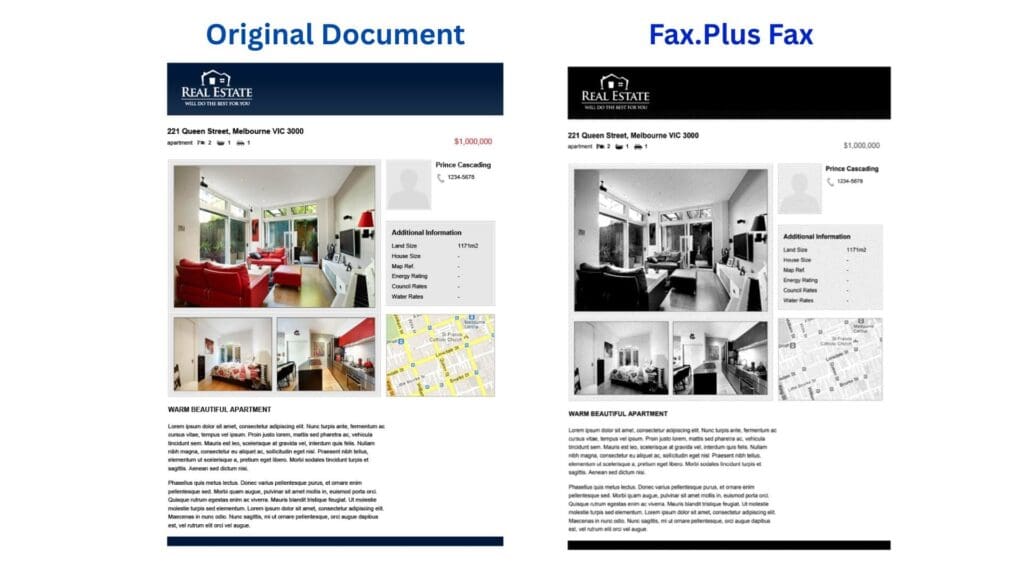
The fax quality is above average — whilst not quite on the level of services such as EveryFax, Fax.Plus produces clear, sharp and readable fax transmissions, even for more complicated documents that contain a mix of images and text.
In terms of value, Fax.Plus provides good value to basic fax users in particular, offering a ‘Basic’ plan which is low-cost and covers 200 fax pages per month, and then a range of higher plans which offer more pages and features. All ways of faxing, including email to fax, are included from the Basic plan onwards, unlike other services such as iFax, where email access costs more.
Fax.Plus also offers a free trial of up to 10 completely free faxes (capped at 10 free pages), meaning users can fax for free before signing up to a paid plan.
Value-wise, Fax.Plus does hold some things back which may cost extra, however. For example, many services, such as Dropbox Fax, include document signing in the price. With Fax.Plus however, you need to pay extra to use Sign.Plus, their document signing service. Fax.Plus also won’t guarantee HIPAA compliance unless you’re using the $100 per month plan, their most expensive. Our full Fax.Plus review is here.
2. EveryFax
Headlines
- Most comfortable web browser faxing experience
- High quality support, featuring live chat with customer support, HIPAA compliant privacy, AI services
- Outstanding fax quality
- Fantastic value, covering over 50 countries with no extra charge (unlike most other fax services on this list), and the only service on this list offering unlimited faxing — no page limits!
Windows setup
Sign up at everyfax.com, pick a fax number, and you can send via the browser straight away — no install required. For email-to-fax, configure your Outlook or Windows Mail account by adding your verified sending address in EveryFax settings; outgoing faxes are then sent to [email protected] from your normal inbox. Signing up takes less than a minute.
EveryFax is an online fax service best used from any internet browser, but can also be used from your email account with email-to-fax or fax-to-email. The best things about EveryFax are the hassle-free web faxing experience, the customer support, and the value, which make it our top overall recommendation for faxing from PC.
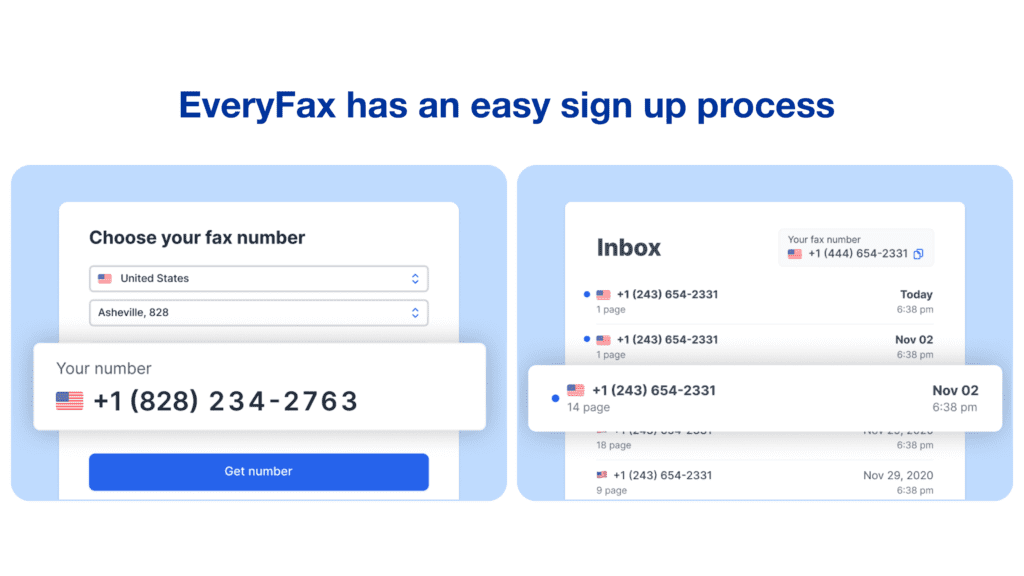
One of the best things about EveryFax is the user experience on the web browser. Creating a new fax, viewing your inbox, downloading documents or contacting support is all incredibly simple, and can all be done in just a click. You can also integrate it with cloud storage services for faster document download/upload.
Compare EveryFax below to Fax.Plus, another leading web fax provider — both are top services from a user experience perspective, but EveryFax is overall a simpler and cleaner design, with helpful little touches like showing the fax number in the proper format — e.g. +1 (234) 567-8901 — and also by showing a little flag of the country each fax number is based in.
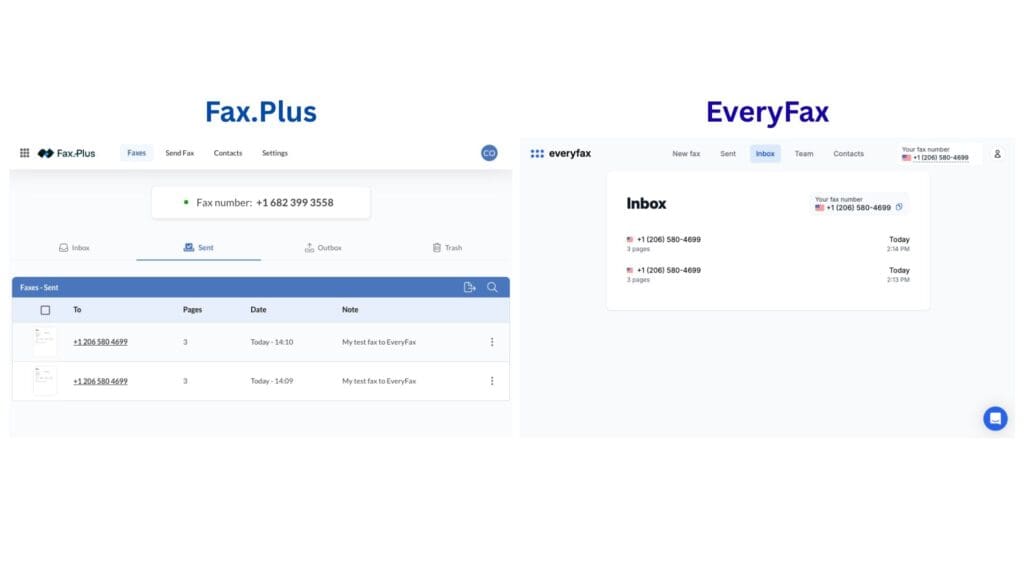
There’s also a speech bubble in the bottom-right of EveryFax’s menu — this is their live chat support — you can ask any question you like!
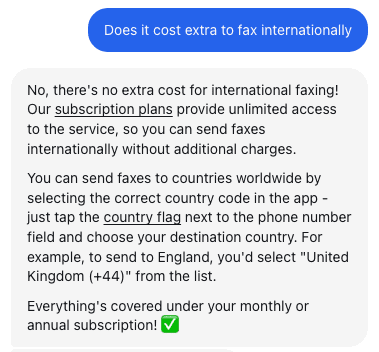
Speaking of faxing internationally, EveryFax includes this at no extra cost — this is incredibly rare for an online fax service, most of which charge significant extra fees to send faxes to other countries. Value-wise, EveryFax also offers a very basic plan for people who might not fax too often, but also an unlimited faxing paid plan at only a slightly higher price, offering the best value per page of all services in this guide.
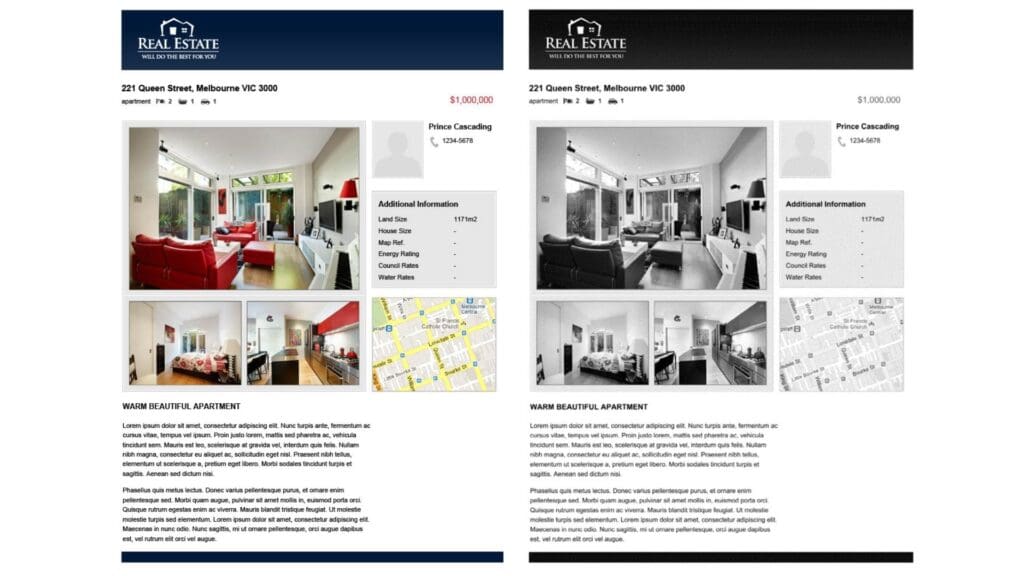
This brings us to fax quality — EveryFax provides top tier fax quality, even with complicated documents containing text, images, and graphics — many fax services fail to capture the image quality you can see below, but EveryFax has done an outstanding job of preserving the detail in the pictures, the map, and the shading.
EveryFax also supports highly regulated industries, offering small businesses and large corporate plans for anybody who needs to fax with their company.
3. Dropbox Fax
Headlines
- Low-price extension for Dropbox to fax your files
- Good signing and editing tools
- Free trial
Windows setup
If you already have the Dropbox desktop app installed on your Windows PC, Dropbox Fax adds on top of that account — log in at fax.dropbox.com with the same credentials, add the Fax subscription, and any documents already in your Dropbox folder are immediately available to fax. New users can install the Dropbox app from dropbox.com and follow the same flow.
Dropbox Fax (formerly HelloFax) is a built-in Dropbox service which allows users to send and receive faxes through their Dropbox accounts at an extra charge to their regular plan. Like the previous two services on this list, this can be done via web browser or email to fax, but the web platform allows full use of all the features on offer.
Dropbox Fax is a good deal for budget users — you can create a free account and begin a free online trial, sending 5 free faxes. Following this, it starts at $10 per month for 300 pages per month — this comes in at slightly better value than Fax.Plus, which at a similar price only offers 200 pages, and much cheaper (and with more features) than iFax’s basic 200-page plan at $15.
Dropbox Fax also offers good value for corporate customers, with a range of enterprise packages from $70 to $750+ per month which support all sized businesses.
The built-in signing and editing features are very handy, and are covered in the basic price, unlike Fax.Plus. You can easily and quickly make a number of helpful edits or electronic signatures before faxing a document.
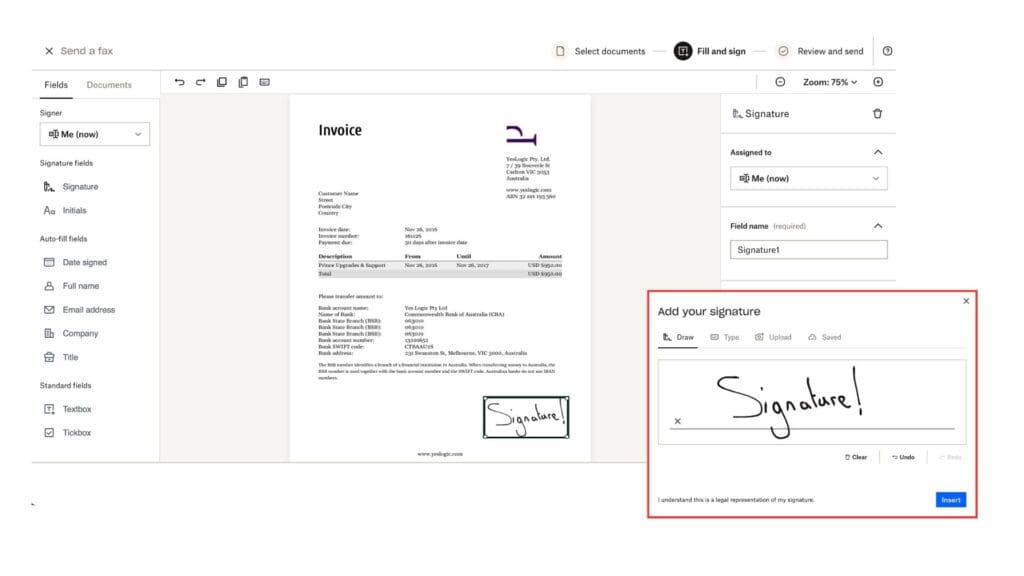
Overall, the user interface is very simple and easy to use, with a helpful color-coded menu and an unmissable ‘send faxes’ button to create a new fax. Another differentiating factor for Dropbox Fax is that you can save drafts and come back to them later — something other services such as Fax.Plus do not allow users to do.
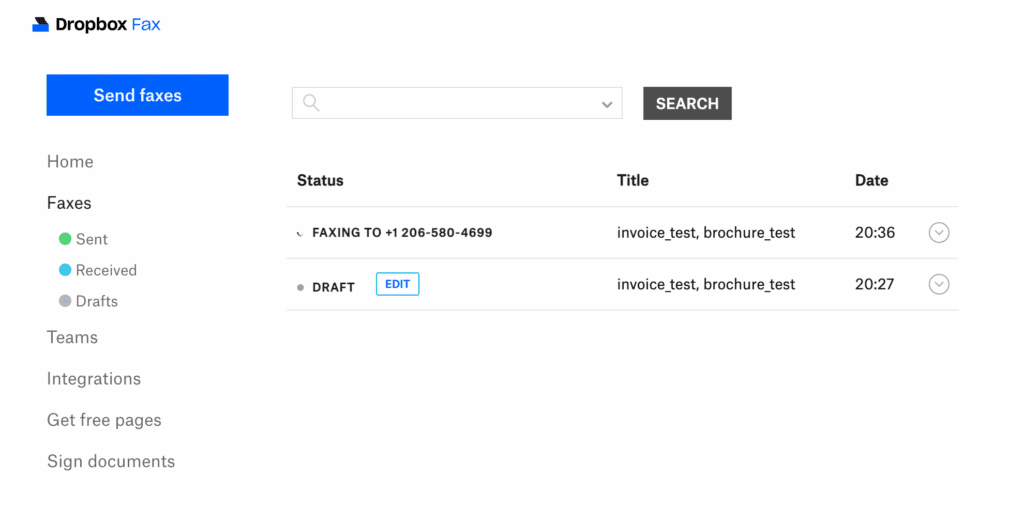
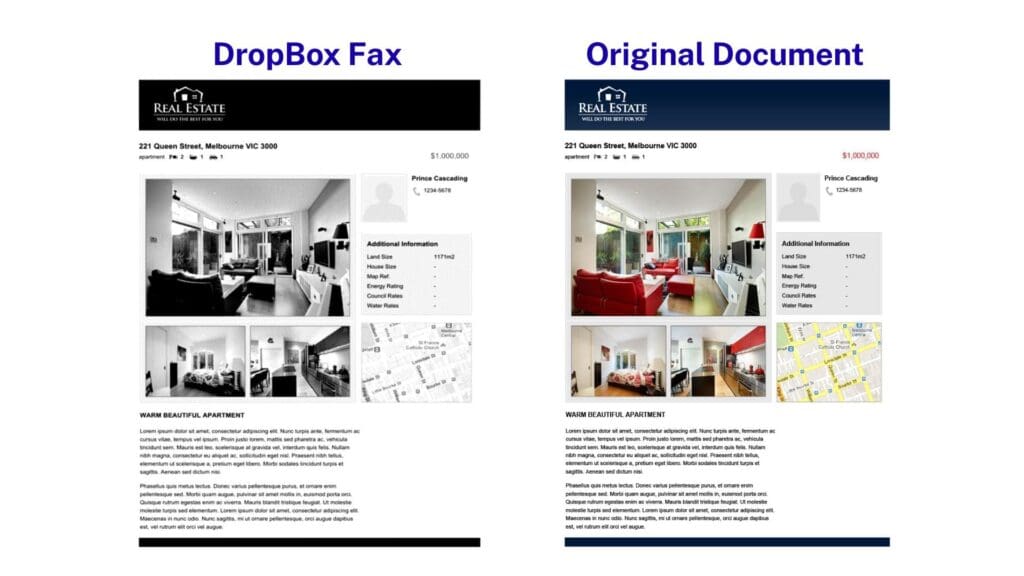
Overall, Dropbox Fax is a fantastic service, but does have a few drawbacks — firstly, the fax quality is slightly below average compared to other paid fax services on this list. The image and graphical quality in particular doesn’t come through as well as it does with EveryFax or Fax.Plus. Dropbox Fax gets around this by offering to host a high-resolution color option for all faxes, whereby your fax will send your recipient details of how to access a super high-quality version of all scanned documents on the Dropbox website.
Furthermore, there’s also a poor level of customer support — no live chat, barely any FAQs, and the only way you can contact support is through a form on their website — the TrustPilot reviews on Dropbox Fax are also very negative. This can make sending sensitive faxes a more stressful experience, since you want to know you’ve got help on hand in case anything goes wrong. Our full Dropbox Fax review is here.
4. iFax
Headlines
- Advanced technical features
- Industry-leading customer support
- Quite expensive
Windows setup
iFax is the only service on this list with a dedicated Windows app — open the Microsoft Store, search for “iFax,” and install. Sign in (or sign up) on first launch, and the app behaves like a native Windows application with full inbox, send, and dashboard features. Web access at ifaxapp.com works alongside the app, and email-to-fax is available on the higher-tier plan.
iFax, as the name might suggest, was originally an iPhone app which has since become a leading service on multiple platforms — available to PC owners via a Windows app on the Microsoft store, email, or by using the iFax website.
iFax is packed with super smart features, with a strong range of custom cover pages, document annotation/signing, AI support, a smart dashboard, live support, approval flows for teams, smart templates for regular faxing, and even advanced reports. If you’re super serious about faxing and don’t mind spending more, iFax is a great choice.
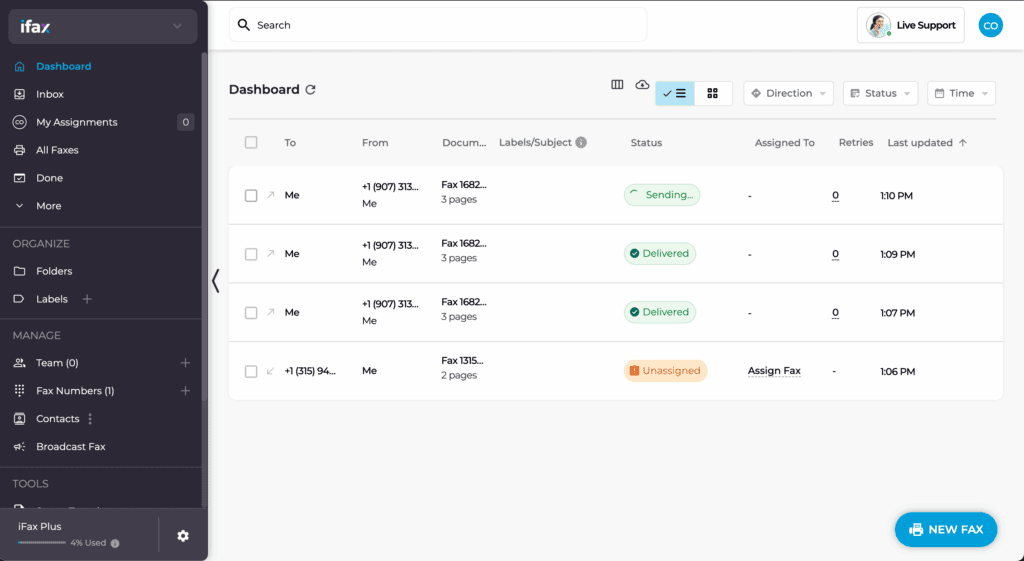
The customer support and customer data security is industry-leading, with every security certification you can think of, and live customer support chat at any time — you can even schedule a 1:1 video call with their team when you sign up, to show you how to use iFax properly.
That said, there are a few downsides to iFax — the first being the high price. Most other services on this list will give you more, for less. iFax also doesn’t include basic features such as email-to-fax on standard plans — you have to subscribe to the highest price individual plan, at $40 per month, to be able to fax by email — most other services include this as standard under every basic plan. iFax has a tendency to block features in this way, and upsell customers into choosing a more expensive plan, which can become frustrating if you don’t want to pay that much.
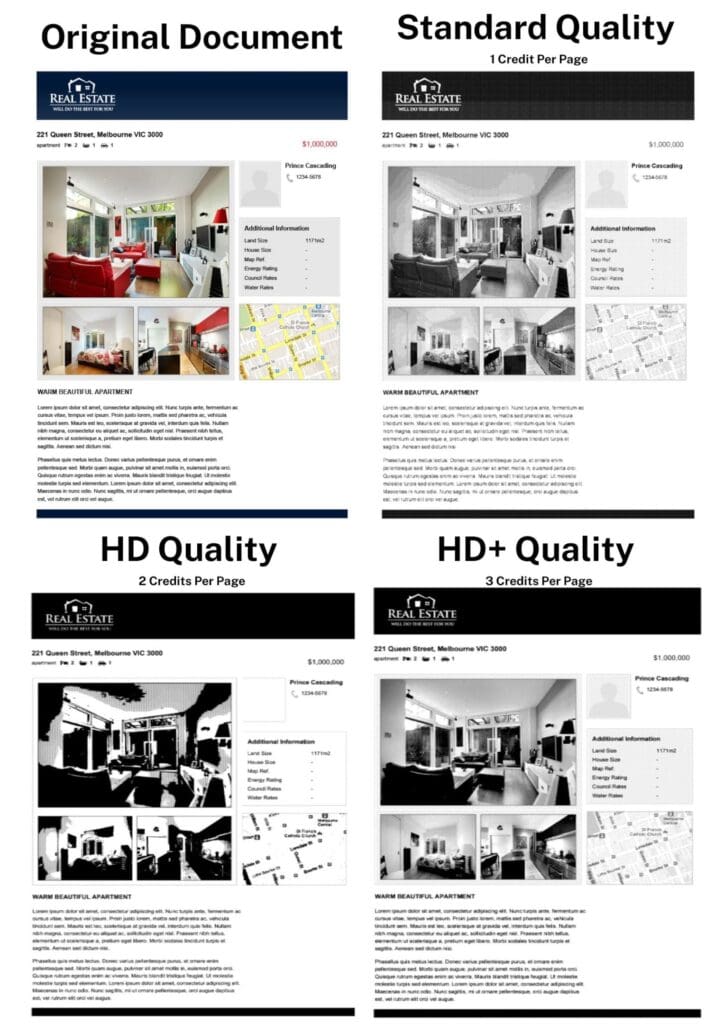
Furthermore, the fax quality is not perfect, and operates on a system where you can pay more ‘credits’ (or pages) for a higher quality fax. We tried each option below, and found inconsistent quality between the various options, which can result in confusion for customers. Full ifax review is here.
5. GeniusFax
Headlines
- Flexible pricing model that works for occasional faxers
- No hidden charges or extra fees for international faxes
- Average-bad quality
Windows setup
Navigate to geniusfax.com to create an account and send faxes from your Windows browser. There’s no Windows-native app — the service is web-only on PC. Buy credits in the dashboard, attach your document, enter the recipient’s fax number, and send.
GeniusFax is a mobile-first fax service with a particularly good scanning app to go with it — but for Windows users it’s also accessible as a basic, low-price way to fax, with the most flexibility for people who don’t fax very often.
The user experience is basic, but very easy to follow. Whilst it doesn’t have the high level of functionality that EveryFax or iFax offers, you can see all your sent and received faxes in one easy menu, as well as your fax credits, and your current fax plan.
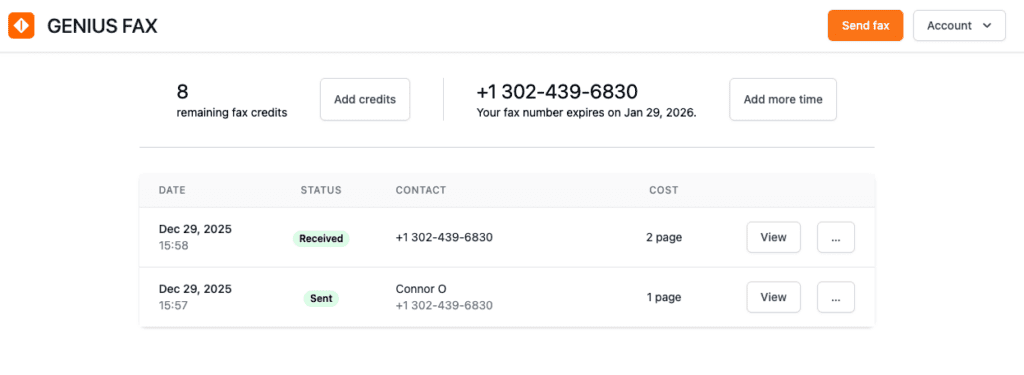
GeniusFax’s pricing plan is slightly more complicated than others on this list — because users must pay to send faxes differently to how they receive faxes. To send or receive a fax, credits can be purchased — these credits last forever and one credit is required to send or receive one fax page — whether it’s a local or international fax. Prices start at $1 per credit, but they get much cheaper if you buy more at a time.
To receive faxes, users can then sign up to claim a fax number for a certain amount of time — this starts at $4 per month, but the value improves if you sign up for a longer time period, for example — 2 years is $70.
Whilst this is a more confusing and possibly an overcomplicated model for pricing, for people who very rarely send faxes it could be better value in the long term. However, if you ever find yourself needing to fax more, then other services are definitely better value.
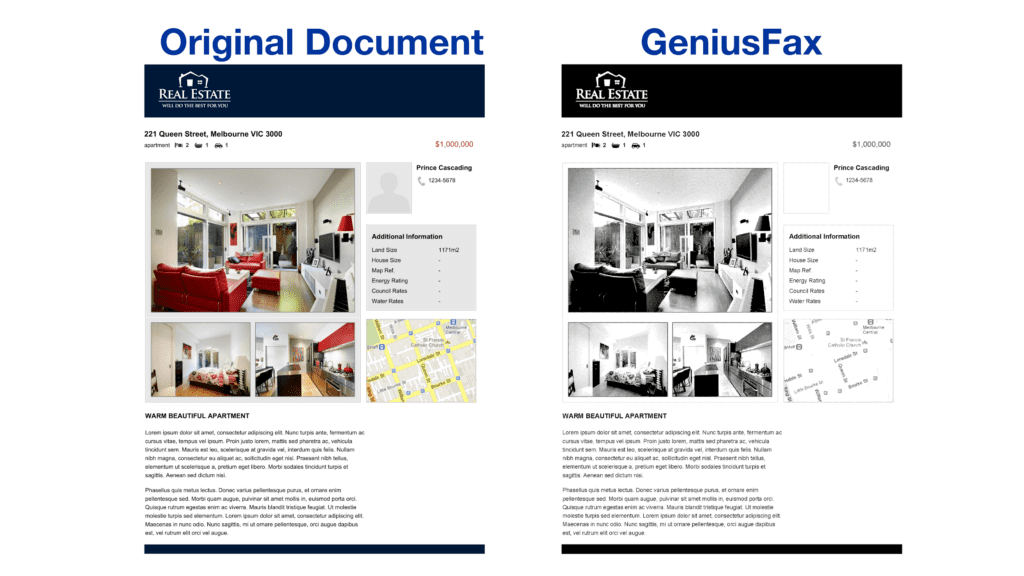
Apart from the lack of features, the main downside for GeniusFax is the fax quality — in our test, lots of detail was lost in the map, in the person icon, and the images are quite distorted and badly transmitted. GeniusFax is recommended more for text-only documents.
6. GotFreeFax
Headlines
- Completely free online fax service to send and receive faxes online
- Simple and easy to use website
- Poor quality and insecure customer data
Windows setup
No setup at all — gotfreefax.com is web-only and doesn’t require an account to send. Open the site in any Windows browser, fill in sender and recipient details, attach your document, and send. Receiving faxes does require a one-time registration.
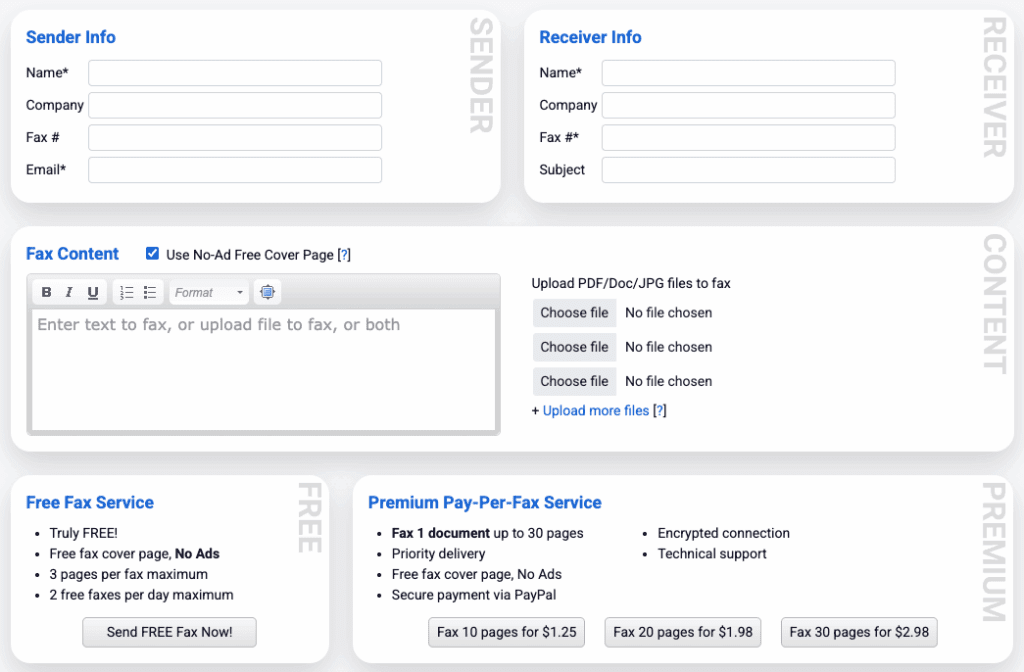
GotFreeFax is a free, no-strings-attached service accessible via web browser, which allows users to send a maximum of two free faxes per day, with a limit of three pages per fax — only to fax numbers in the US and Canada. A complimentary cover page is included, which helpfully is unbranded and professional-looking.
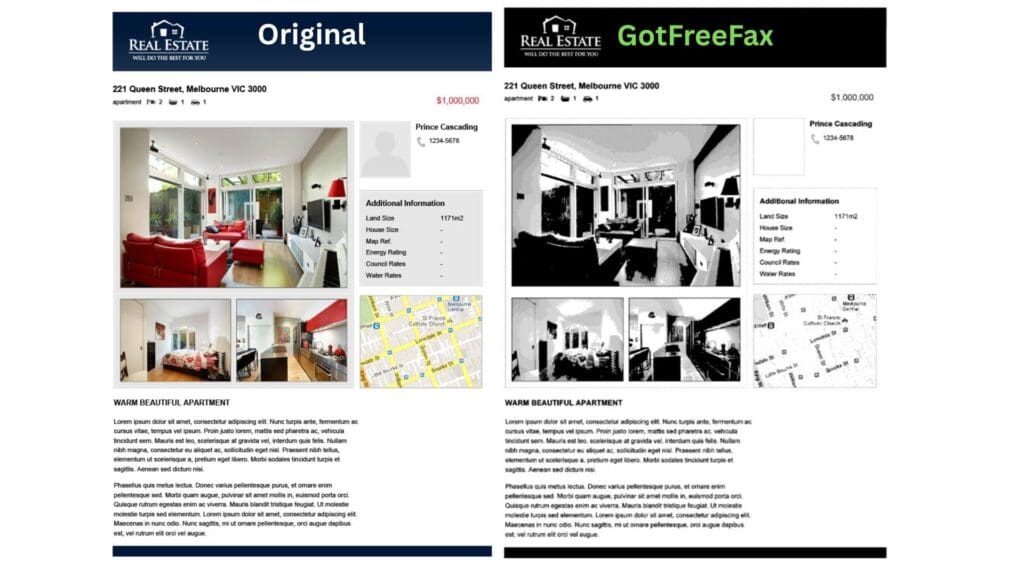
It’s difficult to criticise a totally free service, however there are some obvious limitations to GotFreeFax compared to the rest of this list. Firstly, the fax quality is considerably worse — below is an example of how unclear and distorted documents, and images in particular, can be in the final fax transmission.
Furthermore, the page limitations are severe — at only 3 pages per fax and 2 faxes per day, this service is not an option for anybody who may be sending multiple pages in longer faxes, which is usually the case for important things. What’s more — this service should not be recommended for important documents or sensitive faxes, since it’s unclear on the GotFreeFax website how secure this service is — we can assume that a free service isn’t operating under the highest security standards.
You can receive faxes too with GotFreeFax, but again, received faxes are publicly listed (although you need the sender’s fax number to view them, many people would be able to find this out), and we would not recommend using this as a way to receive any important or confidential information.
For very short and unimportant faxes, GotFreeFax is a very convenient way to fax from computers at no cost to the user. See our full review here.
7. Faxing From a Printer
Headlines
- Convenient and powerful way to fax for Windows users who already have a multi-function printer and a phone line
- Very secure if connected to a fax line, which are much less hackable than internet communication
- Expensive to set up if it’s a choice between this and an online fax service
Windows setup
Check that your printer model supports faxing and is connected to a phone line. Then in Windows, go to Settings > Devices > Printers & scanners, select your printer, and confirm that “Fax” appears as an available option in the print dialog. From any Windows app (Word, Adobe, your browser), open the file you want to fax, hit Print, and select the fax-capable printer as your destination.
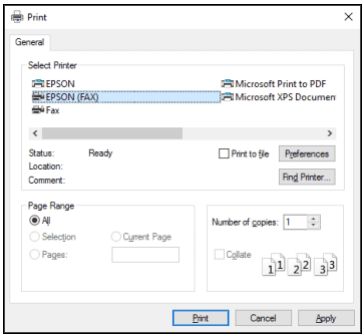
Once the fax-capable printer is selected, the recipient’s fax number and other details can be entered the same way you would using an online fax service.
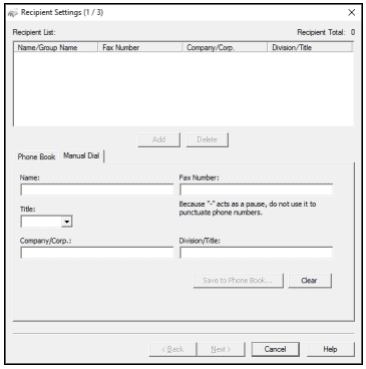
This method is very convenient and lower cost if you already have such a printer and a phone line. However, if you’re starting without anything and choosing the best way to fax from your computer, it is much more expensive to buy a multi-function printer, supply it with ink, and then maintain a landline connection. With no setup costs, an online fax service from one of the above options would be much cheaper, more portable, and more convenient.
8. Windows Fax and Scan
Headlines
- Requires a fax modem or fax server to connect your PC to
- Native Windows software — no external download or subscription needed
- Convenient way to fax and scan quickly if you have a scanner
Windows setup
Windows Fax and Scan ships with Windows but is usually disabled by default. To enable it, go to Settings > System > Optional Features > Add a feature, search for “Windows Fax and Scan,” and install. A step-by-step video walkthrough is here. Once installed, the app appears in your Start menu and is ready to use as soon as you connect it to a fax modem or fax server on your network. Without one of those, Windows Fax and Scan can’t actually send faxes — that’s the catch.
Given that Windows Fax and Scan works via a phone line connection, the output quality is usually exceptionally good (but can be affected by the strength of the phone line). Phone lines are also very secure compared to internet communication, given that they are subject to much fewer hacks, and require a physical connection to the line in order to intercept communications, so cybercriminals tend not to target this method of correspondence.
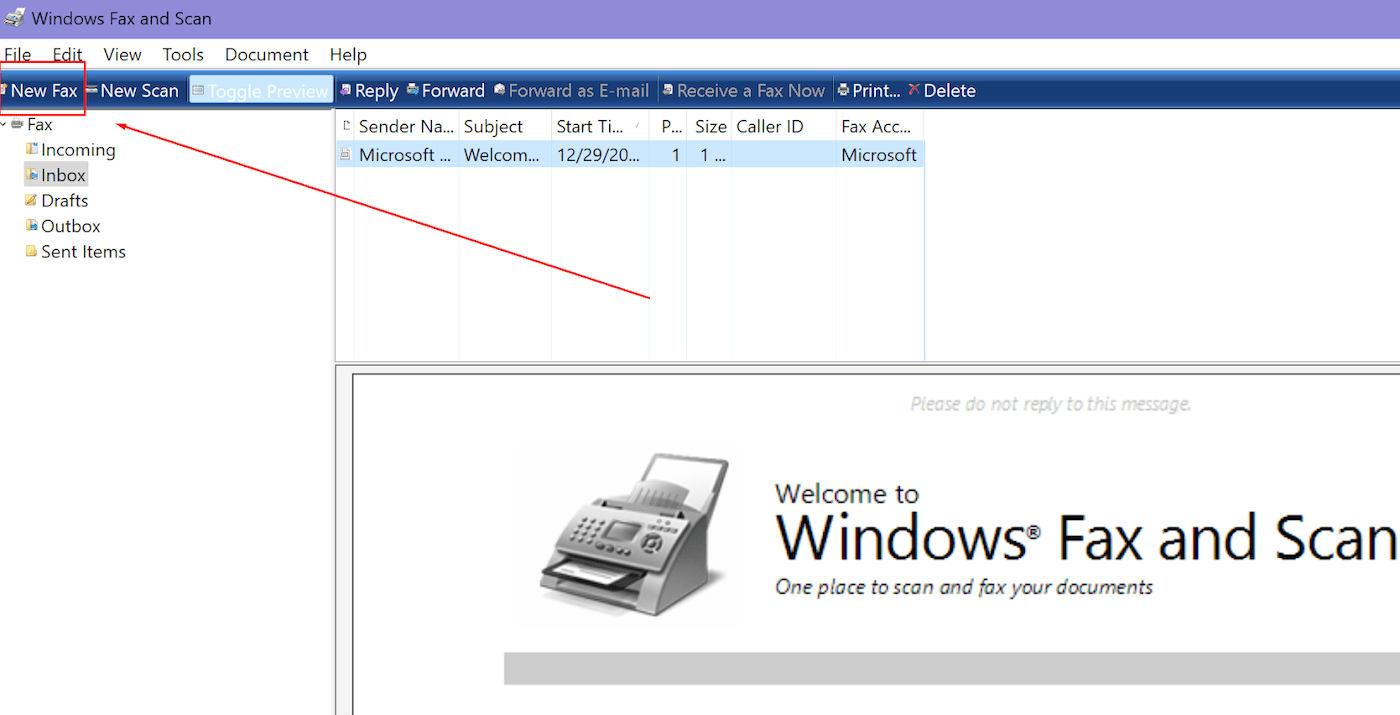
Windows Fax and Scan has a very dated interface, and looks quite like a basic Windows XP email application. All the basic functionality is there — inbox, drafts, sent items, etc. — but you won’t get any of the fancy features or advanced customer support that a good online fax service offers.
Windows users have expressed positive feedback about this software, in particular that it is more simple and reliable for scanning & faxing than the proprietary software that comes with many printers — for example, HP printers.
Overall, if you have a fax modem or phone line connection already, this is a free way to send and receive faxes — it may have less fancy features than online faxing, but it works very well. If, however, you are starting from scratch, the cost of setting up a phone line connection is usually much more expensive than the cost of joining an online fax service.
Which Windows Fax Service Is Best For You?
The honest answer to “which one should I pick” depends on what you’re trying to do. Here’s the editorial take, with each recommendation linking to the relevant review section above.
| If you… | Pick | Why |
|---|---|---|
| Want the best overall service | EveryFax | Cleanest UI, unlimited faxing, HIPAA-compliant, international included, top-tier quality |
| Need HIPAA compliance for medical workflows | EveryFax or iFax | Both have strong compliance posture; see our HIPAA-compliant fax rankings for the deeper comparison |
| Already use Dropbox for storage | Dropbox Fax | Adds onto your existing Dropbox account; signing tools included in the price |
| Fax very rarely (a few times a year) | GeniusFax | Pay-per-credit pricing means no monthly subscription wasted on inactive months |
| Need advanced features for a team or business | iFax | Approval flows, smart templates, dashboards, dedicated Windows app |
| Want the cheapest paid option | Fax.Plus or Dropbox Fax | Both have low-cost basic plans with reasonable page allowances |
| Already have a fax-capable printer and phone line | Multifunction printer | Hardware is paid for; no monthly fees |
The Verdict
For most Windows users, EveryFax is the right starting point — it’s the only service on this list with truly unlimited faxing, the cleanest browser interface, HIPAA-compliant infrastructure, and international faxing built in at no extra cost. Fax.Plus and Dropbox Fax are solid alternatives at slightly lower price points if your needs are modest, and iFax is the right pick if you need a dedicated Windows app or business-grade features.
If you’re not on Windows, the recommendations change. Mac users should head to our Mac faxing guide, mobile users should see the iPhone and Android roundups, and anyone wanting a cross-platform overview of the methods themselves should start at our how to fax from a computer guide.