
Table of Contents
Quick answer: Yes — many multi-function (all-in-one) printers can send faxes, as long as they have a built-in fax modem and a phone line connected. You load your document, open the fax menu, enter the recipient’s number, and send. But only around 1 in 4 printers can fax, and you also need a landline — so for most people an online fax service or app is the easier, cheaper route.
Most of us have pretty bad relationships with printers—you need it once or twice a month, usually just to print off a label to return something that didn’t fit. If you do own a printer, you should know that printers can do a lot more than just print the occasional return label: many printers can send faxes too, multi-function printers in particular (also known as all-in-one printers). These are printer models that can handle printing, scanning, copying, and sometimes even email and faxing.
Faxing From a Printer – How It Works
Not every printer can send and receive faxes. Printers generally come in two types: single-function, which can only print and are therefore generally smaller and cheaper, and multi-function, which can do more things like scanning, copying, and faxing, but are bigger and more expensive.
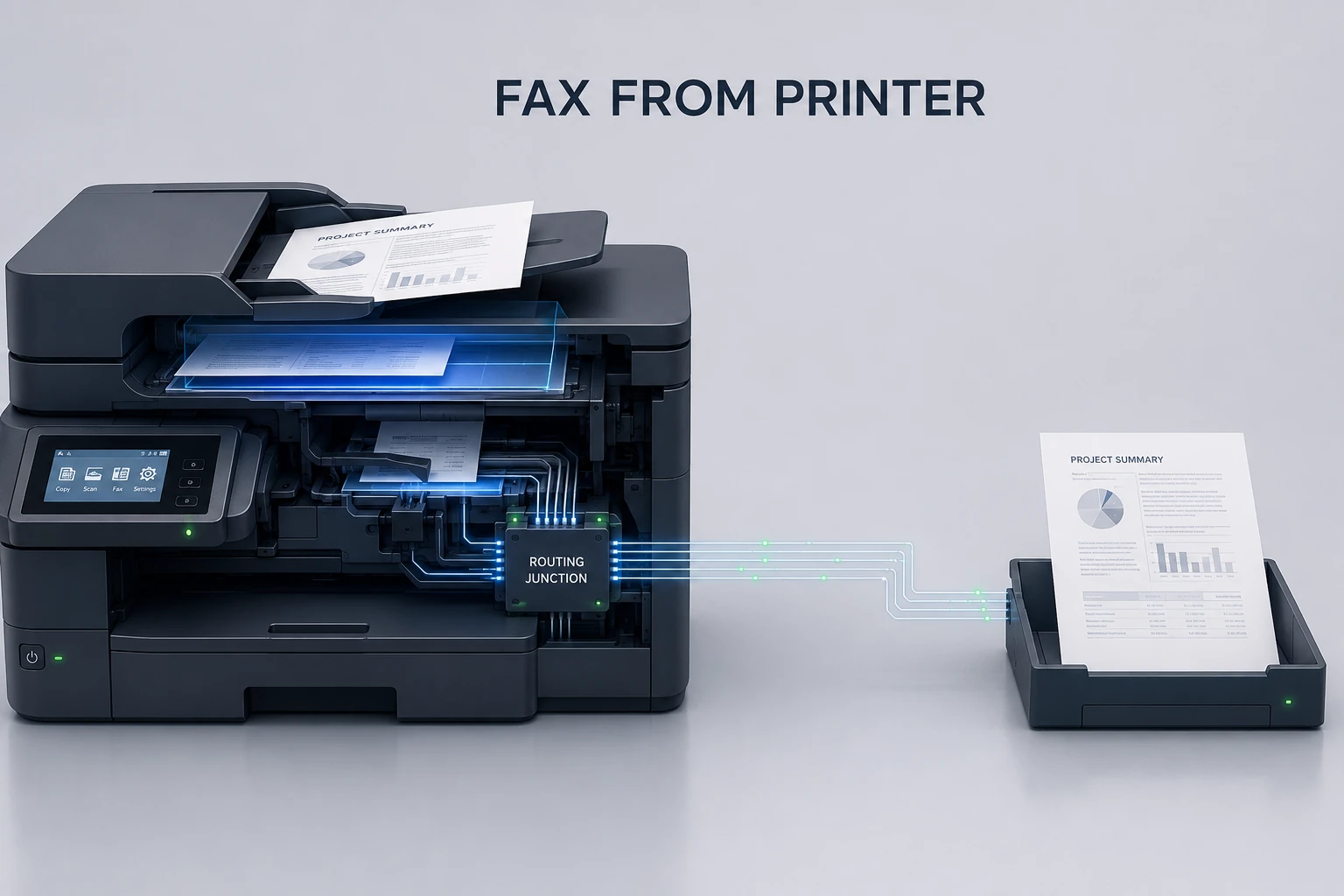
In order to fax documents directly from a printer, you’ll need a multifunction printer with fax capabilities. These are more advanced printers that contain an internal fax modem, which connects the printer to a Public Switched Telephone Network (PSTN). The printer can then function as a dedicated fax machine, converting, compressing, and modulating your documents before transmitting them as audible tones over the phone line to the receiving fax machine. Some more advanced printers can fax over IP (known as FoIP), which essentially uses the internet to fax. You can read more about that here if you like, but it’s more common for large corporations, and your home printer probably can’t do it.
These printers can receive faxes in the exact same way they send them, whether over a phone line or over IP, and most printers will automatically print received faxes or send a notification to the host computer.
Step-by-Step: How to Send a Fax From a Printer
The process may change depending on which company has manufactured your printer, but if you’ve got access to a fax-enabled printer, you can send a fax by following the steps below.
Check your printer
Make sure a telephone jack or connection is plugged into the printer so the fax modem is connected to the landline (if you’re using FoIP, check the printer is on the same network as your internet). You won’t need to print anything in order to scan and fax documents, but some printers annoyingly will not operate at all unless they have ink, so check the settings to make sure your printer’s happy.
Place your documents in the input tray
Most multifunction printers have either a tray that automatically feeds the scanner, or a scanner glass you have to place each document on as you scan. If yours is the latter, you’ll scan each document separately; more expensive printers will load and scan each one for you.
Open the fax menu and enter the details
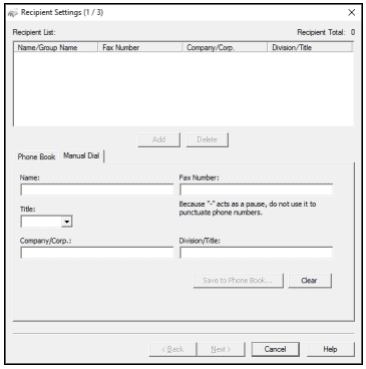
Use the printer’s control panel or the printer software on your computer. Enter the recipient’s fax number manually, or select a recent number or one of your contacts. In the fax settings you can customize the fax: whether to send in color or black and white, the document size, or a scheduled send time. The screenshots below show what this looks like on an Epson printer and via the computer.
Review and send
Check details such as the recipient’s fax number and area code, preview your scanned documents, and when you’re ready, press the send button!
Get a fax report
One of the great things about faxing is that you always get proof of delivery with a fax report, unlike email, where you’re relying on the recipient to confirm. Use your printer control panel or computer software to view the transmission history and fax reports of all sent faxes, check they’ve been delivered successfully, and print them for safekeeping.
All printers will have a similar fax menu. Using an Epson as a reference, if you select the ‘Fax’ option on the control panel’s home menu, you’ll see a screen like this:
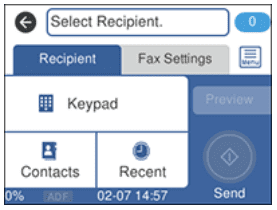
If you’re using an Epson printer to fax through the computer interface instead, you’ll see a menu like this after selecting the print command:
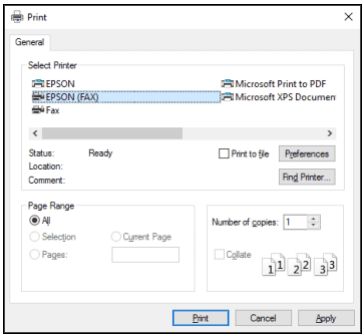
If you select “EPSON (FAX)” in this example, you’d then see a window like this, where you can enter the fax number and other details for your cover page:
Receiving Faxes on a Printer
Most printers with a faxing feature will automatically receive and print incoming faxes. If you’d rather they didn’t, you can change the settings to stop faxes printing automatically and instead get a notification on the printer or your connected computer.
How Many Printers Can Send Faxes?
So how many printers actually have fax capabilities? To get a general idea, we can look at some of the top printer companies and see how many of the printers they sell offer faxing. The figures below are a snapshot from their websites at the time of writing:
- Epson: at the time of writing, Epson’s website lists 220 printers, 45 of which can send faxes. About 1 in 5.
- Canon: of Canon’s 112 printers, 23 can send and receive a fax. Again, about 1 in 5.
- Brother: 57 out of 135 Brother printers have fax capabilities. About 2 in 5.
- HP: only 20 out of 160 HP printers support faxing. About 1 in 8.
- Xerox: half of the 14 home-office printers on Xerox’s site can fax.
Across these five popular printer companies, around 24% of their printers can double as a fax machine.
Should You Use a Printer to Fax?
To start with, there are two obvious problems with faxing from a printer: nobody owns a printer anymore, and nobody owns a landline either. Okay, fine, that’s not literally true, but let’s look at the numbers:
Printers
The Washington Post reckons around 45% of Americans own a printer. Millennials and younger generations are less likely to, but let’s go with this number—it feels about right. However, a large number of these will be basic printers, not multi-function printers that support faxing. Following the ratios above and assuming about 25% of household printers offer fax functionality gives us a guess of roughly 11% of people owning such a machine.
Phone Lines
Around 40% of households still have a landline connection, according to YouGov.
So who has a printer and a phone line?
Technically, it isn’t anybody. But simple math on the numbers above (11% x 40%) gives the average person about a 4% probability of having both a multi-function printer that can fax and a phone line, and therefore the ability to send faxes from a printer.
So, if only around 1 out of every 11 people have a printer they can send and receive faxes from, what are the other 10 people supposed to do? There are other issues with faxing from a printer, too:
- Cost: printers that can fax are expensive, with the cheapest usually at least $100. Then there’s the ink (this is where the printer companies make the big bucks!), paper, and of course maintaining a landline with a phone company. A simple online faxing service is much cheaper and more flexible.
- Convenience: with a printer you need to physically be at it, so you can only fax from home or work. You also need physical documents to scan, and the whole process can take a while. With a fax app or online faxing, you can scan the pages on your phone and fax from anywhere in the world.
Faxing With an Online Fax Service
In this day and age, you’re far more likely to have a phone, a tablet, and/or a computer than a printer capable of sending faxes plus a phone landline. You can use any of these to send and receive faxes, in a much easier, cheaper, faster, and more convenient way than spending an hour battling the printer. A few great alternatives to faxing from a printer:
- Using a fax app
iPhones and Android devices have a range of faxing apps that let you take advantage of your phone’s connection, camera, and technology to send high-quality faxes, all from the palm of your hand, at a fraction of the cost of an expensive printer. Check out the best iPhone apps or the best Android apps. We recommend Municorn Fax—it’s the best service, and you get unlimited faxing. - Using an email-to-fax service
There are also services that let you send or receive a fax using your email account, such as EveryFax. You simply sign up, then do all your faxing straight from your email inbox on whatever device you prefer, adding fax pages as email attachments. This combines the convenience of email with the security and protection of faxing. You can read a more thorough guide here. - Using a fax machine
Of course, an obvious way of faxing is with a physical fax machine. If you exist in 1997 and are somehow reading this from the past, you may have one of these at home. If not, do not fear—you can use a fax machine at plenty of places, like CVS, UPS, Walmart, USPS, Office Depot, or FedEx. You might also be able to use your local library.
Sending Documents From Your Printer Without Faxing
There are far easier ways to securely fax documents than using your printer, but if you really insist on sending documents with your printer, there are some other ways to do it.
Many modern printers can send files to network folders, an email server, an FTP/SFTP site (file transfer protocol), a SharePoint server, or other areas of a home network you’ve created. Printers can sometimes also interact with cloud-based services like Google Drive, Dropbox, or OneDrive and send scanned files to those services. One example is Brother’s Web Connect feature, but other manufacturers have their own versions.
But this isn’t faxing, and it doesn’t offer the same security and protection that faxing from a fax-capable printer does. Faxing is HIPAA-compliant, so it gives you much more protection when handling and sending sensitive or confidential documents, and more rights over your data security. You can read about why faxing is so secure here.
Online Faxing: The Easiest Way to Fax
If you want to avoid an expensive bill and hours of time fighting with the printer, get a fax app or online faxing service today, and start faxing the easier, cheaper way from any device.