
Table of Contents
Quick answer: You don’t need a fax machine to fax from a computer. The two easiest routes are email-to-fax (send a fax as an ordinary email through a service like EveryFax) and an online fax service you use in a browser or a desktop app. Windows also has a built-in Fax and Scan tool, and a multifunction printer with a fax modem can fax over a phone line — but for most people, email-to-fax or an online service is cheaper and simpler. It all works the same on Windows, Mac or a Chromebook.
When most people think of faxing, they picture a big clunky machine wired to a phone line, taking up half the office desk — or a drive to the UPS or FedEx Office store to use theirs. Either way, it doesn’t exactly scream “convenience”. You don’t need any of that, though: your computer, your phone, and even the browser you’re reading this in can all send a fax. Thanks to online fax services, faxing is quick, secure, and needs no hardware.
Faxing is now as simple as logging on and sending an email. In fact, you can fax by email — or from a web browser, or via cloud storage like Google Drive. You can fax on Windows, on a Mac, or from your phone, and the right method depends entirely on what you’re trying to do.
Whatever device you’re reading this on, guess what: it’s also a fax machine. This guide covers every way to use your computer to fax online, whatever platform you’re on, and helps you pick the right one. If you’re on a Windows PC and want a head-to-head of the actual services, our best Windows fax services review covers that in detail.
Why Fax From a Computer?
I used to be one of those people who thought faxing was obsolete — “why would you ever send a fax when we have email, digital signatures and a thousand messaging apps?” The clunky machine may be long gone, but faxing is still very much a thing in 2026, and for good reasons.
Take email. There’s no guaranteed, legally recognized way to confirm an email you sent was received — but every fax gives you exactly that. Even the most popular email services also carry more security vulnerabilities than a standard online fax service. That’s why I fax anything sensitive.
Then there are digital signatures. Companies like DocuSign are popular, but even their Chief Legal Officer has admitted there are many cases where a faxed signature is accepted and an e-signature isn’t — signing a will or trust, family law documents (adoption, divorce and so on), canceling utilities, canceling insurance, and more.
The only thing stopping most people from faxing is the belief that you need a physical machine. You don’t — any computer, tablet or phone with an internet connection can do it, and it’s cheaper and easier than maintaining a traditional setup.
How to Use Your Computer as a Fax Machine
The great thing about online fax services is that you get the security and reliability of faxing without buying a fax machine — or doing anything different from how you already send documents. Prefer email? Fax by email. Prefer your browser? Use a web fax service. There are desktop apps, mobile apps, even printers that fax. The trick is matching the method to how you actually work, not to the loudest marketing. The methods below are:
- Email-to-fax — send and receive faxes through your normal inbox. Works the same on any operating system.
- Online fax services (web or app) — log into a dedicated fax interface in your browser or a desktop app. Works on Windows, Mac, Chromebook and Linux.
- Built-in OS tools — Windows Fax and Scan on PC, or print-to-fax on Mac. Tied to one platform.
- Multifunction printer with a fax modem — if your printer has a fax port and you have a phone line, it can fax directly.
- Mobile apps — iOS and Android apps that turn a phone or tablet into a fax machine. Often best when you’re away from a desk.
Email-to-Fax From Your Computer
Most people prefer a computer for email — the bigger screen and keyboard, plus a connected scanner, make it easier to write, organize and attach files. With an email-to-fax service, you send and receive faxes straight from your inbox, exactly the way you’d send any email.
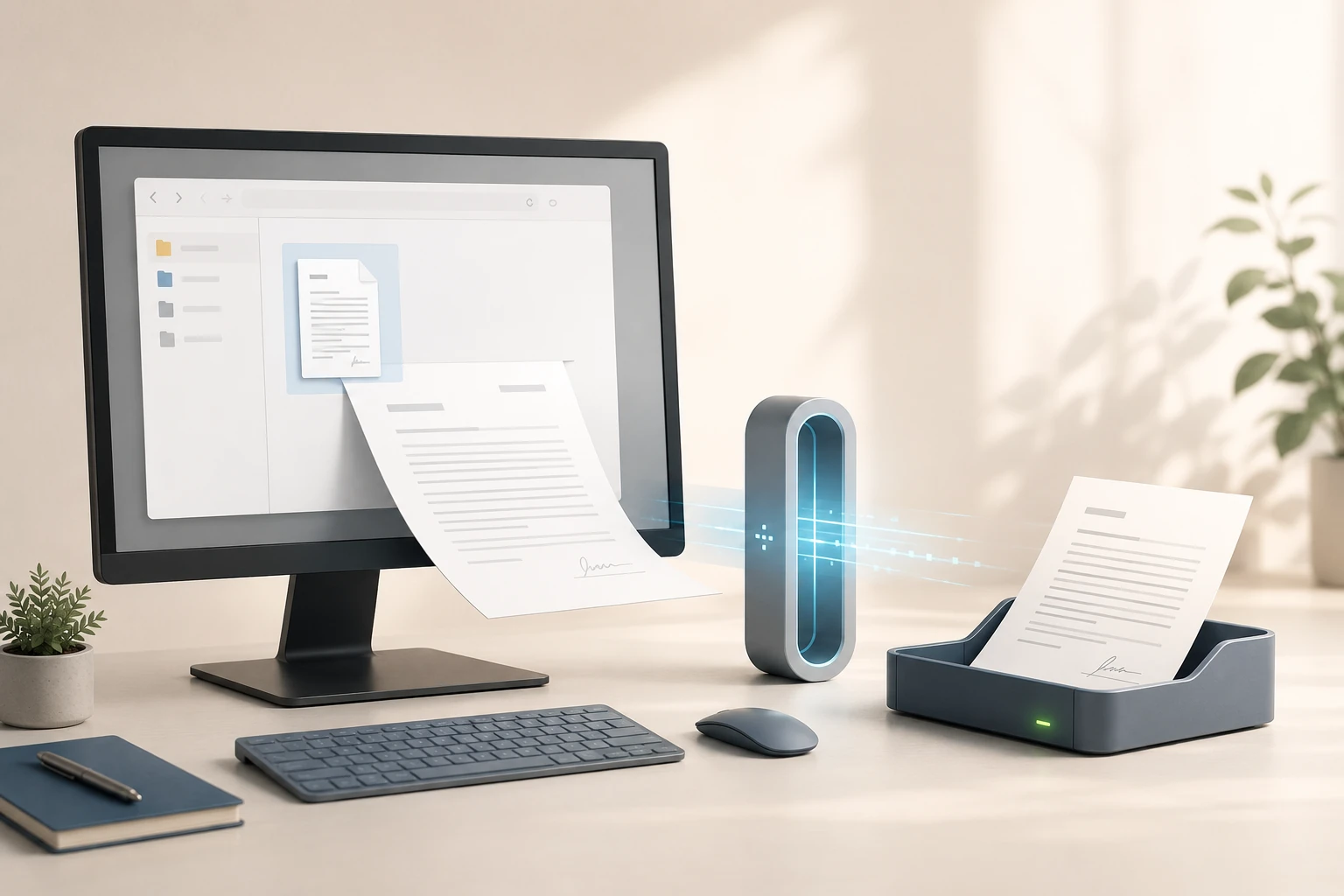
The workflow is much the same across providers — EveryFax, Fax.Plus and others all offer email-to-fax, with plans from a few dollars a month for occasional use up to multi-user business tiers. Once you’ve signed up, you get an address pattern to send to (the recipient’s fax number, then the provider’s fax suffix), and from there it’s as simple as writing an email:
-
Sign up with an email-to-fax provider
Coverage and pricing vary, so compare what you actually need — page volumes, HIPAA compliance, international destinations.
-
Compose a new email
The body becomes your cover page. In the “To” field, put the recipient’s fax number followed by your provider’s suffix — for EveryFax, that’s
send.everyfax.com(so the address is the full fax number in front of that suffix). -
Attach your fax pages
Most providers take PDF, DOCX, JPEG and PNG — you can fax a PDF straight off — and convert everything to fax format on the way out.
-
Hit send
The service handles the rest and emails you a confirmation once the fax is delivered — or if it failed, which usually means a disconnected machine at the other end or the wrong area code.
People like email-to-fax because it brings the security and regulatory features regular email can’t, which makes it better for sensitive information — and it keeps your email and faxes in one place. You can also receive faxes online straight to your inbox. It’s one of the easiest ways to start faxing from a computer, and it works identically on Windows, Mac or a Chromebook.
Using an Online Fax Service
Many online fax services let you fax from a web browser or a dedicated desktop app. They work like any email or messaging account — you log in, view sent and received faxes, compose new ones, and link the account to cloud storage like Dropbox or apps like Google Docs for quick access to whatever you want to send.
The category runs from large providers like eFax, RingCentral Fax and Fax.Plus down to lighter services for individuals. They all work along the same lines: buy a subscription, sign in through a browser or app, and send from a clean interface. Many add extras for preparing a fax, like custom signatures or an address book. The differences come down to pricing, page limits, supported countries, integrations and compliance — our best online fax services guide ranks the main options on exactly those.
Online faxing suits computer users who’d rather keep faxes separate from email, or who fax for business and want a fuller managed service. If you’re on a Windows PC and picking a provider, our best Windows fax services review compares the leading options on price, features and Windows app availability.
Built-In Tools and Printers
Beyond email-to-fax and online services, two other options show up often enough to know about: built-in operating-system fax tools, and multifunction printers with a fax modem.
Built-In OS Fax Tools
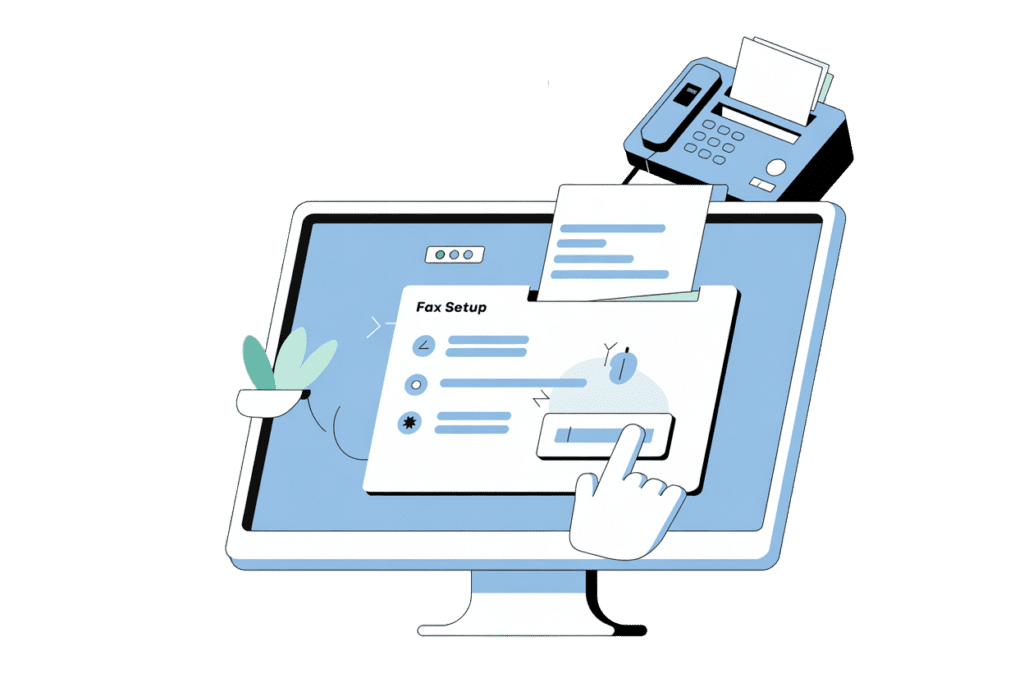
Windows ships with Windows Fax and Scan, which connects Office apps to a faxing pipeline — as long as your computer also has a fax modem, a phone line, or a third-party online fax service behind it. It’s a leftover from an earlier era: the features are dated and Microsoft hasn’t meaningfully updated it in years, so we don’t recommend it as a starting point. If you want to know how to enable it anyway, our Windows fax services guide walks through it alongside the modern alternatives.
macOS has no direct equivalent, but a Mac with a connected fax-capable printer can fax through the system print dialog. Our faxing on Mac guide covers the Mac-native options in detail.
Faxing With a Printer
For decades, multifunction printers have included a fax modem, letting you connect the printer to a landline and send and receive faxes. Since these printers also print and scan, you get good-quality faxing and can print anything that arrives. Check your printer’s make and model to see if yours supports it. The downsides are the usual ones for a traditional fax machine — buying paper and ink, and paying for the phone line and maintenance — so for most people we’d reach for email-to-fax or online faxing first.
Choosing the Right Method for Your Situation
Which one to use depends on how often you fax, what you’re sending, and which devices you have. This maps the common situations to the method that fits.
| Your situation | Best method | Why |
|---|---|---|
| You fax once or twice a year | Free or pay-per-page web service | No subscription; sign up only when you need to send something |
| A few times a month for personal admin | Email-to-fax or a basic online fax plan | Cheap, low-friction, works with your existing inbox |
| Weekly or more, for business | Online fax service with a desktop app | Address book, audit trail and multi-user features pay for themselves |
| You handle medical records or PHI | HIPAA-compliant service with a signed BAA | Required for compliance — see our HIPAA-compliant fax rankings |
| Windows user picking a first service | Compare Windows-compatible providers | See our best Windows fax services review |
| Mac user | Online fax in a browser, or an iOS app on macOS | See our Mac faxing guide |
| Often away from your desk | Mobile fax app on iPhone or Android | Camera-as-scanner means you can fax a document the moment it’s in hand |
| You already own a fax-modem printer + phone line | Use the printer | The hardware’s paid for; just check the model supports it |
The two methods that cover the most people are email-to-fax and online fax services. If you’re not sure where to start, pick one of those and you’ll handle 90% of real-world cases.
Other Ways to Send and Receive Faxes
Computers aren’t the only fax-capable devices you own. If you’re not always at a desktop or laptop, there are two other options: mobile apps and Mac-specific routes.
Mobile Apps
There’s a huge range of faxing apps for Android and iPhone, and you can fax straight from your phone wherever you are. They’re popular because they’re more portable than a computer: all you need is your phone or tablet to upload or scan documents and send on the go.
The mobile workflow has one advantage desktops don’t — your phone’s camera is also a scanner. Need to fax a hand-signed document, a prescription, an ID? Snap a photo inside the app and it auto-detects edges, corrects perspective and sends a clean fax-quality scan. No flatbed scanner, no print-and-rescan. For anyone handling paper on the move, a mobile fax app is usually faster than the desktop equivalent.
Most major providers offer mobile apps on the same account, so you can start a fax on your laptop and finish on your phone. Municorn Fax (18M+ downloads), for example, is popular for mobile faxing and lets you send unlimited faxes to over 90 countries with no extra fees (long-distance faxing costs a bomb with most services), on all major mobile devices. To compare specific apps, the iPhone and Android review pages above are the place to start.
Fax From a Mac
You can fax from a Mac using most of the methods above — email-to-fax and online services work identically on macOS. Macs have a couple of extra tricks too, like running iPhone and iPad apps directly on Apple Silicon, so a mobile fax app you already use can double as your desktop one. For the full walkthrough, see our dedicated Mac faxing guide.
Start Faxing From Your Computer
For most people, the right pick is an email-to-fax service or a full online fax app — both cover the everyday cases with no learning curve. If you’d rather go straight to a head-to-head of the actual services, we have platform-specific guides:
- Windows — our best Windows fax services review for ranked comparisons.
- Mac — our Mac faxing guide for the platform-specific walkthrough.
- Mobile — our top iPhone fax apps and best Android fax apps roundups.
- HIPAA workflows — our HIPAA-compliant fax rankings.
Whichever route you take, faxing in 2026 needs no fax machine, no phone line and no trip to the FedEx Office store. Pick a method, sign up and send.