
Table of Contents
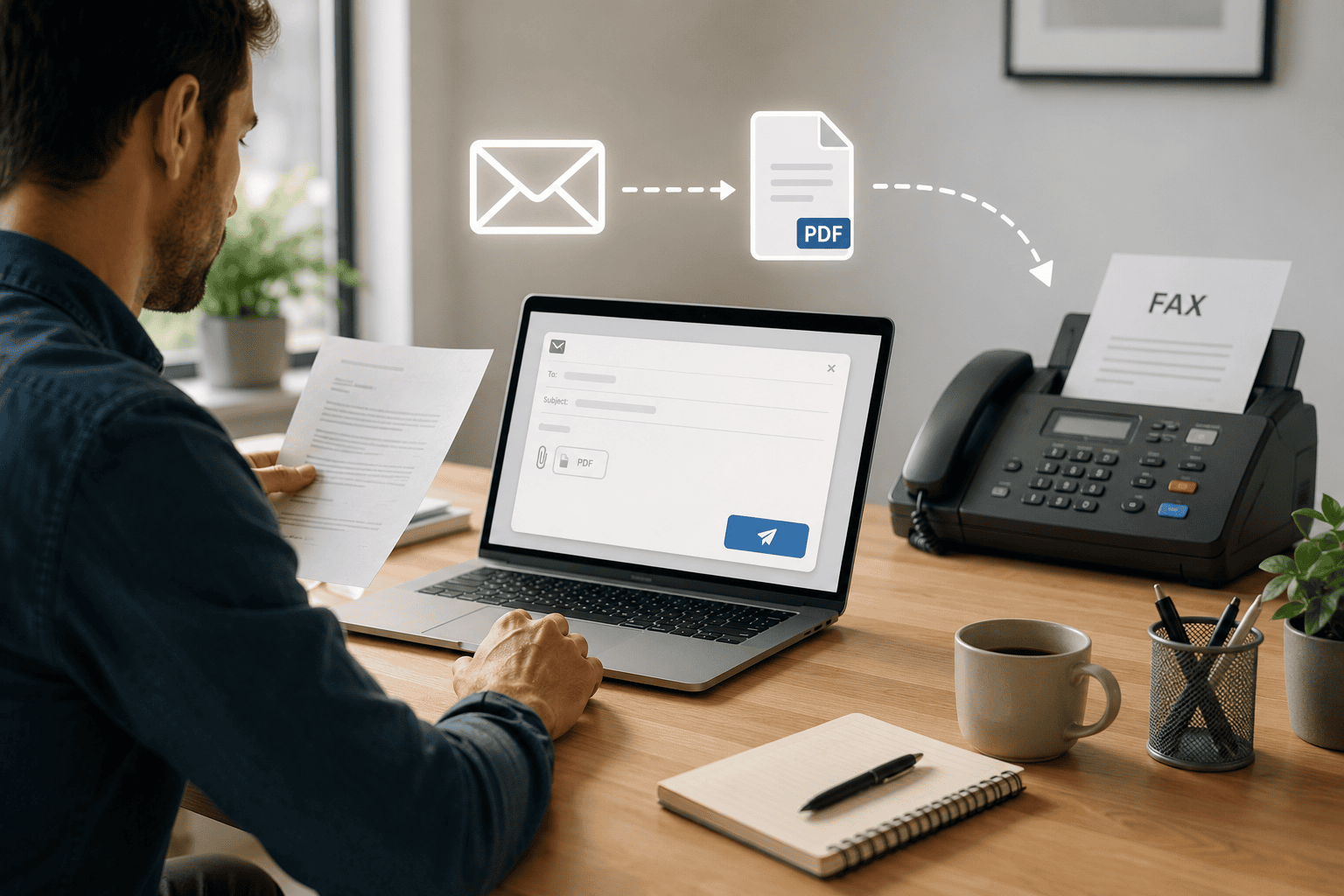
Quick answer: To fax from email, sign up with an email-to-fax service, then compose a normal email — put the recipient’s fax number followed by the provider’s domain in the To field (for example 12125551234@send.everyfax.com), attach your document as a PDF, and hit send. The service converts it to a fax and emails you a delivery confirmation. No app, no fax machine, no phone line. If you can send an email, you can send a fax.
You might think faxing had its heyday back when people rented VHS tapes from Blockbuster. But you’d be wrong — the industry is still growing, and is expected to double by 2029. There are lots of reasons for this: high security, the healthcare industry, and the fact that a fax is still legally stronger than an e-signed document or an email. Faxing isn’t going anywhere, so the chances are you’ll need to know how to fax for a long time yet.
It has evolved, though. You no longer have to feed documents one by one into a giant machine and wait 15 minutes for confirmation. Today you can fax with an app, from your computer, or — the method most people already know how to use — straight from your email inbox. This guide is all about email-to-fax: how it works, how to do it step by step in Gmail, Outlook or Yahoo, which file types to use, and how it stacks up against the alternatives.
How Email-to-Fax Works
An email-to-fax service is a bridge between your inbox and the traditional fax network. You never touch a phone line — the service does the dialing for you. Here’s what happens when you hit send:
- You compose an email with the recipient’s fax number in a special address format and attach your document.
- The service receives your email, checks that your address is authorized, and converts the attachment into a fax-ready image.
- It dials the recipient’s fax number over the fax network and transmits the pages, retrying automatically if the line is busy.
- The recipient’s machine (or their own online fax service) receives the document exactly as if it came from another fax machine.
- You get a confirmation email with a timestamp and page count — your proof of delivery.
The whole thing usually takes a minute or two. Because it runs over your ordinary inbox, there’s nothing to install and nothing to maintain.
How to Send a Fax From Email: Step by Step
If you’re already comfortable with email, you basically know how to do this — there’s no new app or software to learn. You just need a reliable service that offers email-to-fax. Here’s the process, using our own email-to-fax platform, EveryFax:
- Sign up and authorize your email address. Create an account, choose your own fax number, and add the email address you’ll be sending from to the allowed-senders list. This stops anyone else faxing on your account.
- Compose a new email. Open your inbox and start a new message, just as you would to email a colleague.
- Put the fax number in the To field. Type the recipient’s fax number followed by the provider’s domain — for example
12125551234@send.everyfax.com. Use the full number with country code and no dashes, spaces or brackets. - Attach your document. Add your file as an attachment — PDF is best. The subject line and email body become your cover page, or you can leave them blank to fax only the attachment.
- Hit send and wait for confirmation. The service converts your email into a fax and delivers it. Within a few minutes you’ll get a confirmation email telling you whether it went through, with the page count and delivery time.
That’s the entire workflow. To receive faxes back the same way — straight into your inbox as PDFs — see our guide on receiving faxes online.
Sending a Fax From Gmail
Gmail has no built-in fax button, but with an email-to-fax service your inbox becomes a fax machine in under a minute. Add your Gmail address to your provider’s allowed-senders list, click Compose, put the fax number and domain in the To field, attach your PDF, and send. The confirmation lands back in your Gmail inbox.
Sending a Fax From Outlook
Outlook works exactly the same way, on desktop, web or mobile. One handy tip for teams: if your organization uses Microsoft 365, save a shared contact called “Fax Gateway” with the address format pre-filled, so everyone can fax without memorizing the domain.
Sending a Fax From Yahoo (or Any Other Client)
There’s nothing special about the email client — the service only cares about the recipient address and the attachment. Yahoo Mail, Apple Mail, ProtonMail and Zoho all work the same way: compose, add the fax address, attach, send.
Which File Formats Can You Fax by Email?
Email-to-fax services support a wide range of file types, but they don’t all convert equally well. Here’s what to use:
| Format | Quality | Notes |
|---|---|---|
| Best | Preserves layout perfectly — always the safest choice | |
| TIFF | Best | The native fax format, used by scanners and imaging systems |
| DOCX | Good | Converted for you; complex formatting may shift slightly |
| XLSX | Good | Rendered as-is; very wide sheets may be scaled down |
| JPG / PNG | Good | Photos of documents work well at 200+ DPI |
Two things won’t work: password-protected files (the service can’t open them) and ZIP archives. If your document is locked, remove the password before attaching. As a rule of thumb, use PDF, keep files under about 20 MB, and scan at 200 DPI for the sharpest result — our scan-and-fax guide covers getting clean scans.
Email-to-Fax vs the Other Ways to Fax
Email-to-fax is the most convenient option for most people because it needs zero new software. But it’s not the only way — here’s how it compares to the alternatives:
| Method | Setup | Works on phone | Confirmation | Best for |
|---|---|---|---|---|
| Email-to-fax | Use your existing inbox | Yes | Email receipt | Business & everyday desk use |
| Fax app | Install the app | Yes | In-app + email | Personal use, scanning on the go |
| Web portal | Create an account | Yes | Dashboard + email | Custom cover pages, bulk sending |
| Store counter (UPS/FedEx) | Drive there | No | Paper receipt | A one-off with no account |
If you want more control — custom cover pages, scheduling, bulk sending — a web portal gives you a full dashboard. If you’re usually on your phone, a fax app is the most portable. And if you don’t want an account at all, our fax near me guide lists nearby places you can walk into.
The Best Email-to-Fax Services
Not every online fax service offers email-to-fax, but plenty do. If you’re not sure where to start, here are a few good options — we’ve stuck to services rated as HIPAA compliant that use end-to-end encryption, so your faxes are far more secure than an ordinary email:
- EveryFax. Municorn’s EveryFax is a great all-rounder, with personal, team and business plans. The unlimited-faxing subscriptions are especially useful if you send a lot, and it bundles in handy extras like document signing and a responsive support team.
- RingCentral. A powerhouse packed with technical features — scheduling, spam blocking, sending to up to 50 recipients, and integrations with Outlook, Chrome and Salesforce. It’s arguably the best option for heavy business faxing, but it’s pricier and more than an individual user usually needs.
- Fax.Plus. A popular service that includes email-to-fax even on its basic plan, and works as a desktop app too, so it keeps your options open. None of its plans currently offer unlimited faxing, though, so you’ll always have a page cap before extra charges kick in.
Is Faxing From Email Secure?
Security comes down to two things: your email provider and your fax service. Gmail, Outlook and Yahoo all use TLS encryption by default, so your message and attachment are encrypted on the way to the fax service — the same protection online banking uses. A good fax service then adds its own encryption on the fax leg.
This is why email-to-fax beats plain email for sensitive documents. Online fax services usually comply with HIPAA guidelines, which regular email doesn’t, giving you end-to-end encryption and Privacy Rule protections as standard. It’s exactly why healthcare and insurance firms still ask you to fax documents rather than email them, even in 2026. If you’re faxing protected health information, confirm your provider will sign a Business Associate Agreement (BAA).
Faxes are also more legally durable than email. Emails over 180 days old are considered legally abandoned and can be seized by the US government with little legal justification, and the penalties for intercepting a fax are far steeper than for an email. A faxed signature also carries more authority than an e-signature for certain documents, including:
- Wills and trusts
- Court orders and family-law documents
- Canceling utility services
- Canceling insurance policies
For maximum safety, keep sensitive details inside the attached PDF rather than in the email body — that way there’s less exposure if your email account is ever compromised.
Pros and Cons of Email-to-Fax
Wondering whether email-to-fax is right for you, versus a mobile app or a traditional machine? Here’s the honest picture.
Advantages
- No learning curve — it takes a technology everyone already knows (email) and makes it fax. No machine, no new app.
- Cross-platform — it works across computers, phones and cloud storage that links to your email.
- A built-in paper trail — sent faxes live in your Sent folder, confirmations in your Inbox, all searchable with the tools you already use.
Disadvantages
- One extra step — your document passes through your email server on its way to the fax service, which is a little more exposure than a direct app or machine.
- Slightly less handy than an app — a fax app lets you scan with your phone camera and send from WhatsApp, messages or anywhere else, which email can’t.
- Pricing — some email-to-fax providers bundle it into broader business suites, which is great value if you’re buying the whole suite but less so for an individual.
If we had to sum it up in one line: use email-to-fax for business, and a fax app for personal use.
Frequently Asked Questions
Can I send a fax from Gmail for free?
What email format do I use to send a fax?
12125551234@send.everyfax.com. Attach your document as a PDF and click send.Is faxing from email HIPAA compliant?
What file formats can I fax via email?
Do I get a confirmation when the fax is delivered?
Can I receive faxes by email too?
Get Started Today
Open your inbox, compose an email to your fax number plus the provider’s domain, attach your document, and hit send — that’s the whole workflow, no machine or phone line required. If you’d like a bit more flexibility, we’d also recommend pairing it with a fax app for scanning and faxing on the go.