
Quick answer: To scan and fax from an iPhone, open a fax app like Municorn Fax, tap New Fax, and choose Scan Documents. Point your camera at the page — it finds the edges and captures it as a PDF on its own — add the recipient’s fax number, then send. You’ll get a delivery receipt back in a minute or two. No scanner, no fax machine, and no phone line required.
There’s no escaping it: sooner or later someone asks you to scan and fax a document — a form for a government office, a signed contract, paperwork for a new healthcare provider. The good news is you no longer need a scanner and a fax machine sitting in the corner to do it. Your iPhone already has a perfectly good scanner (its camera), and a fax app turns that scan into a real fax in about two minutes. Here’s the fastest way to do it, a no-app method for when you’d rather not install anything, and a few tricks for a clean, readable result.
How to Scan and Fax From Your iPhone, Step by Step
The quickest route is a dedicated fax app, because it scans, previews and sends all in one place. We’ll use Municorn Fax, the top-rated fax app on the App Store, but the steps are much the same in any good one. Start to finish, it takes two to five minutes.
- Install and open Municorn Fax, and sign up.
- Tap New Fax. You’ll see fields for the recipient’s fax number, a cover sheet, and your pages — type in the fax number first, with the country code if it’s going abroad.
- Tap Add Image or Document, then Scan Documents to use your camera as a scanner.
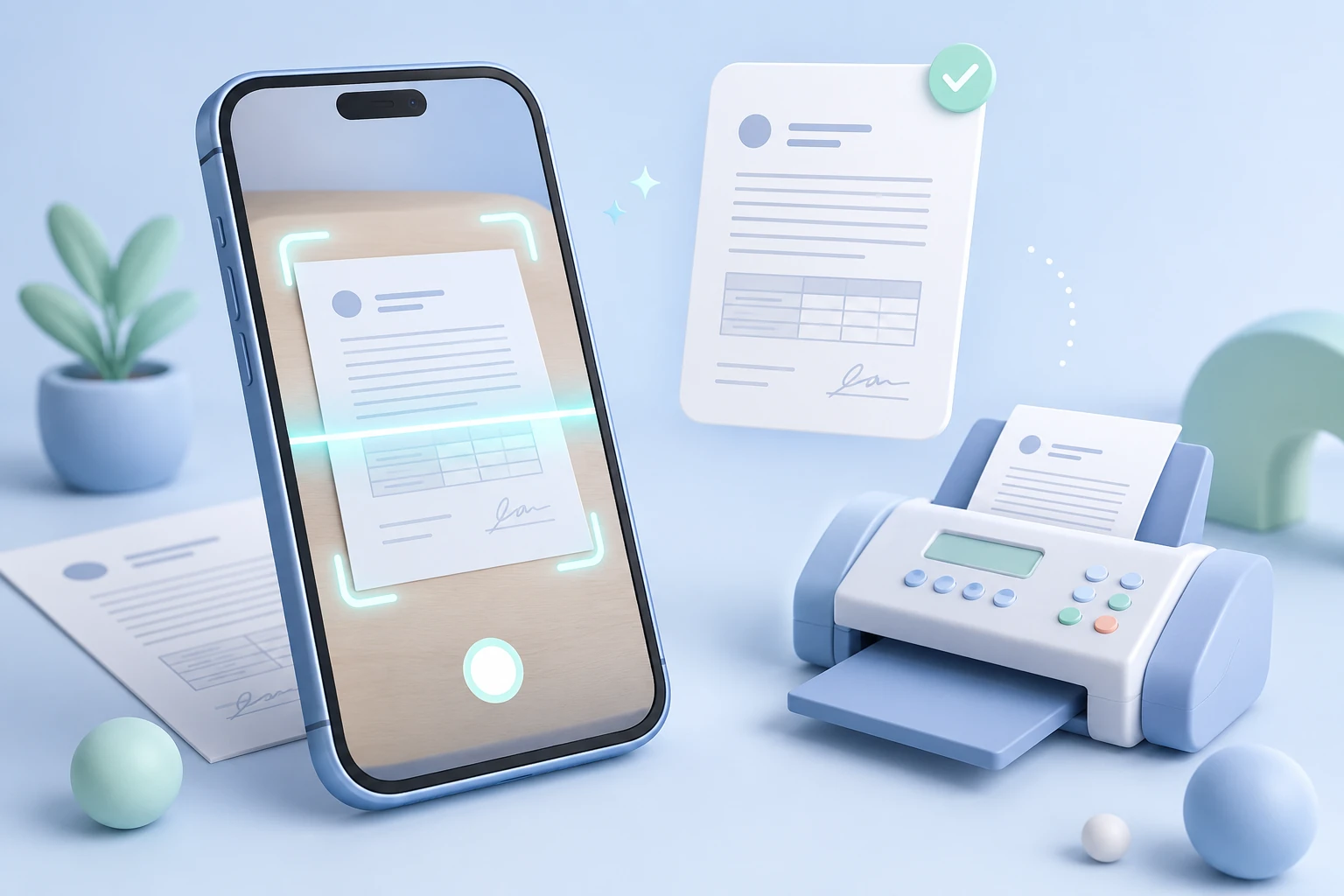
- Point the camera at your page and hold steady. The app detects the edges and captures the page as a PDF on its own — no need to press the shutter — and you can scan as many pages as you like.
- Review the pages, reorder them or edit the cover sheet if you want, then press Send.
- Check the delivery receipt in the app to confirm it went through, and keep it as your proof of delivery.
Here’s how that looks in the app, from the New Fax screen through to the live camera scan:
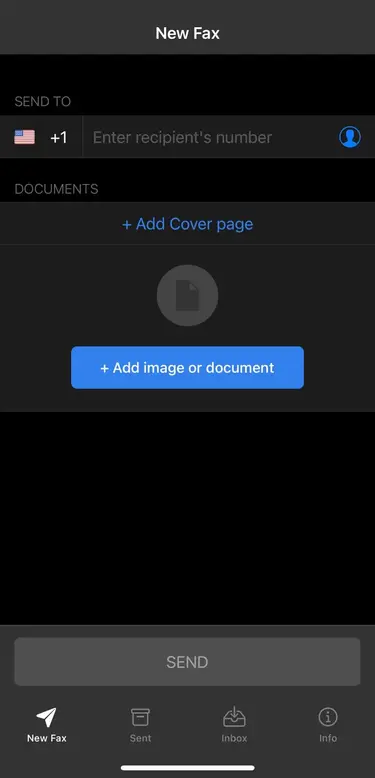
Open a new fax
Municorn Fax opens straight onto the New Fax screen. Type in the recipient’s fax number, and add a cover sheet if the document needs one.
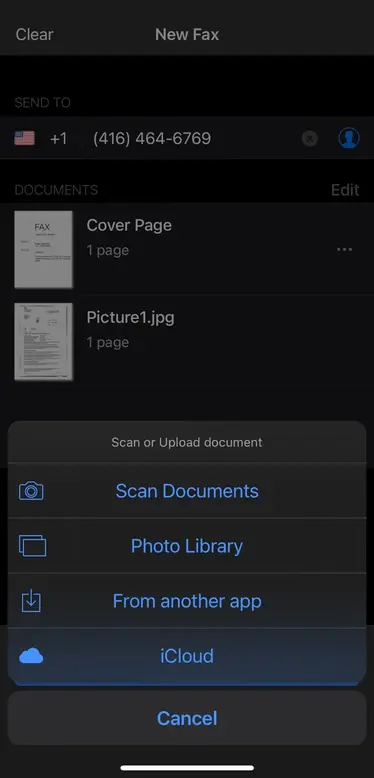
Choose Scan Documents
Tap Add Image or Document, then Scan Documents to turn your camera into a scanner — or pull in a PDF or photo you already have.
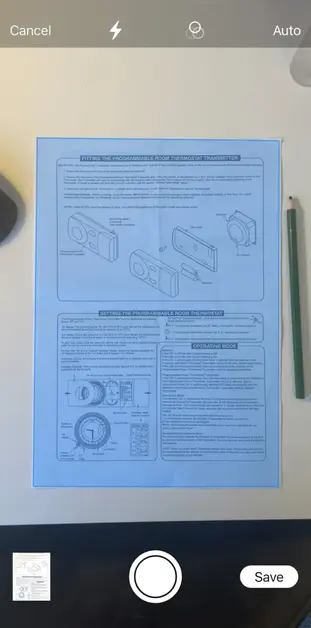
Scan with the camera
Hold the page in frame and the app finds the edges and saves it as a clean PDF on its own — no shutter needed. Scan as many pages as you like, then review and send.
If you’re at a desk rather than on your phone, you can do the same thing from a computer through web or email-to-fax — and if you’d rather feed pages into a physical machine, here’s how to use a fax machine.
No App Installed? Scan With Apple Notes Instead
Don’t want to install anything? Your iPhone can scan on its own. Open Notes, start a new note, tap the camera icon and choose Scan Documents — it’s the same edge-detecting scanner, built into iOS (the Files app does it too). Hold the phone over your page, let it capture, then save the result as a PDF. From there you attach that PDF to a web or email-to-fax service and send it like any other fax. We walk through both no-app routes, browser and email, in our guide to faxing from an iPhone without an app.
Getting a Clean Scan Every Time
A fax strips everything back to black and white, so a scan that looks fine on your screen can still arrive as a grey smudge on the other end. A few small habits make all the difference:
- Use good, even light and avoid a hard shadow falling across the page.
- Lay the document flat on a plain, darker surface so its edges stand out and the app can find them.
- Dark text on white reads best — sharpen or rescan anything faint before you send it.
- Let the app finish detecting the edges rather than grabbing the shot yourself; the auto-capture is squarer than your hand.
- Send as a PDF where you can — it holds its layout and scale on the receiving machine far better than a photo.
Is It Safe to Scan and Fax Sensitive Documents?
Scanning and faxing is often how the sensitive paperwork moves — medical forms, contracts, anything with personal details on it — so it’s worth knowing where you stand. Faxing can meet HIPAA requirements when the service applies the right safeguards: encryption in transit and at rest, and a Business Associate Agreement (BAA) if you handle protected health information. Municorn Fax is HIPAA compliant, which is why healthcare and legal users reach for it. Plain email is the weaker choice here — it’s usually encrypted in transit but rarely end-to-end by default — so for anything confidential, a fax app or a compliant service beats emailing the scan. There’s more in our guides to whether online fax is secure and fax vs. email.