
Table of Contents
- Fax From iPhone Without an App – What Are the Options?
- The Best Option to Fax From Your iPhone Without an App
- How to Fax From iPhone Without an App – Step-by-Step Guide
- Method 1 – Using a Web Browser Like Safari or Chrome
- Method 2 – Using Email-to-Fax With Any Email App
- Frequently Asked Questions
- Advantages of Using EveryFax to Fax From iPhone
- Key Takeaways
Quick answer: Yes — you can fax from an iPhone without downloading anything, in two ways. Either fax straight from your browser (Safari, Chrome, any of them) by logging into an online fax service’s website, or use email-to-fax and send it from your normal Mail app. Both need only an internet connection. We tested both with EveryFax, and here’s each one, step by step.
Wondering if you can fax from an iPhone without having to download yet another app? Yes. You can fax from your iPhone using Safari or any other web browser, or even using your email app. Below, we cover everything you need to know, including how to get started.
Fax From iPhone Without an App – What Are the Options?
You can do anything from your phone these days, even run a business, according to Forbes — and businesses send faxes every day, so sending a fax should be easy, right?
It’s much easier with a fax app for iPhone. The best fax apps turn your iPhone into a fax machine, and the amazing reviews and popularity of the number one fax app on the App Store, Municorn Fax, show just how many people enjoy using them.
But not everyone wants to download another app. We get it, it can take up precious storage on your phone, or you might be without wifi or enough mobile data to download an app. Or maybe you’re using somebody else’s phone and need to send a fax!
There are a few ways you can fax from iPhone without apps. These are the two big ways you can do it:
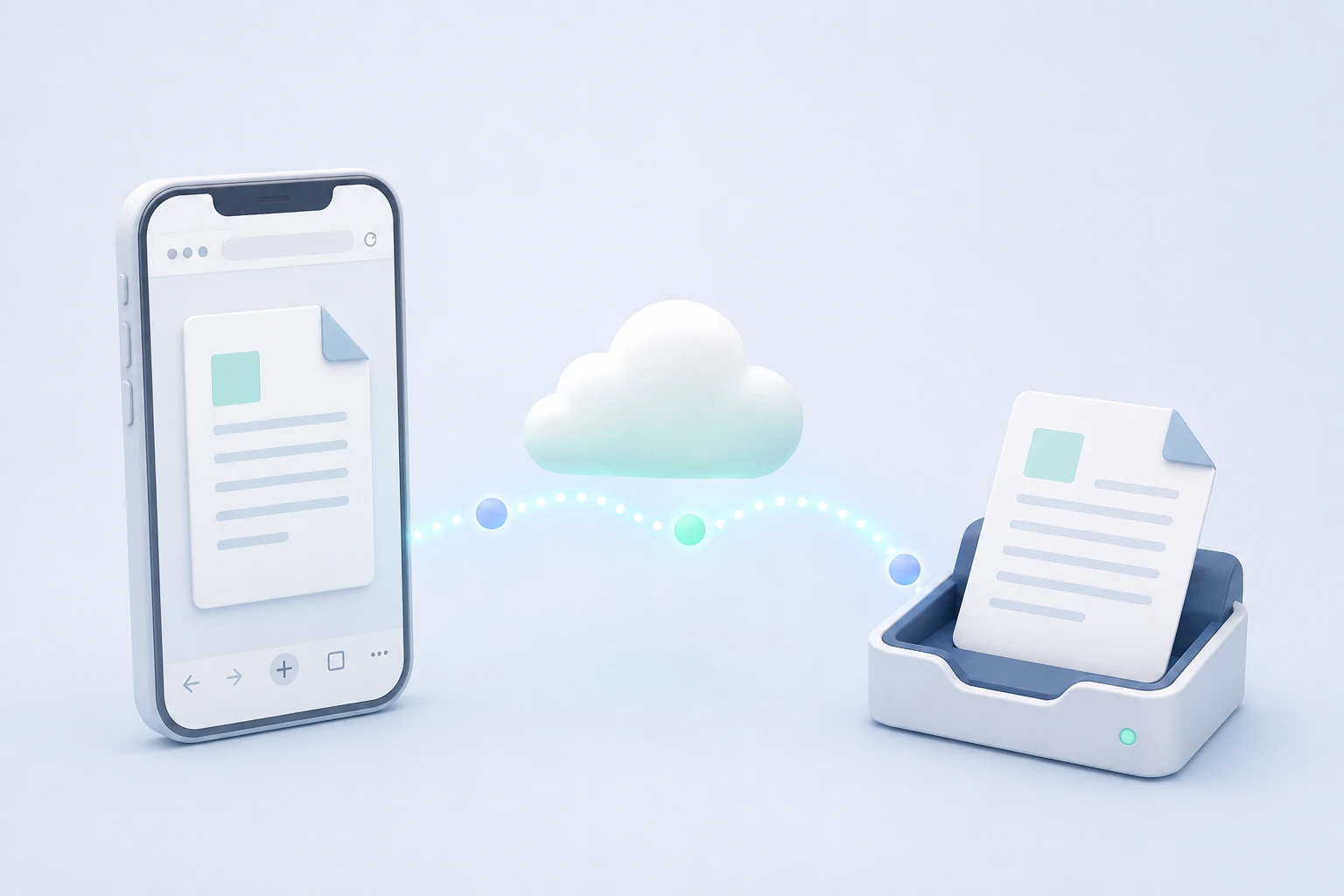
- Web faxing – Some online fax services have a website you can access your online account from any mobile device, and fax directly from the web with only an internet connection.
- Email-to-fax – Some services offer customers the ability to send and receive faxes through their emails – so all you’d need is whichever email app you regularly use (or email on the web).
The days of needing an app for everything are over! The best online fax services let their users stay productive across all types of different devices, no matter the situation.
The Best Option to Fax From Your iPhone Without an App
So you’re probably wondering – which option would work best for you, web faxing or email-to-fax? You don’t have to choose: you can have both, because there is a low-cost online faxing service that lets you do both at the same time.
This is where EveryFax comes in. EveryFax is an online faxing service which allows you to easily send faxes directly from any web browser. EveryFax is optimized for phones too, so the web app looks great whether you’re on a computer or on your iPhone. So this is an easy way to fax from iPhone without apps.
But EveryFax also lets you use email-to-fax instead of the web faxing app, at no extra cost. To fax with email, once you create your account, simply select the ‘Email to Fax’ option in the menu, and EveryFax will talk you through the 3 easy steps that allows you to send faxes from iPhone’s various email apps.
Some people love using Safari or Chrome to manage tasks, but other people do everything through their emails, through either the web or special email apps like Outlook or Gmail. There are other fax services which offer either web faxing or email-to-fax, however EveryFax allows users to send a fax from an iPhone without an app in both ways, so you can try what works best for you!
How to Fax From iPhone Without an App – Step-by-Step Guide
Here’s each method in detail, with an example.
Before you do either of these steps, you’ll need to head to EveryFax and select the ‘Get Started’ button to create your account! There are a range of flexible options and plans to choose from, so whether you want a forever fax number, or just a short-term one, you’ll find something that works for you.
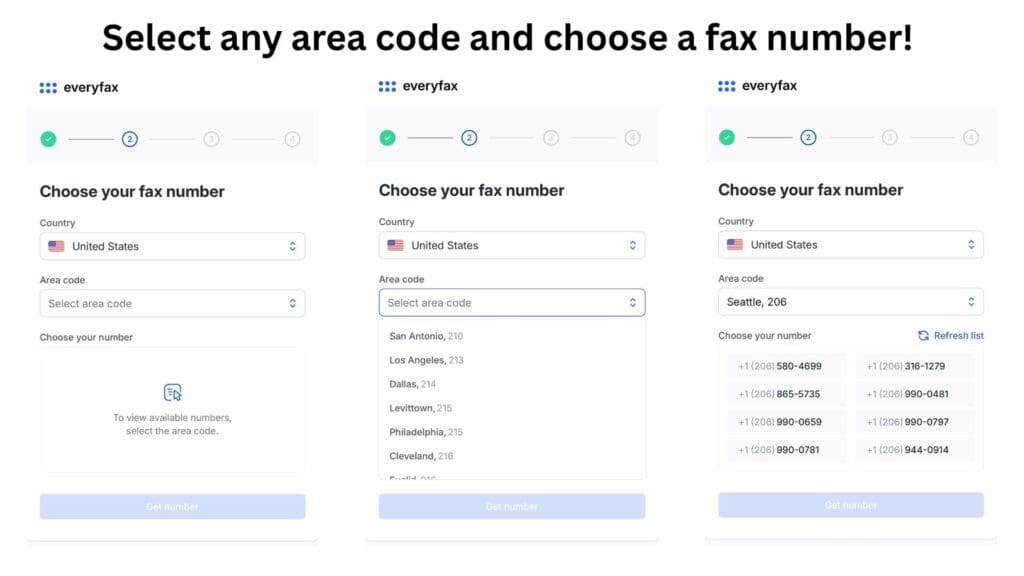
When you create your account, you’ll be able to choose your own fax number – you’ll be able to send and receive faxes with this number from your iPhone, without an app. Choosing your fax number is super easy on Safari for iPhone – just type in the location you want to be in – in my case, I chose Seattle!
Method 1 – Using a Web Browser Like Safari or Chrome
The process for using EveryFax’s website to send faxes couldn’t be easier, and can be done in just a few taps on your phone screen – let’s look at it step by step.
Head to the New Fax Send Page
To send a fax, head to the ‘New Fax’ page on the web page – you’ll see this on the side menu, right above your sent folder.
Enter Your Recipient’s Fax Number and Attach Fax Documents
You’ll then see an option to type in the recipient’s fax number, an option to add a cover page, and attach all the fax documents that you’d like to send – all from one simple menu.
Once Ready, Hit Send!
Once you’re happy with all the details of your fax, just hit the send button at the bottom. The web page will then tell you the expected send time – it will be longer if you’ve attached more fax pages! You can then send another fax, or check the delivery status of your previous faxes.
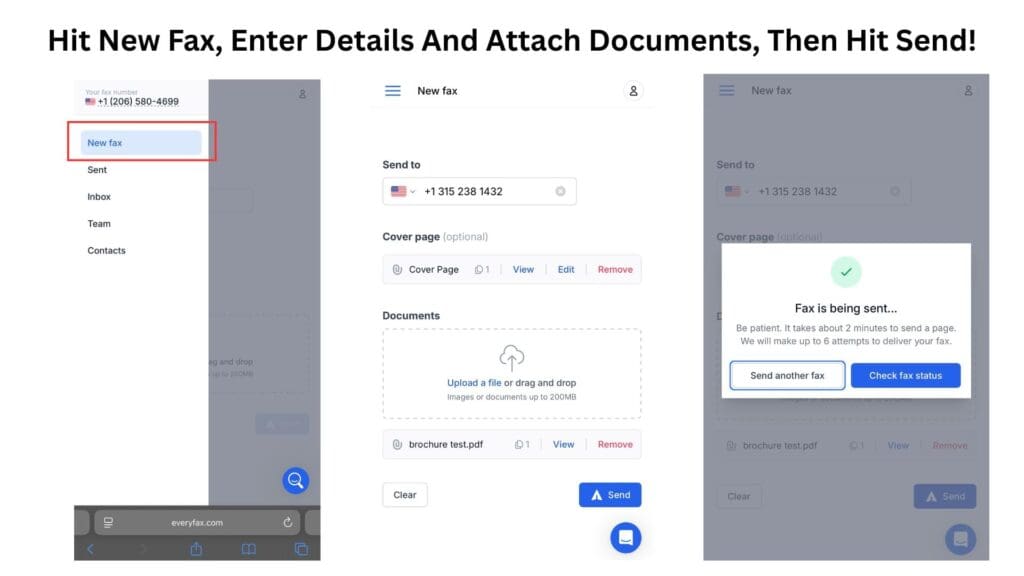
That’s all it takes to send a fax from your iPhone without any apps installed. This process works on all iPhone web browsers – Safari, FireFox, Chrome, Brave, and more!
Method 2 – Using Email-to-Fax With Any Email App
Once you’ve signed up to EveryFax, you’ll have instant access to the email-to-fax feature. This means you can use the email address you registered with, to send and receive faxes straight from your email inbox. The process couldn’t be simpler, and if you’ve ever sent an email then you’ve already done it! (If you’d like the full walkthrough for any inbox, see our guides to faxing from email and faxing from Gmail.)
Create an Email and Enter the Fax Number
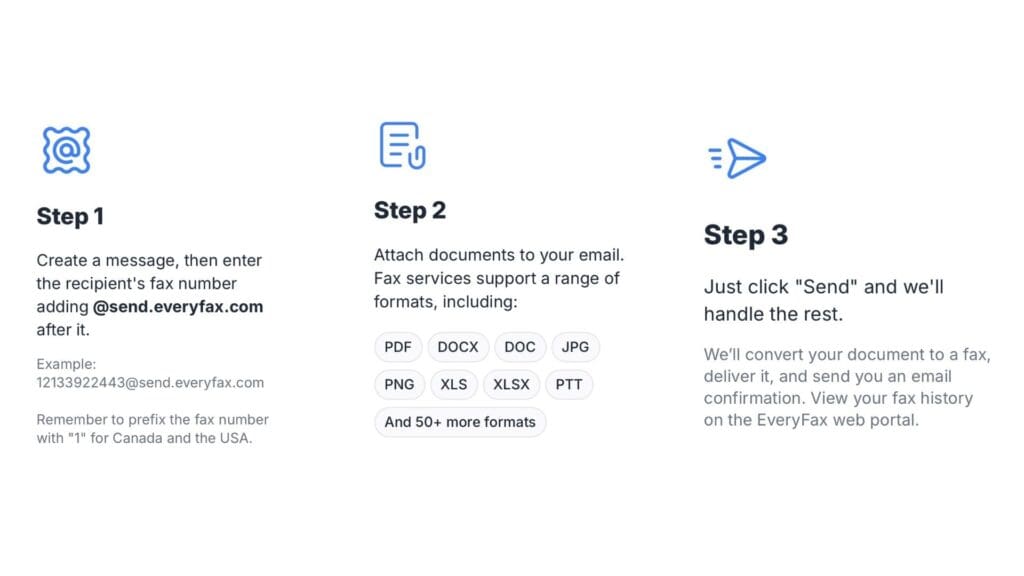
Create a new email as normal, and then in the ‘To’ box, enter your recipient’s fax number, followed by ‘@send.everyfax.com‘ – for example, 12133922443@send.everyfax.com. Use digits only, with the country code, and no spaces or brackets.
Upload Your Fax Documents as Attachments
You can attach files to the email, the same way you would usually upload attachments to any email. These attachments will be the fax pages of the fax you send. Any text you write in the body of the email will be included in a cover page – so feel free to also type a short message!
You can send documents in over 50 different file formats, including PDF, DOCX, and all usual other formats.
Just Hit Send
Just hit send, and EveryFax does the rest. They’ll receive your email and documents instantly, and convert it into a fax transmission, which they will send promptly. You’ll get email confirmations, or alternatively you can check the web page for updates on your faxes.
Frequently Asked Questions
How long does it take to fax from an iPhone without an app?
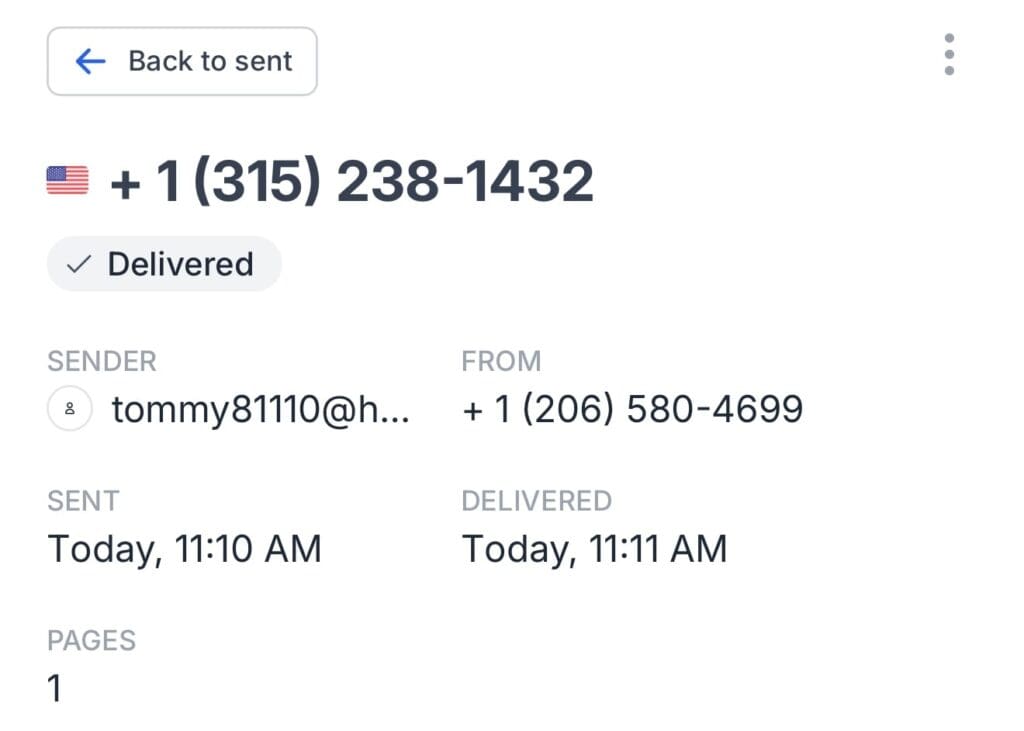
People often think that using an app will be faster – but this isn’t true. A fax app usually takes around a minute or so per page, and it’s the same when you use EveryFax – whether you use the web app or email-to-fax. Check out this screenshot below – it shows that I sent an email-fax at 11:10AM, and it was delivered one minute later!
Can you receive faxes from an iPhone without an app?
Yes, you can use the web faxing option or email-to-fax to receive faxes too. Any faxes your fax number receives will be sent to your email address, so you can receive documents on the go. Alternatively, you can check out the inbox on the web app to view all your faxes.
Can I still scan documents without a fax app for iPhone?
Yes. Fax apps are the best ways to scan documents for faxing, however, if you don’t have a fax app installed, you can instead use the iPhone Notes app to scan your documents. You can then save your scanned file as a PDF in the Notes app, and then attach it as a file when following the steps above. This way, you don’t need any apps to turn your iPhone into a fax machine!
Is it secure?
Yes, EveryFax is very secure. It not only uses the best forms of data encryption, but also firewalls, intrusion detection and prevention systems, access controls and security audits – this is because EveryFax is HIPAA compliant, which means it is officially certified to handle sensitive data and private information, and is trusted to communicate that information to authorities like healthcare providers and insurers. You should always check that your fax service is HIPAA compliant if you are sending private information or important documents.
Can I fax from any device, or just my iPhone?
EveryFax isn’t just for iPhone faxing. You can fax using your EveryFax account from any device, mobile or computer. EveryFax gives any internet-connected device all the abilities of a physical fax machine, saving you money.
Is the quality as good as a physical fax machine?
Yes, the quality of fax sent by EveryFax is outstanding, and compares to the top fax machines that use phone lines. Check out the comparison below to see the original document we faxed, and then the fax sent with EveryFax.

Will I get a fax confirmation?
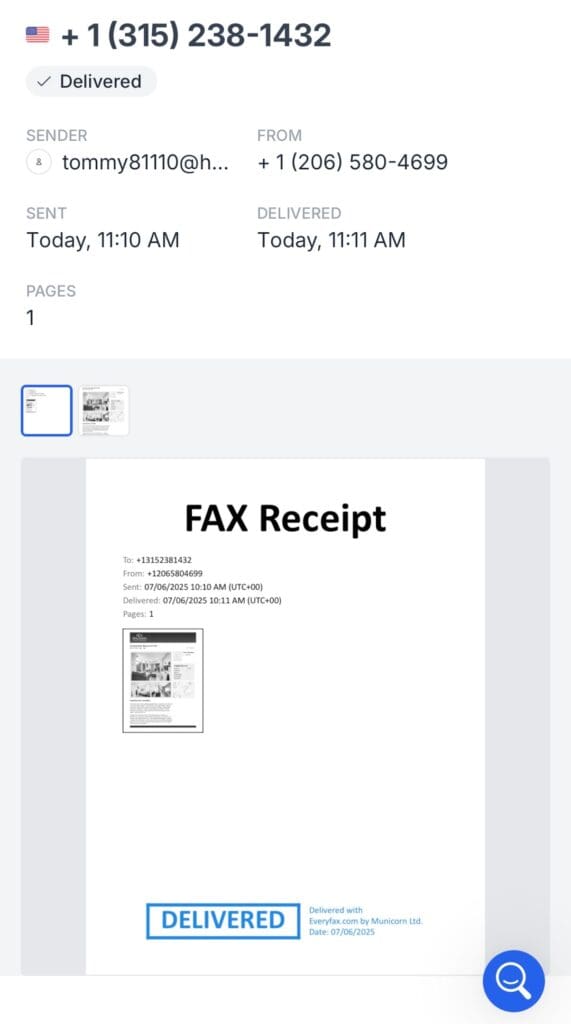
Yes, just like with a traditional fax machine, EveryFax will give you a proof of delivery, which is legally recognized as a confirmation that you have sent documents. Check out the iPhone screenshot below to see what this looks like!
Advantages of Using EveryFax to Fax From iPhone
EveryFax is a popular service for those looking to send faxes from different devices – not being limited to one app means that you can use any device you have at-hand, which is helpful if you’re on the go, or working remotely without your usual devices available.
Here are a few reasons why people are turning away from traditional fax machines and other online faxing services to choose EveryFax:
- EveryFax includes HIPAA compliance as standard, so you get that level of security without being pushed onto a pricier tier to unlock it – which isn’t always the case elsewhere.
- EveryFax goes above other fax services in customer support – you have the option to live-chat on the web page with a member of the team if you need any help quick – most other services just provide an email address – which often takes longer to get a response.
- You can choose a free fax number from anywhere in the USA or Canada with your plan – this means you can appear local to a specific place, and people with fax numbers in that area will be able to send faxes to you for a lower cost. This is super helpful if you’re running a local small business.
Key Takeaways
EveryFax is the best service for faxing from any device without an app, but works especially well from iPhone. Whether you want to use a web browser or your emails to send and receive faxes, head to their website to get started. If you have any more questions, just use their live chat feature – they’d love to hear from you!