
Table of Contents
- Is There an Official Apple Fax App?
- Why So Many People Think There’s an Apple Fax App
- Why Can’t an iPhone Fax on Its Own?
- What About iPad, Mac, and Apple Watch?
- So How Do You Actually Fax From an iPhone?
- Can You Fax From an iPhone for Free?
- How to Check What a Fax App Really Costs Before You Download
- Frequently Asked Questions
Quick answer: No — there is no Apple fax app, and no iPhone has a built-in fax feature. Apple has never made one. But yes, you can still fax from an iPhone: you just need a third-party fax app, a fax website, or email-to-fax. We tested the main options ourselves, and below we explain the honest picture — what exists, what doesn’t, and why Apple never built faxing in.
If you’ve searched the App Store for an “Apple fax app” and come up empty, you’re not going mad — it genuinely isn’t there. People who look for one are usually after one of two things: a fax feature built into the iPhone by Apple itself, or simply the best way to send a fax from an iPhone. The first doesn’t exist and never has. The second absolutely does, and it’s easier than most people expect.
Faxing is still a fact of life for medical offices, insurers, legal filings and government forms — a faxed signature is still treated as more binding than an emailed one in a lot of places. So if someone’s asked you to fax something and all you’ve got is your phone, here’s exactly where things stand.
Is There an Official Apple Fax App?
Short answer: no. Apple has never built one, on any of its devices, and there is no fax feature tucked away in iOS — not on any iPhone, not on any iPad, not in 2026. If you’ve been digging through Settings looking for one, you can stop; it isn’t hidden, it just doesn’t exist.
There’s a common mix-up worth clearing up here, because a lot of pages online get it wrong. Macs never had a dedicated “fax app” either. Back when a Mac could fax, you did it through the ordinary Print dialog with an Apple USB modem plugged into a phone line — and that modem stopped working with macOS all the way back around OS X Lion in 2010. To this day a Mac can still fax if you’ve got a fax-capable printer wired to a landline, but that’s hardware doing the work, not Apple software. The iPhone has never had any of that. So when people search for an “Apple fax app,” what they actually need is a third-party app from the App Store, a fax website, or email-to-fax.
Setting the record straight: you’ll see it claimed that “Apple removed fax from macOS in 2020.” That’s not quite right. macOS can still send a fax today through a connected fax-capable printer — what actually went away, years earlier, was support for Apple’s own USB fax modem. And the iPhone never had a fax feature to remove in the first place.
Why So Many People Think There’s an Apple Fax App
If you assumed Apple made a fax app, the confusion is understandable. Apple names so much of its own software with a little “i” — iMessage, iCloud, iMovie — that when you spot an app called “iFax” in the App Store, it’s easy to read it as an official Apple product. It isn’t. iFax is made by a third-party company, not Apple, and the same goes for every other fax app you’ll find there. That little “i” is just branding borrowing Apple’s style.
Search “fax” in the App Store and you’ll get a wall of polished, official-looking apps, several of which lean hard on Apple-style design to feel native. Add in the fact that older Macs genuinely could fax (through the Print dialog, with the right hardware), and it’s no wonder people expect the iPhone to have something built in. It doesn’t — and it never has.
We know because we’ve tested them. When we ran the main iPhone fax apps through our own hands-on testing — the same documents sent from an iPhone 16 Pro Max, an iPad and an older iPhone SE — not one of them was made by Apple. Every single one was a third-party service doing the faxing behind the scenes. You can see exactly how they compared in our best iPhone fax apps review.
Why Can’t an iPhone Fax on Its Own?
It comes down to hardware. A fax is an analogue signal sent down a traditional phone line — that screech you’ll remember if you ever picked up a landline mid-transmission. Sending one the old-fashioned way needs a fax modem and a copper phone line. Your iPhone has neither: it has cellular and Wi-Fi radios that move internet data, and those simply don’t carry fax tones reliably (even a normal mobile call isn’t a clean enough channel for a fax to survive).
The old way
A fax machine (or a fax modem) plugged into a phone line, sending an analogue signal over the telephone network. Needs hardware and a landline — neither of which an iPhone has.
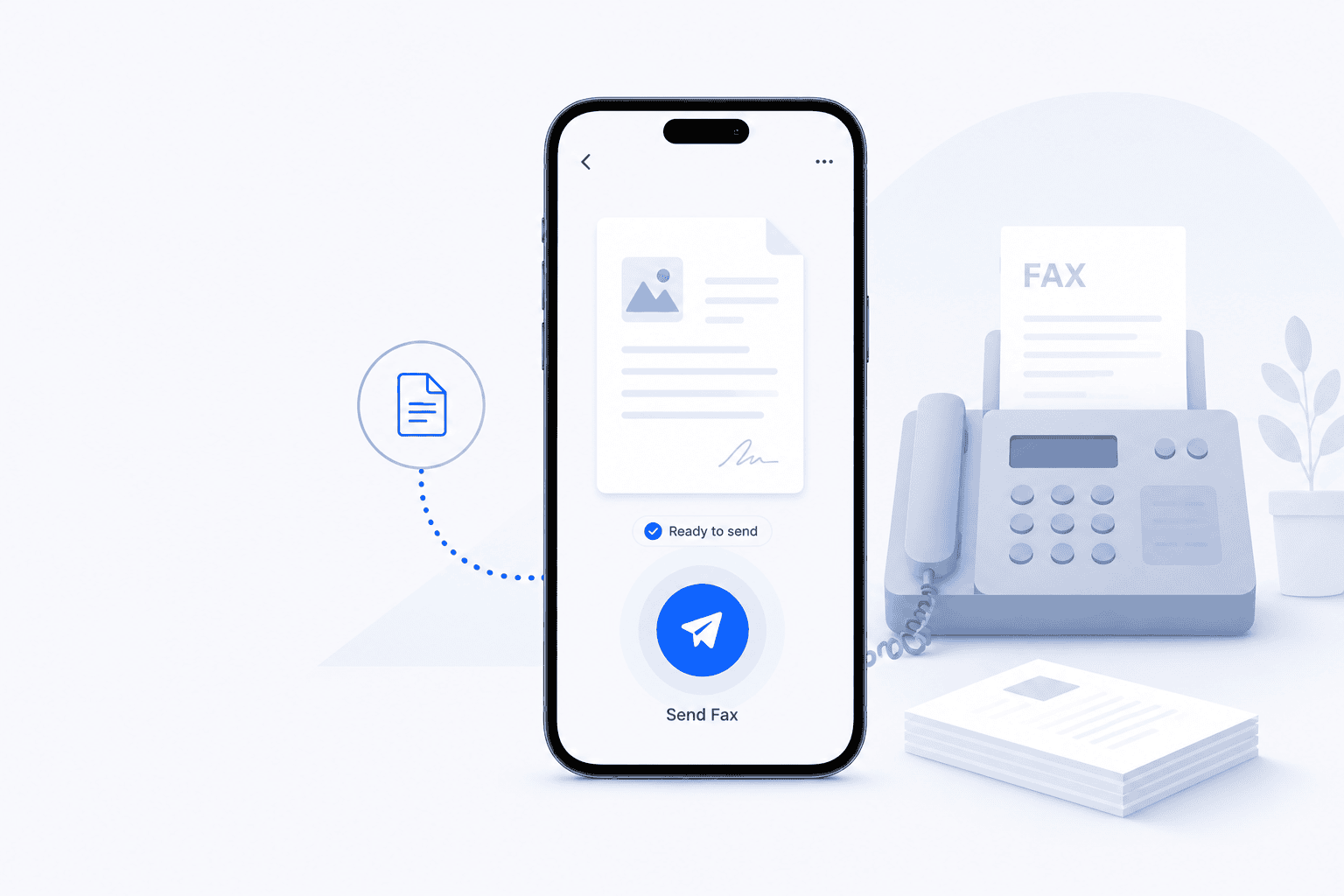
The iPhone way
You send your document over the internet to an online fax service. Their servers do the actual phone-line transmission for you, then send the confirmation back to your phone. You’re faxing through their equipment.
That’s the gap every fax app and fax website fills. It’s also why “just use the iPhone’s built-in fax” was never an option — there’s no built-in fax to use. An internet fax service is the bridge between your phone’s data connection and the old telephone network faxes still run on.
What About iPad, Mac, and Apple Watch?
The “no built-in fax” rule isn’t just an iPhone thing — it runs across Apple’s whole line-up. Here’s where each device stands.
iPad
Same story as the iPhone: iPadOS has no native fax. The upside is that every fax app and fax website works just as well on an iPad, and the bigger screen — plus Apple Pencil for signing — actually makes reviewing and signing documents easier than on a phone.
Mac
No fax app here either. A Mac can still send a fax through the Print dialog if it’s wired to a fax-capable printer on a phone line — but Apple’s own USB fax modem was dropped years ago, so most people just use an online fax service or web faxing instead.
Apple Watch
You can’t send or receive a fax from an Apple Watch — there’s no practical way for it to handle documents. What it can do is buzz your wrist: a fax app on your paired iPhone will push a delivery or arrival alert straight to the Watch, so you know the moment a fax lands.
So How Do You Actually Fax From an iPhone?
Once you accept there’s no native option, faxing from an iPhone is genuinely simple — and you’ve got three routes, none of which need a fax machine or a phone line. Here’s the quick version; we’ve linked full step-by-step guides for each.
A fax app
Best if you fax more than once. You get a built-in scanner, a reusable fax number and delivery receipts. See how to fax from an iPhone, or compare the options in our best iPhone fax apps review.
A fax website
No download needed — open Safari, sign in, upload, send. Ideal on a shared device or if you’re short on storage. Walkthrough: fax from an iPhone without an app.
Email-to-fax
Send the document as an email attachment to a fax address and the service converts it. Handy if you live in your inbox — it’s covered in the no-app guide too.
Can You Fax From an iPhone for Free?
Sometimes — but be realistic about the limits. A few services have genuine free tiers: FaxBurner gives you 5 send pages and 25 receive pages a month at no cost, and Fax.Plus offers a free plan with a monthly page allowance. Several paid apps also run a free trial you can cancel before you’re charged. Beyond that, most “free” fax apps in the App Store aren’t really free — they look free until you go to send, then ask for a subscription (weekly billing, often around $9.99/week, is common, so always check the price and the cancellation terms before you commit).
If a genuinely free fax is what you’re after, we’ve rounded up and tested the honest options — including who limits you to how many pages, and who quietly brands your cover sheet — in our guide to the best free fax services.
How to Check What a Fax App Really Costs Before You Download
Here’s the trap to sidestep. A lot of fax apps show up as “free” in the App Store, but that only means free to download — the moment you go to send, you hit a subscription. Before you tap “Get,” it’s worth 30 seconds to check what you’re actually signing up for.
On any App Store listing, scroll down to the In-App Purchases section — it lists the real prices. Weekly billing is common in this category (often around $9.99 a week, sometimes more), and a weekly charge adds up quickly if you only fax now and then. That isn’t automatically a bad deal — an unlimited weekly, monthly or annual plan can be excellent value if you fax regularly — but you want the billing to match how often you’ll actually use it.
Check three things before you commit: the real price under “In-App Purchases”; whether it’s weekly, monthly, annual or pay-per-fax (pick what fits how often you fax); and how to cancel — remember that deleting the app does not cancel a subscription. You manage that under your Apple Account settings, and it works the same way on Google Play.
Occasional faxer? A genuine free tier or a pay-per-fax option will usually serve you better than a recurring plan. Faxing often? A monthly or annual subscription is generally the cheaper, simpler route. We break down who charges what in our iPhone fax apps review and our best free fax services guide.