
Table of Contents
- How Receiving a Fax by Email Works
- How to Set Up Fax-to-Email
- What a Received Fax Looks Like in Your Inbox
- Choosing a Service to Receive Faxes By Email
- Is Receiving Faxes by Email Secure and HIPAA Compliant?
- Replying to a Fax You’ve Received
- Troubleshooting: When a Fax Doesn’t Arrive
- Frequently Asked Questions
- Turn Your Inbox Into a Fax Inbox
Quick answer: To receive faxes by email, get your own virtual fax number from an online fax service like EveryFax, point it at your email address, and share the number. Every fax sent to it then lands in your inbox as a PDF, usually within a minute or two — no machine, no phone line, no paper. You can pick any area code you like, or keep a number you already own.
Receiving a fax used to mean owning a machine, keeping it tethered to a phone line, and hoping it had paper and toner the moment something important came through. It doesn’t any more. With fax-to-email, your ordinary inbox becomes your fax inbox: someone sends a fax to your number, and a minute or two later it arrives as a PDF in your email — on your phone, your laptop, wherever you already read your mail.
It’s the simplest way to stay reachable by fax without any hardware, and it’s why so many clinics, law firms and small businesses have quietly retired the machine in the corner. This guide covers how it works, how to set it up in a few minutes, what to expect in your inbox, how to keep it secure enough for sensitive documents, and how to fix the rare occasion a fax doesn’t turn up. It’s part of our wider guide to receiving faxes online, which also covers picking faxes up in the app or on the web.
How Receiving a Fax by Email Works
The clever part is that the sender doesn’t need to do anything different. From their end it’s an ordinary fax; the conversion happens on your side, automatically:
- Someone dials your virtual fax number from any fax machine or fax service, exactly as they would any other fax number.
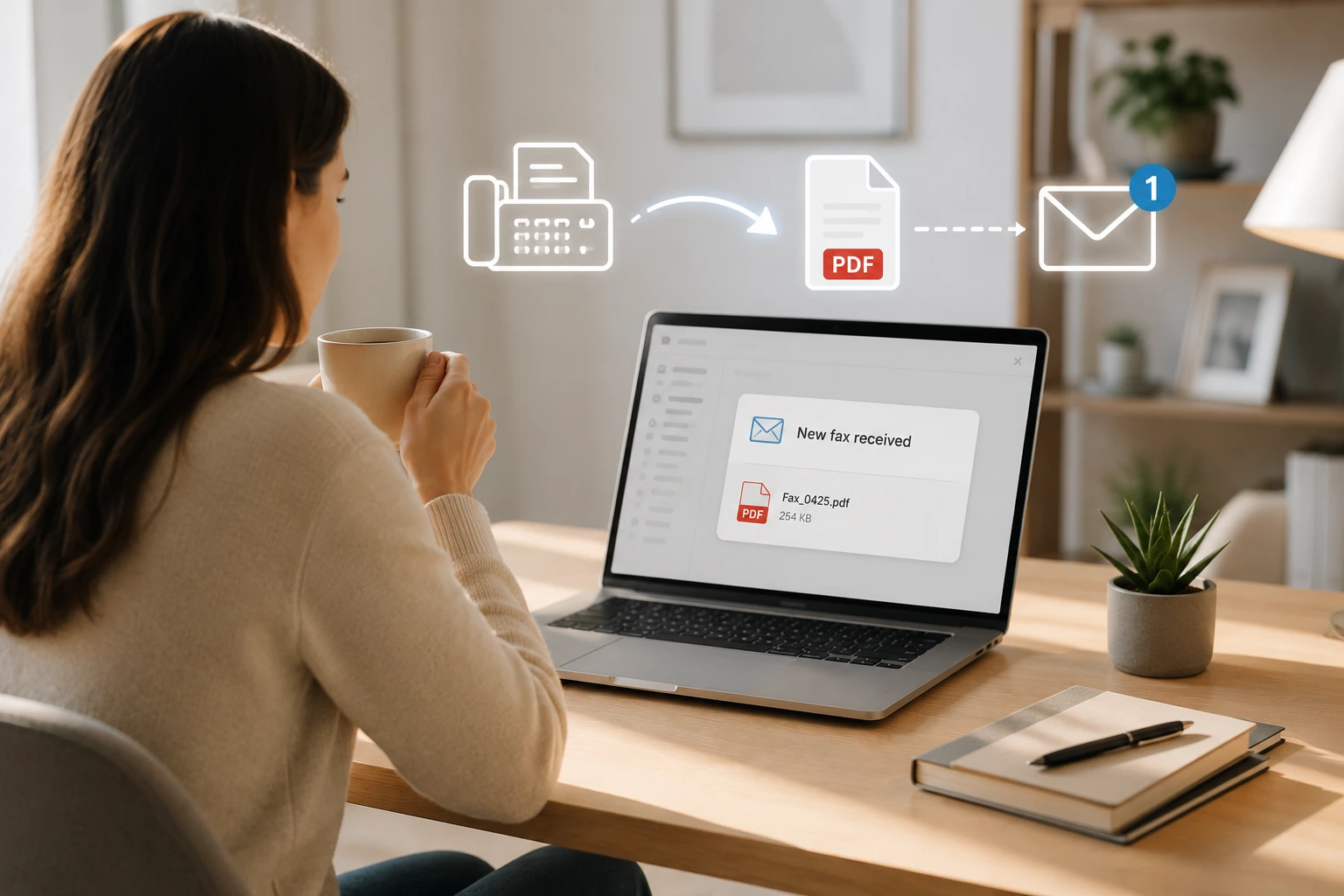
- Your provider’s server answers the call, decodes the incoming fax and turns the pages into a digital document — almost always a PDF.
- That PDF is emailed to you as an attachment, along with the sender’s number, the time it arrived and the page count. A copy is also kept in your online account.
The server is always on, so it receives faxes around the clock whether or not you’re at your desk, then delivers them to your inbox the moment they’re processed. Nothing is missed while you’re offline — it simply waits for you.
How to Set Up Fax-to-Email
Setup takes about five minutes. Here’s the whole process using our own platform, EveryFax — the steps are much the same with any good provider.
- Get your own fax number. Sign up and choose a fax number. You can pick any US area code you like — handy if you want to look local to your customers — opt for a toll-free number, or port a number you already own so people can keep faxing the number they know.
- Point it at your email. In your account settings, enter the email address where you’d like faxes delivered. Most services let you add more than one address, which is useful if a fax should reach, say, both a doctor and their assistant. Choose PDF as the delivery format and make sure the setting attaches the fax file rather than just linking to it.
- Whitelist the sender so it skips spam. Automated delivery emails can occasionally trip a spam filter, so add your provider’s sending address to your contacts or safe-senders list before your first fax. In Gmail that’s a filter set to “never send to spam”; in Outlook it’s adding the domain under safe senders.
- Send a test fax. Before you hand the number out, confirm it works end to end — use your provider’s built-in test feature or have someone send you a single page. It should appear in your inbox within about three minutes; if it doesn’t, check your spam folder first.
That’s it — from then on, every fax to your number simply turns up in your email like any other message.
What a Received Fax Looks Like in Your Inbox
An incoming fax arrives as a normal email from your provider. The subject line usually tells you who it’s from and how long it is — something like “Fax from +1 (555) 234-5678, 3 pages” — and the fax itself is attached as a PDF you can open on any device. From there you can read it, save it, forward it, print it, or sign and send it back using any PDF tool. The same fax is also stored in your provider’s online dashboard, so you can always find it again from a browser even if you lose the email.
Choosing a Service to Receive Faxes By Email
Most online fax services can deliver to your inbox, but they differ on the things that matter for receiving: whether you get your own permanent number, whether receiving is included or costs extra, HIPAA cover for sensitive documents, and whether a fax can reach more than one person. Here’s how a few good options compare:
| Service | Own number | Send & receive | HIPAA (with BAA) | Best for |
|---|---|---|---|---|
| EveryFax | Yes — any US area code, or port your own | Yes, on every plan | Yes | Receiving in your inbox, unlimited use |
| Municorn Fax app | Yes — any US area code | Yes | Yes | Receiving on your phone |
| Fax.Plus | Yes | Receiving needs a paid plan | Yes | Light, occasional use |
| eFax | Yes | Yes | On its higher tier | A long-established brand name |
For most people who simply want faxes to land in their inbox, EveryFax is the one we’d point you to: receiving is included on every plan, there are no per-page charges to worry about, and you can subscribe weekly, monthly or annually. If you’d rather pick faxes up on your phone, Municorn’s fax app does the same job with notifications straight to your handset.
Is Receiving Faxes by Email Secure and HIPAA Compliant?
It can be — and this matters, because a lot of what people receive by fax is exactly the sort of thing that needs protecting: medical results, legal papers, insurance claims. Plain email delivery on its own isn’t enough for regulated data. For HIPAA-compliant faxing, you need a provider that encrypts faxes in transit and in storage, keeps an audit log of who accessed what, and — crucially — will sign a Business Associate Agreement (BAA) before you receive any protected health information.
One practical habit worth adopting: set your provider to attach the fax rather than paste its contents into the email body, and keep sensitive detail inside the PDF. That way, even if an email account is compromised, the notification itself gives little away. If you’re in healthcare, law or insurance, confirm the BAA is in place before you share your number — EveryFax and Municorn Fax both offer HIPAA-compliant plans with a signed BAA.
Replying to a Fax You’ve Received
One thing to know: don’t just hit “Reply” on the notification email — that goes back to the fax service, not the person who faxed you. To reply, start a fresh email to the sender’s fax number followed by your provider’s domain, attach your document, and send. It’s the same method covered in our guide on how to send a fax from email — so your inbox handles faxes in both directions.
Troubleshooting: When a Fax Doesn’t Arrive
Fax-to-email is reliable, but if something doesn’t show up, work through these in order:
- Check the dashboard first. Log into your provider’s online account. If the fax is there but not in your inbox, it’s an email problem — look in spam and whitelist the sender. If it isn’t in the dashboard either, the fax was never received, so ask the sender to resend and confirm their machine reported success.
- It landed in spam. The most common culprit. Whitelist your provider’s sending address, then drag the message into your inbox so your email client learns to trust it.
- The email arrived but there’s no PDF. Check that delivery is set to attach the fax, not just notify you. Very large faxes can also hit an attachment size limit on strict email servers.
- The fax is blank or unreadable. That’s nearly always the sender’s end — low toner or a badly fed original. Ask them to resend; switching your format between PDF and TIFF occasionally helps too.
Frequently Asked Questions
Can I receive a fax straight to my email address?
Is it free to receive faxes by email?
What does a received fax look like in my inbox?
Is fax-to-email HIPAA compliant?
Can I keep my existing fax number?
Can received faxes go to more than one person?
Turn Your Inbox Into a Fax Inbox
The simplest setup in 2026 is one virtual fax number pointed at one email address, with no hardware at all — and the same inbox can send faxes through email too. Get a number with EveryFax in a few minutes, choose any area code you like, and every incoming fax will arrive as a PDF in your inbox — and you can send faxes back the same way. Prefer to pick them up on your phone? Municorn’s fax app does exactly that. No machine, no phone line, no paper.