
Quick answer: Gmail has no built-in fax feature, but you can send and receive faxes straight from your inbox using an email-to-fax service like EveryFax. Compose a new email, type the recipient’s fax number followed by @send.everyfax.com in the To field (for example, [email protected]), attach your document, and hit send.
On April 1st (April Fool’s Day) in 2004, Google launched Gmail – but this was no prank. Gmail would quickly go on to become the world’s most popular email service, with 2.5 billion accounts using it for emails in 2026.
Most people know about Gmail. But they don’t know that thanks to online fax services, you can also send and receive faxes entirely from your Gmail account, using your own fax number. In fact, you can send faxes every single day and you never have to touch a traditional fax machine again.
EveryFax is one of those services — it’s part of the Municorn Fax family of products, alongside our iOS faxing app and Android counterpart. We’re using EveryFax for this guide, but the same approach works with most email-to-fax providers — the setup, the email format, and the steps only differ in small details from one service to the next.
Let’s break down how to send faxes from your Gmail account, step by step.
How to Easily Send a Fax from Your Gmail Account
Follow these 5 simple steps to start faxing from Gmail in no time.
1. Sign up for an email-to-fax service
Pick an email-to-fax service and sign up using your Gmail address. We’re using EveryFax for this guide – head over, choose a plan that works for you, and pick your fax number. Once your account is ready, you’ll be able to fax directly from Gmail, the exact same way you send emails.
2. Open Gmail and compose a new email
The same way you would begin any other email, just access your Gmail inbox and hit the ‘Compose’ button to start your fax.
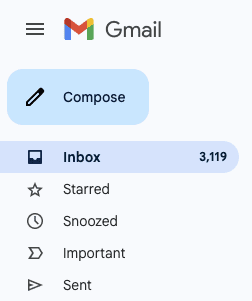
3. Enter the recipient’s details
In a typical email, you would enter the recipient’s email address in the ‘To’ field. To send a fax from Gmail using EveryFax, simply type in the recipient’s fax number instead, followed by ‘@send.everyfax.com‘. Other services use different formats – check your provider’s docs if you’re using something else.
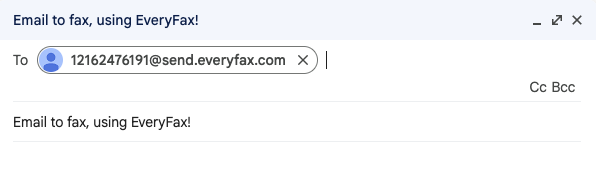
Remember to prefix the fax number with the country code – in this example, the code was +1 for a USA-based fax number, so the fax number begins with a ‘1’. You then type the area code and the fax number.
4. Attach fax documents to the email
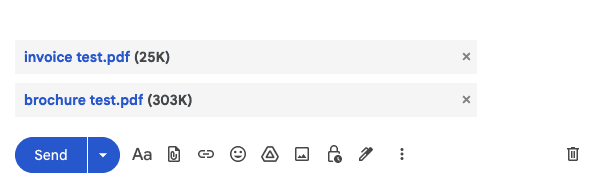
Attach every document which you want to fax to the email, as attachments. EveryFax supports over 60 file formats, including PDF, DOCX, JPG, PNG, XLSX and more – most other email-to-fax services support a similar range.
If you want to add a cover page to your fax, you can also attach it with the other documents – make sure it’s the first attachment!
5. Hit send, we’ll do the rest
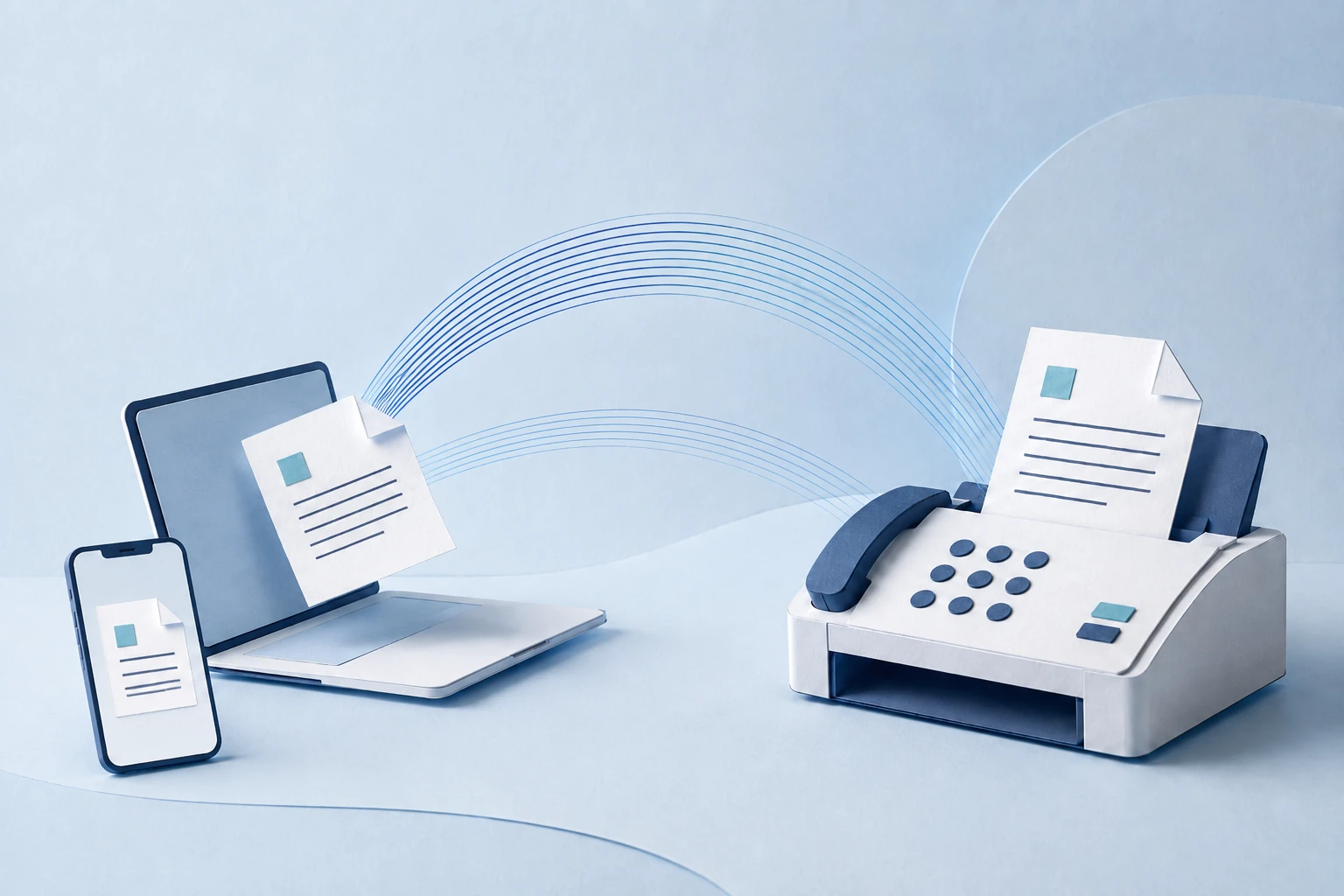
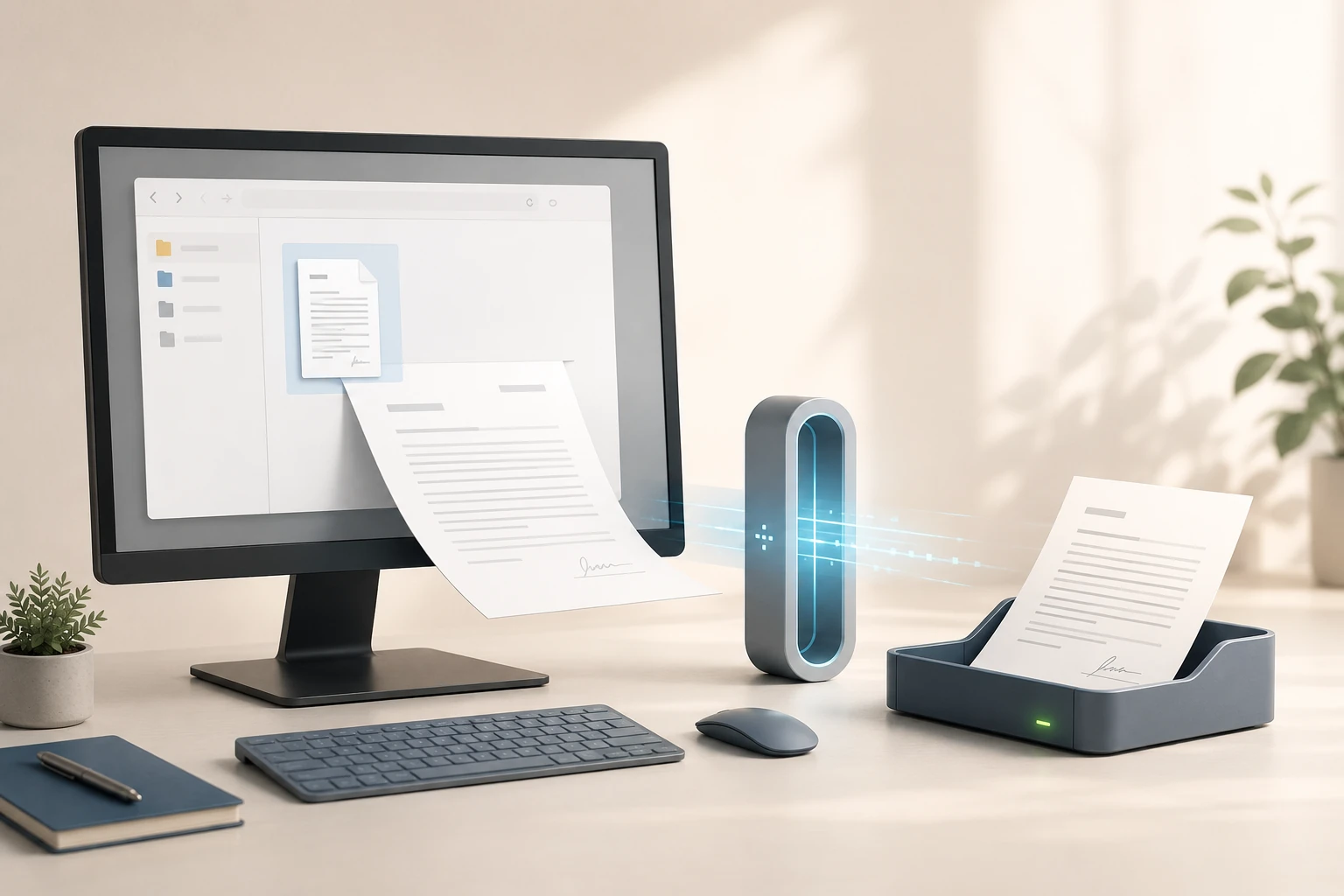
All you need to do now is click send. The fax service handles the rest – your attachments get converted into a fax and delivered to the fax number provided.
That’s everything you need to know about fax sending via Gmail, in 5 simple steps!
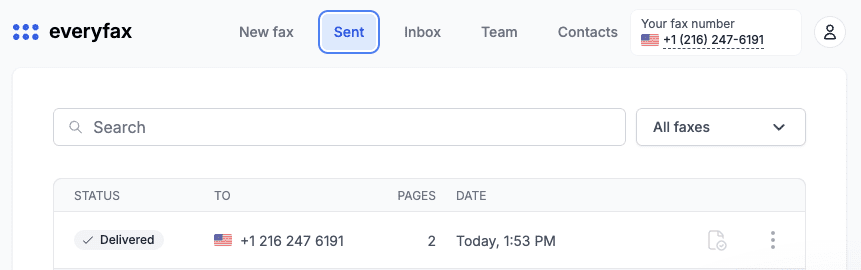
Bonus step: Most email-to-fax services let you monitor outgoing and incoming faxes from your account dashboard – useful for checking that a fax has successfully delivered to the recipient’s fax machine.
How To Receive Faxes Through Gmail
You can receive faxes through Gmail the same way – your email-to-fax service will email you every time your account receives a fax with a notification, giving you details of the fax and a link in the email body which allows you to view the fax directly.
Why Fax From Gmail?
Faxing from Gmail (with any email-to-fax service) brings a world of convenience, security, cost efficiency and other benefits over a traditional fax machine.
Keep your own fax number
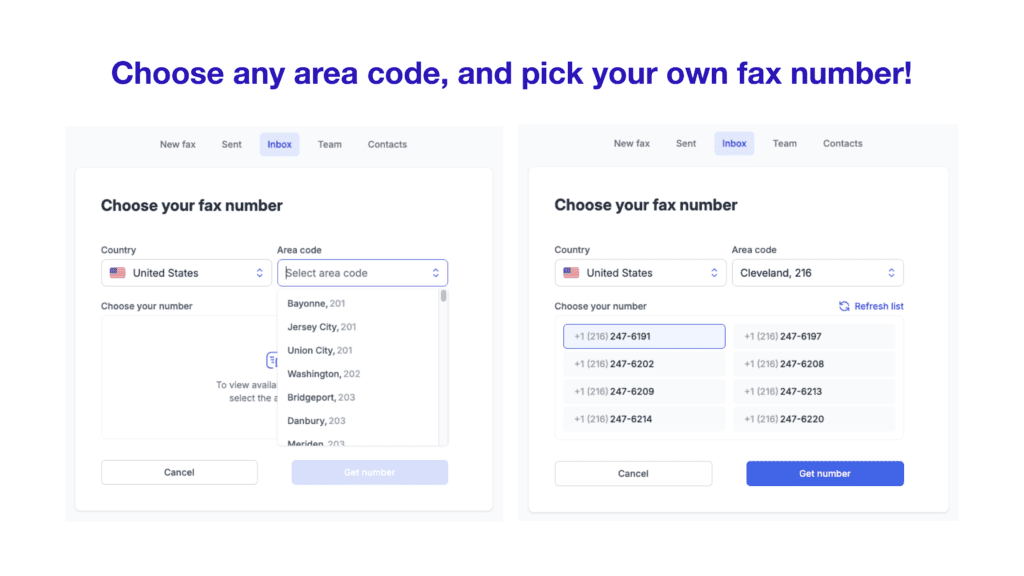
Whether you have an existing fax number, or want to create a new one in an area / country code of your choice, you can use email-to-fax to fax via your own dedicated fax number.
Just sign up and choose your number – the people you are faxing will be none-the-wiser that you don’t have a physical fax machine!
Low cost way of faxing
Email-to-fax is dramatically cheaper than a traditional fax machine – no machine to buy, no phone line to pay for, no ink and paper to stock. The pricing model is usually a flat monthly subscription instead of per-page or long-distance charges.
Plans vary by provider. Some cap pages per month, some include unlimited faxing, some charge extra for international. EveryFax’s plans include virtually unlimited faxing and international faxing at no extra cost – worth comparing if cost matters to you.
Industry-leading security and compliance
Reputable email-to-fax services include data encryption, firewalls, access controls and regular security audits. The standard most users care about is HIPAA compliance – which demands strict controls and protection over electronically transmitted protected health information (ePHI and PHI).
EveryFax is HIPAA compliant; not all email-to-fax providers are, so check before signing up if you’re handling healthcare, insurance, legal, financial or other matters with sensitive information.
Fax from anywhere, from any device
Because it’s tied to your email account, you simply need to log in to your Gmail and you can start sending secure faxes instantly. If you have a computer or mobile device handy, that’s all you need.
Email-to-fax works across multiple platforms and devices, whether it’s a desktop browser or a mobile email app, you get the same convenience and strong security every time.
Huge number of file formats
You don’t need to keep paper copies of everything, and you don’t need to convert any files to make them compatible. EveryFax for example supports files in these formats (and more):
- Images: jpg, jpeg, png, tif, tiff, bmp, mdi, gif, fax, ico
- Documents: pdf, doc, docx, rtf, txt, log, xps, web, wps, plus many others (including OpenOffice and WordPerfect types)
- Spreadsheets: xls, xlsx, csv, and more
- Presentations: ppt, pptx, pps, ppsx, pot, potx
- Emails: eml, mbx, msg, oft
- Other: lwp, mwp, sam, mml, pub, snp, vsd, vst, vsdx, vstx, mpp, mpt, wv2, vor
Most other providers cover the common formats; the long tail varies by service.
Manage your team
If you run a business or manage a team, most email-to-fax services let you add email accounts as team members into your plan, enabling them to instantly start faxing from their email addresses.
Seamless integration
Email-to-fax enables cloud storage integration across your faxing infrastructure – you can use Google Drive or other cloud services to instantly download or upload documents that you’re faxing, meaning less time spent trying to scan documents, or transfer them via memory sticks.
Frequently Asked Questions
Can you send a fax directly from Gmail?
What email address format do I use to fax from Gmail?
Is faxing from Gmail free?
Is faxing from Gmail secure and HIPAA compliant?
Can you receive faxes in Gmail as well as send them?
Do you need a fax machine or phone line to fax from Gmail?
Get Started
If you’re shopping for an email-to-fax service, EveryFax is ours – part of the Municorn Fax family of products alongside our iOS and Android apps, with an average 4.8/5 rating from over 370,000 reviews on the iOS app alone. EveryFax’s plans include near unlimited faxing with international faxing at no extra cost – unusual in the category, where most providers cap pages or surcharge international.
More Email-to-Fax Guides
Send a fax from email
The full email-to-fax walkthrough, address format, and the providers we recommend.
Can you fax through email?
The plain-English answer, and exactly what you need to start.
Fax from Yahoo Mail
Send a fax straight from a Yahoo inbox, step by step.
Receive faxes online
Get incoming faxes by app, email or web, without a machine.
Receive a fax by email
Route inbound faxes straight to your inbox as PDFs.
Fax from Google Drive
Send Google Docs, Sheets and Drive files as faxes.