
Table of Contents
Quick answer: Google Drive has no built-in fax feature, but you can still fax any Google Doc or file. The two easiest ways: attach it straight from Drive in the Municorn Fax app and send, or attach a Drive file to a Gmail message and send it through an email-to-fax service like EveryFax. Here’s each method, step by step, plus add-on and manual options.
Google Drive is Google’s main file storage service, and many of us rely on our Google workspace to store and organize important documents. In fact, Google Drive is the biggest file storage service in the world, with over 31% of the global market, and billions of users.
Google Drive and other Google apps have many amazing features which make them popular, but unfortunately, there is no Google fax service, and you cannot send a fax from Google Drive without using a third-party. Faxing from Google Drive is still possible, however, using one of these options:
- Send faxes with a mobile fax app that connects to your Google Drive
- Send a fax from Gmail using an email-to-fax service
- Use an online fax service with a Google Workspace add-on
- Manually transfer a document you want to fax from your Google Drive
Let’s take a closer look at each one.
Fax From Google Drive Using a Mobile App
The easiest way is a mobile fax app. Municorn Fax connects to your Google Drive, so you can pull a document straight in and send it as a fax from your phone — and you can see how it stacks up against the other apps in our top iPhone fax apps review. Here are the steps for using your phone to fax documents from your Google account:
Download Municorn Fax and create an account
It installs in a few minutes and works on all main smartphones, Android included, with support for Google Drive and other cloud storage so you can pull documents straight in. See how it compares in our top iPhone fax apps review.
Create a new fax
Follow the menu to create your fax – enter the recipient’s fax number, check the area code, and complete the cover page details.
Attach your document from Google Drive
Select ‘upload image or document’ from the new fax menu and choose your Google Drive file. In Municorn Fax you can also open the document in the Google Drive app itself, tap ‘Open In’, and pick the fax app – the flow below shows exactly how that looks.
Review and send
With your document (or documents) attached, review the fax, check you have the right fax number, and then hit send fax to complete the process.
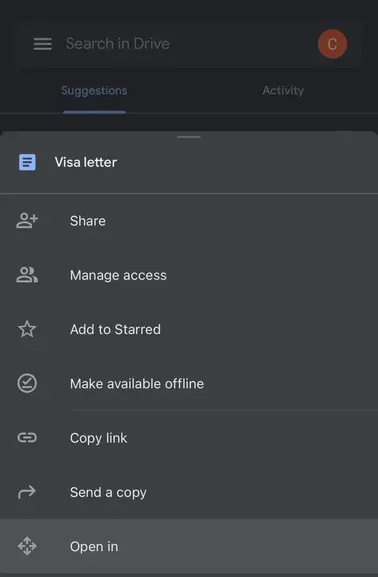
Find your document
Open the Google Drive app and tap the document you want to fax to open it.
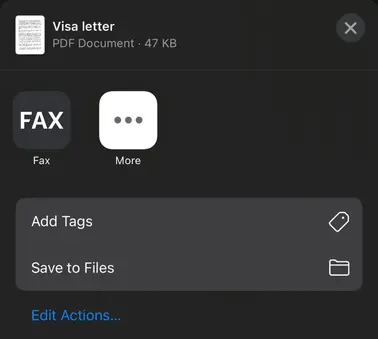
Tap ‘Open In’, then choose Municorn Fax
Use the share or ‘Open In’ option, then pick Municorn Fax from the list of apps.
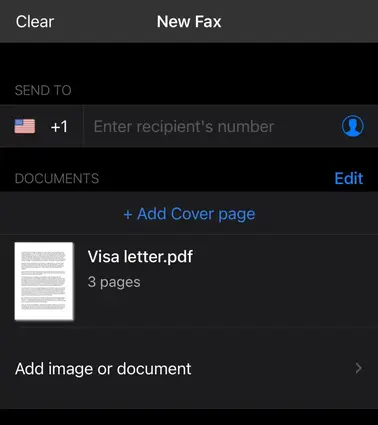
Your document lands in a new fax
The file appears as part of your new fax, ready for you to add the number and send.
Using a mobile app is one of the easiest ways to fax a Google doc – these apps are free to install, with flexible subscription packages depending on your faxing needs.
Fax From Your Gmail Account Using an Email-To-Fax Service
Google doesn’t have a native faxing application, but if you want to fax directly from Gmail you can sign up for an online fax service that supports email-to-fax. Put simply, this lets you send faxes straight from your Gmail inbox, which already connects to your Google Drive documents. Here’s how:
Sign up to an email-to-fax service
EveryFax lets you send fax transmissions directly from your Gmail inbox – create an account and choose your online fax number to get started.
Compose a fax from your Gmail inbox
Navigate to Gmail and compose a new message. Enter the recipient’s fax number into the ‘To’ field, followed by @send.everyfax.com (this changes depending on the service you signed up to). Our full guide to faxing from Gmail walks through it with screenshots.
Attach your document from Google Drive
Attach your Google docs to the email by selecting the Google Drive icon in Gmail’s attachment options, then choose your file.
Review and send
Once you’ve reviewed the fax, the fax number and the subject line, press send exactly the same way you would with any email. The fax service does the rest, and you’ll get a delivery confirmation by email once it’s through.
If you’re used to working and sharing Google documents from your Gmail account, email-to-fax lets you send and receive faxes that connect to your Google Drive without changing the way you work.
Prefer a Google Workspace Add-On or Extension?
A handful of third-party fax services go a step further and offer dedicated Google Workspace integration – Chrome extensions and add-ons for Docs, Sheets, Gmail and Drive that let you start a fax from inside a Google app once you’ve connected your account and validated your credentials. If you fax constantly from within Google Workspace, that deeper integration can be worth setting up.
For most people, though, there’s no need to install anything extra: attaching a Drive file in Municorn Fax, or emailing it through EveryFax from Gmail, is quicker and works on any device.
Manually Transfer a Document From Google Drive
If you’d rather not use any of the options above, or perhaps you have a fax machine you want to use instead, there are still ways to fax items stored on your Google Drive:
- Download the document from Google Drive onto a local device or storage drive, then use an online fax service to upload that file directly to a fax, without Google integration.
- If you use a fax machine that scans paper, print the items from your Google Drive, place them into the fax machine feeder tray, type in the fax number, and send the fax.
Google may not offer a fax service directly, but as you can see, there are still plenty of ways to fax documents from Google Drive and your other Google applications.
Online faxing is incredibly popular thanks to its lower costs, convenience, portability, and the fact that it’s more eco-friendly than a traditional fax machine. Thanks to services that connect to Google, you can fax all of your Google documents online without a machine in sight.