
Table of Contents
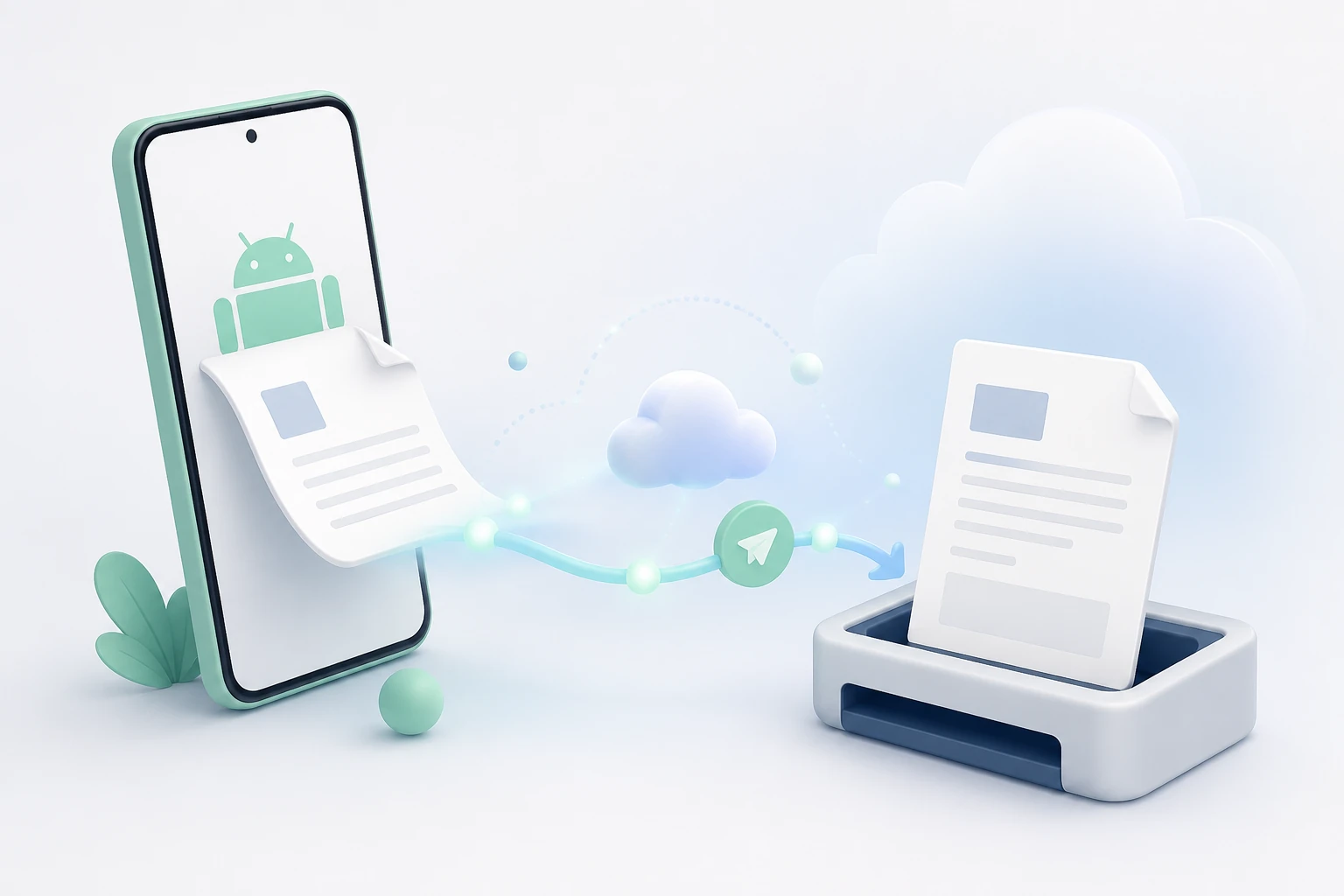
Quick answer: Android has no built-in fax feature, so you fax with a third-party app. Install one like Municorn Fax from Google Play, sign up, and pick your own fax number. Then start a new fax, scan your document with the camera (or attach one from Google Drive or your files), type in the recipient’s fax number, and send — a delivery receipt lands back in a minute or two. Prefer not to install anything? You can also fax from your browser or by email-to-fax.
Someone needs a document faxed, and all you’ve got on you is your Android phone. Good news: that’s plenty. There’s no machine to hunt down and no phone line to plug into — a modern Android phone has a camera good enough to scan a page and an internet connection good enough to send it, which is everything faxing actually needs. Here’s how to do it, whether you’d like a dedicated app or would rather not install one at all.
Does Android Have a Built-In Fax Feature?
No. No Android phone has a built-in way to send a fax — not a Samsung Galaxy, not a Google Pixel, not any of them — and Google doesn’t make a fax app of its own. That isn’t a gap in your phone; a fax has to travel over the fax network, and no phone, Android or otherwise, is wired to do that on its own. What bridges the gap is a fax service: you send your document over the internet, and the service passes it to the recipient’s fax machine for you.
Google Voice can’t fax either. People often assume their Google Voice number will do the job — it won’t, because it uses internet calling that fax tones can’t survive. For faxing you’ll want a proper fax service, which is exactly what the rest of this guide covers.
How to Fax From Android, Step by Step
The simplest route is a dedicated fax app, because it scans, previews and sends in one place. We’ll use Municorn Fax, the top-rated fax app on Google Play, but the steps are much the same in any good one — if you’d like to compare, we’ve put the options through their paces in our best Android fax apps review.
Install the app
Get Municorn Fax from Google Play and open it.
Sign up and pick a number
Signing up takes a minute. Then choose your own fax number from any US or Canadian area code, even one that isn’t where you live.
Start a new fax
Tap New Fax and enter the recipient’s fax number, adding the country code if it’s going abroad.
Add your document
Scan a paper page with your camera, or attach a file already on your phone, in Google Drive, or in Dropbox.
Review and send
Add a cover sheet if you need one, review and reorder the pages, then tap Send.
Keep your receipt
Check the delivery receipt to confirm it went through, and keep it as your proof of delivery.
Scanning and Attaching Documents on Android
Most faxes start as either a paper page or a file you already have, and Android handles both. To fax a paper document, use the app’s built-in scanner: point your camera at the page and it detects the edges and saves it as a clean PDF, no separate scanning app needed. To fax something that’s already digital, attach it straight from your phone’s storage, from Google Drive, or from another cloud service — handy when the file you need is a PDF a colleague shared rather than a page in front of you.
None of this is tied to a particular handset. It works the same on a Samsung Galaxy, a Google Pixel, a OnePlus, a Motorola or any other Android phone or tablet, because the fax app does the work rather than the device. For sharper scans, use good light, keep the page flat, and send as a PDF where you can — our scan-and-fax guide has more on getting a clean result.
Faxing From Android Without an App
Don’t want to install anything? You have two no-app options on Android. The first is web faxing: log in to a fax service’s website in Chrome (or any browser), upload your document, enter the number and send. The second is email-to-fax: attach your document to an ordinary email, address it to the recipient’s fax number followed by your provider’s gateway domain, and send it from Gmail or whichever mail app you use. We walk through the email route in detail in our guides to faxing from email and faxing from Gmail.
Is It Safe to Fax From Android?
It can be safer than emailing a document, as long as you pick the right service. People usually fax because the document is sensitive — a medical form, a signed contract, tax paperwork — so it’s worth choosing a provider that encrypts your faxes in transit and at rest and will sign a Business Associate Agreement (BAA) if you handle health data. Municorn Fax is HIPAA compliant, which is why healthcare, legal and financial users lean on it. If security is the whole reason you’re faxing, our guides to whether online fax is secure and fax vs. email are worth a read.
Receiving Faxes on Your Android Phone
It works both ways. The fax number you pick when you sign up is a real, dedicated number, so anyone can send to it — and when they do, the fax arrives on your Android phone as a PDF in the app (and by email if you’d like), rather than on paper. There’s nothing extra to set up: give out your number, and incoming faxes land in your inbox wherever you are.