
Table of Contents
Quick answer: To fax multiple pages at once, get them in order first. On a fax machine, stack the pages in the automatic document feeder (staples out, edges straight) and send them as one transmission. With an online service like Municorn Fax, upload all the files, drag them into the right order, and send — no feeder, no jams, and one delivery receipt for the whole batch.
Faxing one page is simple. The trick with a whole stack is making sure every page arrives, in the right order, in a single clean transmission. Businesses, clinics, and schools still send large batches by fax every month, and whether you’re feeding paper into a machine or uploading files to an online fax platform like Municorn Fax, a little prep is what keeps pages from going missing or landing out of order. You can even combine several scanned images into a single fax.
How Faxing Multiple Pages Works
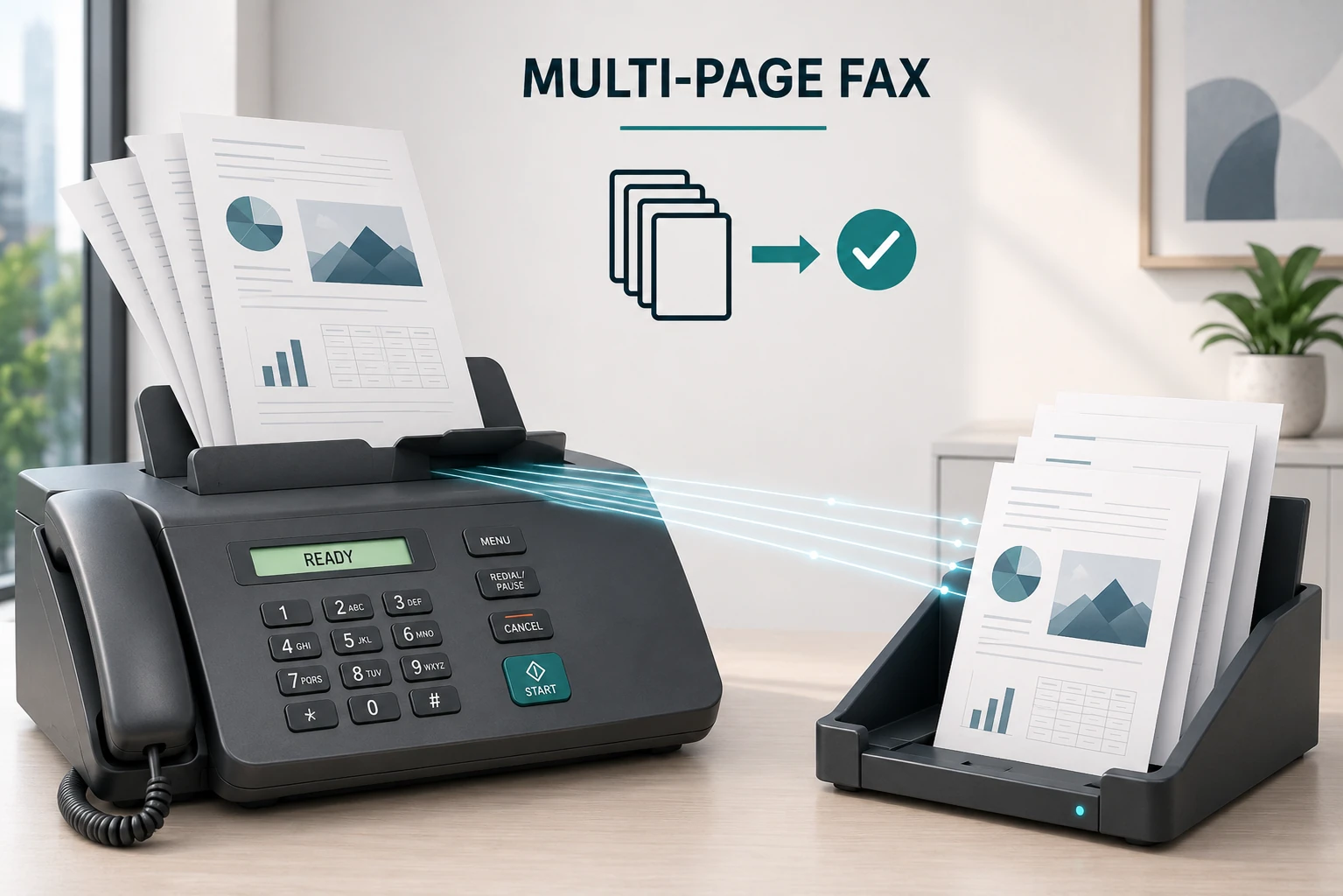
Sending several pages by fax comes down to stacking or combining them in the right order, then sending them as one job. On a physical machine, an automatic document feeder (ADF) handles a packet of roughly 10 to 50 sheets. Digital services like Municorn Fax let you submit a single file or merge several scanned pages, then send everything in one transmission.
The Basics of Sending Multiple Documents
A few things to keep in mind:
- Pages are sent and received in the order they’re loaded or uploaded.
- A paper jam or software hiccup may mean resending, so check the stack (or the upload) for missing pages.
- Most digital fax platforms let you preview the document before sending, which prevents mid-transmission surprises.
Page limits are rarely an issue. Most online fax services handle large multi-page documents, and the only real cap tends to be total file size.
Organizing and Collating Multiple Pages
Getting the order right sounds obvious, but it’s what sets up a clean, error-free fax. Start with a quick check: are all the pages there? A missing sheet can send half a contract or throw forms out of sequence. Stack the pages in the exact order the recipient should read them, and a single staple or clip keeps them from getting mixed up while they scan.
For speed, an automatic document feeder sends multiple sheets in one pass. Just load them neatly to avoid jams and double-feeds. With an online service like Municorn Fax, you send several pages at once and simply re-check the order on the preview screen before it goes.
Using a Cover Sheet Effectively
A cover sheet is the introduction that guides the rest of the fax. Include the sender’s name, contact details, and a clear recipient so it’s obvious who should receive the pages and how to reach back, plus the purpose of the fax so the recipient can prioritize and route it.
Skipping the cover sheet to save time is risky: if a page gets separated, or the fax lands on a shared machine, things get confusing fast. A cover sheet can also carry instructions like “Urgent” or “For Dr. Lee only,” which help avoid mix-ups. Keep it plain, with bold headings for “To,” “From,” and “Subject.” On an online platform you can use a ready-made template or type the details in. It’s a small step that cuts down on wrong deliveries and guesswork later.
Using Your Fax Machine’s Features
Most fax machines have tools that make sending several pages straightforward. The key is knowing how to use the document feeder, work with the scanner glass, and set the fax options so everything sends smoothly — whether it’s one long report or a stack of notes.
Setting Up the Automatic Document Feeder
The automatic document feeder (ADF) is what makes multi-page faxing fast: stack the pages and it pulls them in one after another, so you’re not standing there flipping sheets. Before loading, check the paper-width guides: if they’re off, the machine can pull pages in crooked and cut off part of the image. Set them snug, not tight, so sheets glide through. Unfold, flatten, and remove all staples first, especially with thicker paper or bent corners.
Newer machines have touch screens for choosing black-and-white or color. If multiple sheets feed at once or blank pages come through, the feeder is usually overloaded or dusty, and a quick wipe with a clean, dry cloth normally fixes it.
Scanning Pages With the Scanner Glass
Sometimes the feeder isn’t the right choice: old, fragile, or odd-sized documents can jam or get damaged. That’s where the scanner glass comes in. It’s slower but reliable: place the page face down, lined up to the corner arrow or guide.
For more pages it’s repetition: lift the lid, swap the page, repeat, checking each one is flat and wrinkle-free. On a long document it’s easy to lose track, so a quick tally helps you avoid missing a sheet. Most machines prompt you on screen after each scan, with a “Next Page” option so everything lands in one transmission rather than a dozen single-pagers.
Faxing Multiple Pages With an Online Fax Service
Sending a stack through an online fax service is quicker and cleaner than the paper shuffle. With a little prep and a few clicks you can handle even big bundles in minutes, with no jams or toner.
Upload and order your documents
Gather your files: PDFs, Word docs, images. In Municorn Fax, tap Upload and select as many as you need, then drag them into the right order in the queue. Give them a quick once-over for clarity and legibility, since what you see is what gets faxed.
Enter the recipient’s fax number
Type it carefully, including any area code or country prefix for international faxes. You can paste numbers from your contacts or email, save them to an address book, or create recipient groups for batch sends, then double-check before sending.
Send and confirm delivery
Tap Send Fax and watch each file upload and process in real time. You get a delivery status on screen and an email receipt once it’s through, plus a clear error message if the number’s wrong or the line’s busy, so you’re never left guessing. Save or print the receipt as proof of delivery.
Faxing Multiple Pages With a Fax Machine
Load your documents into the feeder
Stack the pages in the ADF with the edges straight, face-up or face-down as labeled on your device. Set the paper-width guides snug (too loose and pages skew or jam; too tight and the edges crumple), and lightly fan the stack for smooth feeding. Remove staples and flatten bent corners first. No feeder? Scan each sheet by hand on the glass.
Enter the correct fax number
Key it in carefully with any area code or international prefix: one digit off and the document ends up who knows where. If your machine can preview the recipient, check it. For high-volume sending, set up groups in your recipient list, and keep a quick reference of common contacts nearby.
Send and confirm delivery
Press send, usually a green button or a dedicated Send key. The feeder or scanner works through the pages, and the machine prints a confirmation once they’re through, so you know the whole batch arrived.
With classic fax machines, sending is that simple once the pages are stacked and the number’s dialed in.
The Bottom Line
It all comes down to prep: get your pages (or files) in order, double-check the recipient’s number, and add a cover sheet. Do one last order-check before you hit send. Whether you’re loading a feeder or dragging files into an app, the whole batch then goes as one clean transmission — with a delivery receipt to prove it arrived.